Model Troubleshooting and Quality Assurance
1. Overview
EP3 lets you build geometry, loads, and HVAC in any order. Model Validation checks the model before you simulate: what is missing, what will stop EnergyPlus, and what will run but not model what you intended (§2). After a run, the error viewer links each EnergyPlus message to the EP3 objects it names (§4), and the Error Log panel reports an EP3 action that failed (§5). §6 is a checklist for before and after a run. Running simulations is covered in Running Simulations, and results in Viewing and Interpreting Results.
2. Model Validation
2.1 Running a check
Click Validate in the top toolbar (The EP3 Interface and Model Settings). The EP3 - Model Validation dialog opens and checks the active EEM.
- The active EEM. A note at the top names the EEM being checked: the one chosen in the top toolbar’s EEM list. To check another EEM, choose it there; the dialog follows and checks it, or shows its earlier results if the model has not changed since. The ↗ links open objects as that EEM has them.
- Each EEM is checked as it is exported. An object off in the EEM is not checked, and a field that references it counts as blank (Energy Efficiency Measures (EEMs)). Check every EEM you plan to simulate.
- Category tabs. A row of tabs, one per category: Building Geometry, Constructions, Space & Zone Type Assignments, Schedules, Thermostats, Required Fields, Object Names, HVAC, Service Water Heating, EnergyPlus Version, and Export Errors & Warnings. A category with nothing to report has no tab. A badge is a red count of failures, an orange count of warnings, or a green ✓. The dialog opens on the first tab with an issue, and sections with issues start expanded.
- ↗ links open the object named, in the Selected Object dialog for a Space, surface, or window (The EP3 Interface and Model Settings) and in its dialog otherwise.
- Fix buttons. Add Floor, Grow Walls, Fix This, and Switch to Automatic Infiltration Backstop change the model. Nothing else in the dialog does.
- Update Check. The dialog does not re-check as you edit. Update Check re-checks the active EEM and clears the other EEMs’ results; reopening the dialog does the same. Grow Walls and the make-up air fix re-check on their own.
A failure marks a condition that stops EnergyPlus or leaves the model incomplete; a warning, one that runs but may not model what you intended.
2.2 Building Geometry
| Check | Fails when |
|---|---|
| Floors | The model has no Floor. Add Floor opens the new floor prompt. |
| Spaces | The model has no Space. Learn About Creating Building Geometry opens the EP3 website’s geometry page. |
| Exterior & Interior Walls | A Floor has no generated exterior walls. Grow Walls generates walls on every Floor. In Automatic mode (Creating Building Geometry) EP3 grows the walls itself and this button is not shown. |
| Roofs | The model has no roof surfaces. Grow Walls adds a flat roof over any floor with nothing above it. |
| Space Enclosure | A Space’s surfaces do not close a volume: every edge must be shared by exactly two surfaces, oriented consistently. |
| Assigned Constructions | Warning: a wall, roof, floor, door, window or glass door in this EEM has no construction. Walls, roofs and floors, doors, and windows are listed in separate groups, each surface by name. To fix it, set a default in Model Settings > Default Constructions (Doors for doors, Glazing for windows), set one on the Space Type or Space, or paint the surface. Shading surfaces have no construction and are not listed. |
| Unexpected Construction Types | A surface’s outside boundary in this EEM differs from its construction’s Expected Outside Boundary Condition (Any matches every boundary), or an opaque surface has a glazing construction (from a file saved before EP3 refused that). A construction an import marked Surface or Outdoors from most of its surfaces lists the remaining surfaces here (Importing EnergyPlus Files). |
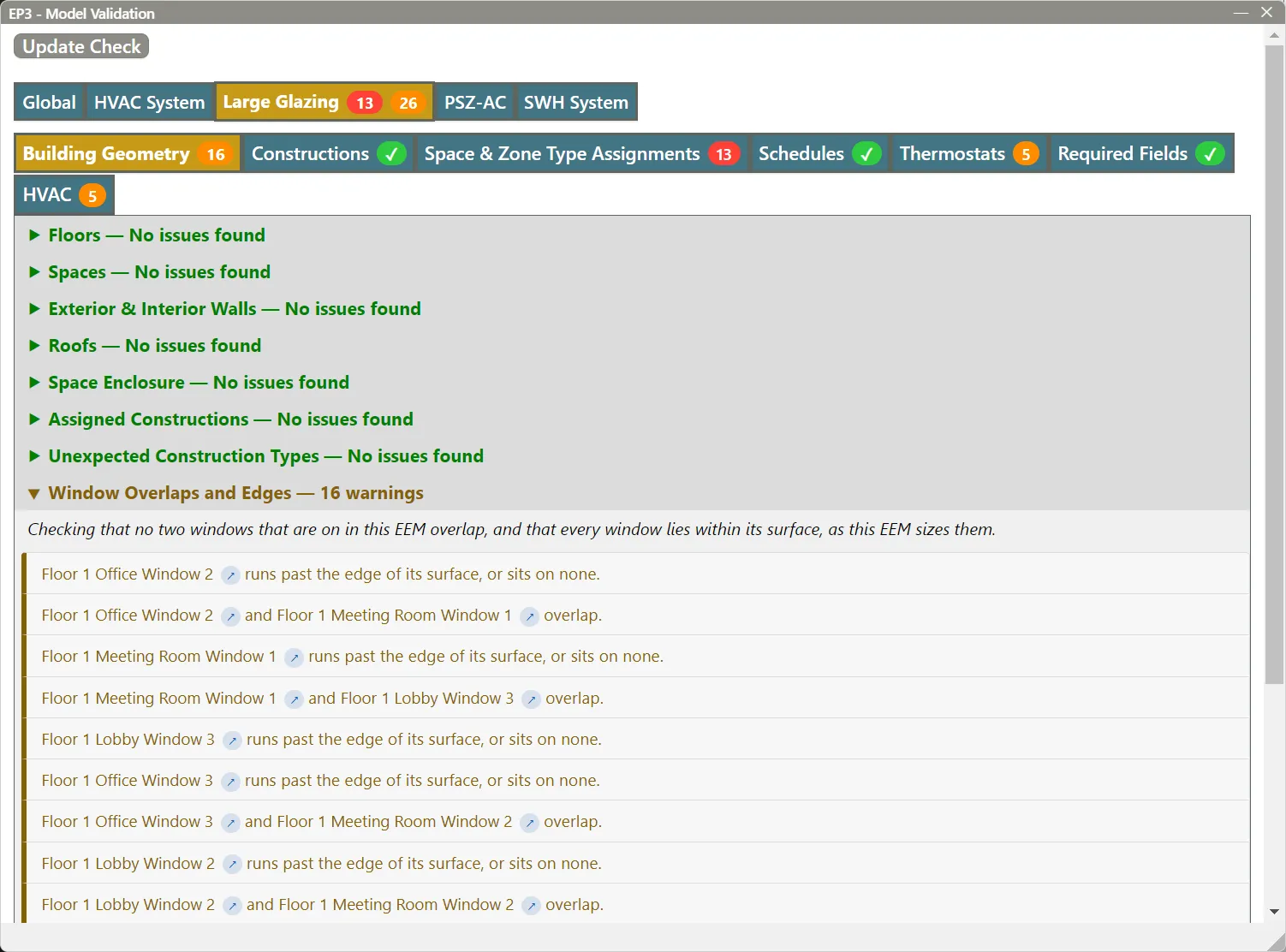
| Window Overlaps and Edges | Warning: two windows on in this EEM overlap, or a window runs past the edge of its surface or sits on none, at the sizes this EEM gives them. |
| Glazed Faces | Lists each wall or roof face painted with a glazing construction, with the glass EP3 writes for it (area, share of the face, and how many parts) (Creating Building Geometry). Fail: the face’s collection has no construction, so its surface has none. Warning: no part of the face is wide enough for glazing, or a part too small to model was left out. |
| Shading Properties | Lists each ShadingProperty:Reflectance with a glazed fraction above 0 and no glazing construction (fail: EnergyPlus rejects it), each shading transmittance schedule whose values go outside 0 to 1 (warning; only schedules EP3 can read hour by hour are checked), and each reflectance object that no shading collection or face uses (a note, not counted). Shown in the Building tab (Creating Building Geometry). |
| Weather File Location | Warning: the weather file’s station is more than 50 km from the model’s saved site location, as in “The weather file’s station <city> (<lat>, <lon>) is <distance> from the site location (<lat>, <lon>). Check that it is the right weather file for this site.”, or, when Site:Location gives an elevation, the station is more than 300 m higher or lower. Shown only when the model has a site location saved from the map tools and a readable weather file (Buildings and Surroundings from Maps). |
| Split Windows | Lists each window of more than four corners, which the export splits into rectangles and triangles, with its pieces and the objects that name it (Windows, Shading, and Daylighting). Warning: a sliver piece too small to model was dropped, an object tied to one window’s shape (an overhang, fin, light shelf, or tubular device) names it and is left out of the export, or a text field names it and reaches only the first piece. |
For an unexpected construction type, assign a construction meant for the surface’s boundary, or set the surface’s Outside Boundary Condition when the geometry cannot express the intended boundary (Creating Building Geometry).
EP3 refuses an edit that would make a window overlap another or cross its surface’s edge. A change that does so indirectly is made: an EEM’s parents, an OpeningType’s size, or a window switched back on (Windows, Shading, and Daylighting). Window Overlaps and Edges lists these, linking both windows of an overlap. Every EEM is checked, and the description names the other EEMs with conflicts, for example “Other EEMs with window conflicts: Large Glazing (2).”
2.3 Constructions
Assigned Layers fails a construction with no layers, and Layer Types one that mixes WindowMaterial:* and opaque layers. Four tables follow, in the model’s units: the R-value of each opaque construction; the U-factor, SHGC, and VLT of each glazing construction built from one WindowMaterial:SimpleGlazingSystem; the F-factor of each F-factor floor, with a check that its perimeter is within 10% of the geometry’s; and the C-factor and height of each C-factor wall. A construction the tables cannot calculate fails. Constructions and Materials (§4 to §6) explains each calculation.
2.4 Space & Zone Type Assignments
Space Type Assignments lists every Space with its Space Type and fails each Space with none. Zone Type Assignments does the same for Zones and Zone Types. A Space or Zone with nothing for a type to set, such as an unconditioned Zone, can be left failing. A check shows Not Applicable when the model has no types of that kind but has loads, thermostats, or sizing objects placed directly on Spaces or Zones, as imported models often do (Internal Loads, Space Types, and Zone Types).
2.5 Schedules
Each Schedule:Compact has a section with its Schedule Type Limits, its issues, and the loads and infiltration objects it is the primary schedule for. It fails a schedule that stops before 12/31, leaves out or repeats a day type in a Through block, has a value outside its limits, or, as a primary schedule, has a design day profile that does not suit its use. Schedules explains the design day rules.
2.6 Thermostats
Zone Thermostat Assignments lists each zone with its thermostats, including those from its Zone Type (in Selected Template mode, also a Zone Type the zone takes from its Spaces’ Space Type). A zone with none is a warning (an unconditioned zone, or one served only by air terminals or low-temperature radiant systems, needs none); one with more than one is a failure. The export leaves out the thermostat of a zone with no equipment in the EEM (Zone-Level HVAC Equipment and Zone Sizing). See Internal Loads, Space Types, and Zone Types.
2.7 Required Fields
The tab lists every object in the EEM that has a required field left blank with no default, grouped by object type, then by object, with the blank fields under each. Fields EP3 fills in at export, such as a loop’s branch lists, are not listed, nor are fields required only for a setting that is not chosen. A field that references an object off in this EEM is listed as blank. New equipment often appears here with its capacity and curve fields (Performance Curves).
2.8 HVAC
2.8.1 Zone-level checks
- Zone HVAC Equipment lists each zone with its Sizing:Zone, Thermostat, and Zone HVAC Object columns, counting each from the zone, its ZoneList, or its Zone Type as it is in the EEM. A Zone Type’s objects apply to every zone it covers, including, in Selected Template mode, a zone that takes the Zone Type from its Spaces’ Space Type. A conditioned zone needs all three: a
Sizing:Zone, a thermostat, and equipment that responds to the thermostat (a ZoneHVAC unit, baseboard, radiant system, ideal loads, or air terminal).Fan:ZoneExhaustand central exhaust systems only move air out and do not count as equipment. A zone with all three passes. A zone with some but not all fails, and its Missing column names what is absent (“No Sizing:Zone or zone equipment”), since EnergyPlus cannot size or control it. A zone with none is a warning: “Unconditioned zone: no Sizing:Zone, thermostat or zone equipment”.- A zone whose conditioning equipment is all low-temperature radiant systems passes without a thermostat, and without a
Sizing:Zonewhen every capacity and flow is entered; an autosized radiant system fails without aSizing:Zone, which it is sized from (on a variable flow unit only a connected heating or cooling side counts); the export applies the same rule. A zone served only by a constant volume no reheat terminal and without a thermostat is a warning: the zone floats. VAV, VAV reheat, powered induction and constant volume reheat terminals follow the zone’s load, so they need a thermostat and aSizing:Zone, as does any other unit sharing the zone. - A zone whose only equipment is a heat pump water heater is a warning: “Heat pump water heater only: it does not condition the zone, so the zone is effectively unconditioned unless other zone equipment is added”.
- A zone whose conditioning equipment is all low-temperature radiant systems passes without a thermostat, and without a
- VRV Terminal Unit List Assignments fails each zone’s VRF terminal that has no outdoor unit in the EEM. It appears when the model has VRF terminals or terminal lists.
Zone-Level HVAC Equipment and Zone Sizing covers assigning equipment and these checks.
2.8.2 Per-loop checks
Under Plant Loops and Air Loops, each loop in the EEM has a card headed with its design temperatures.
| Check | Loops | Result |
|---|---|---|
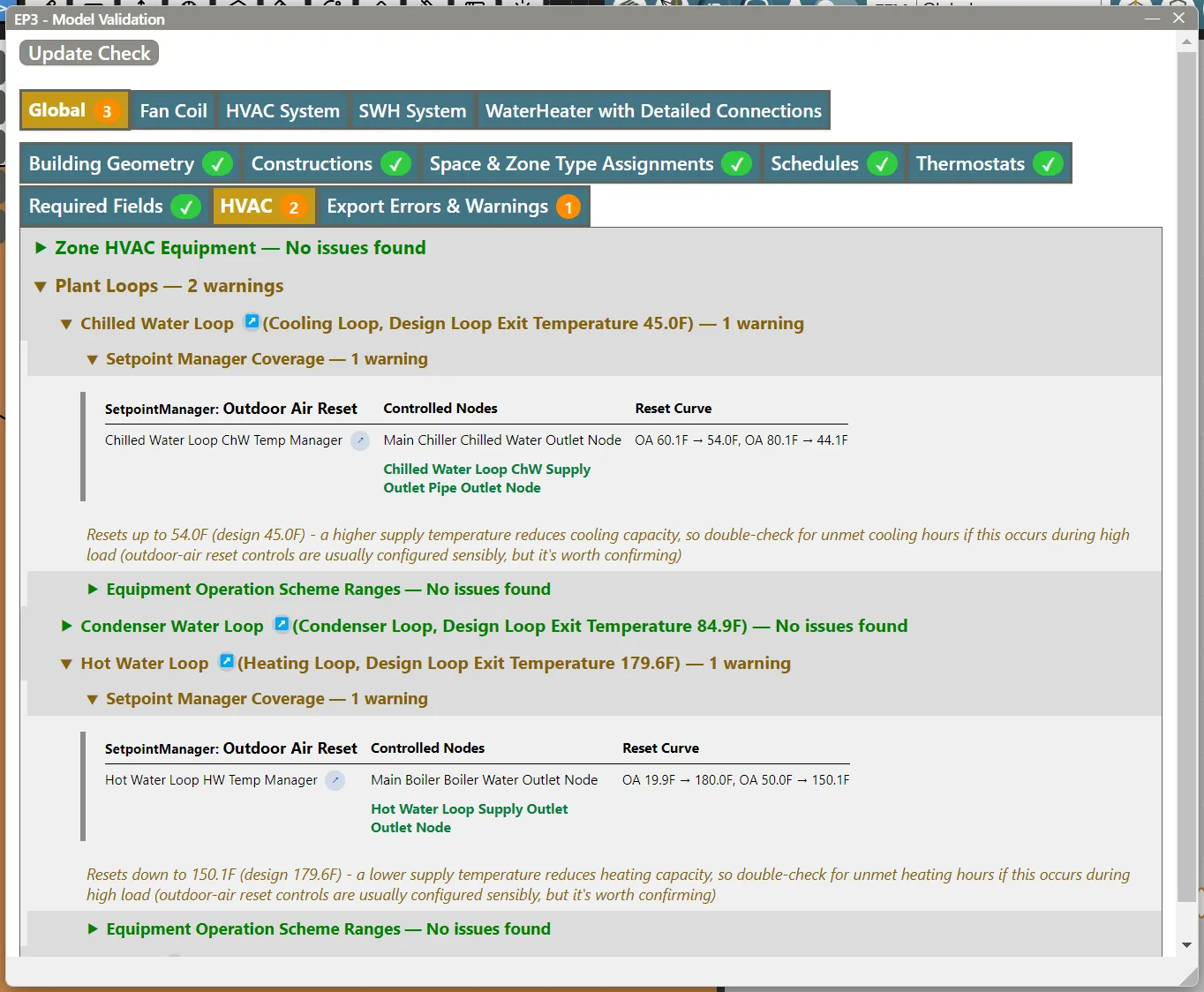
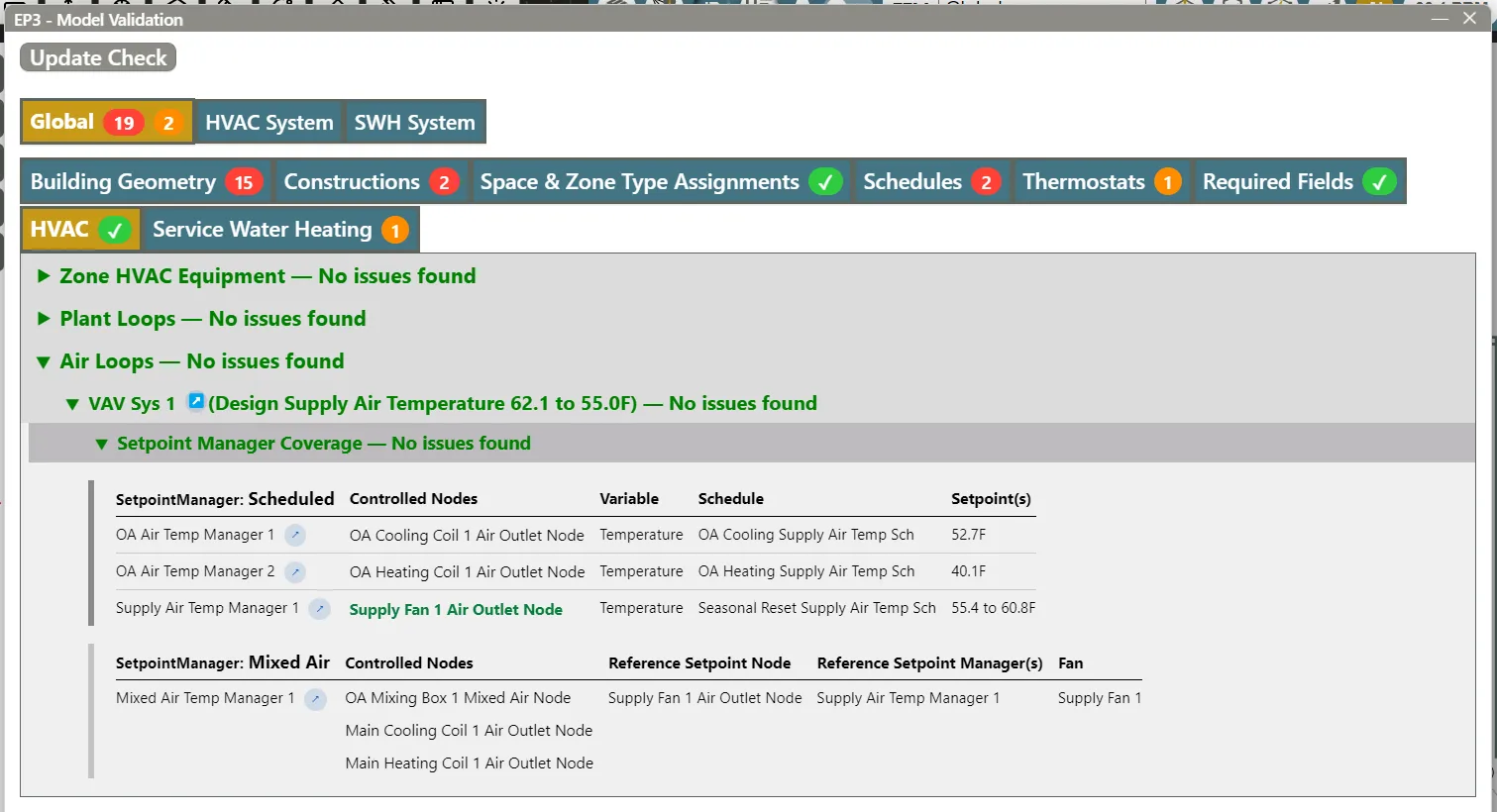
| Setpoint Manager Coverage | Both | Lists the loop’s setpoint managers. Fails an uncontrolled supply outlet and, on an air loop, an uncontrolled coil outlet or economizer mixed air node. Warns when the setpoint is more than 1 K (1.8°F) from the design temperature. Also checks plant resets, SetpointManager:MixedAir references, and nodes set by more than one manager. |
| Branch Components | Plant | Fails a side with no parallel branch that has a component. |
| Supply Side Pump | Plant | Fails a loop with no pump on its supply side. |
| Equipment Operation Scheme Ranges | Plant | Fails a heating or cooling load scheme with an incomplete range or a gap in its ranges. |
| Supply Branch Fan Type | Air | Fails a Fan:OnOff on the supply branch. |
Setpoint Manager Coverage reads the nodes the export writes. A setpoint manager on a water coil’s air outlet is listed on the air loop’s card. Each check is detailed in Air Loops, Branches, and Nodes and Central Plant Equipment and Plant Loops.
2.8.3 Exhaust Fan Make-Up Air
This check appears when the EEM has a Fan:ZoneExhaust and no AirflowNetwork multizone simulation.
- With no
ZoneAirMassFlowConservationin the EEM, the check fails, with Fix This. - With one that does not balance every zone with infiltration, it warns that make-up air depends on
ZoneMixing, which EP3 cannot verify, with Switch to Automatic Infiltration Backstop.
Both buttons set the object to AdjustReturnOnly, AddInfiltrationFlow, and AllZones, include it in every EEM, and report the change. Infiltration, Natural Ventilation and Airflow Networks explains the setting.
2.8.4 Equipment inputs
Each of these appears only when an object fails it:
- Fan:SystemModel Speeds fails a fan whose speed flow fractions do not increase from one speed to the next, and warns when several speeds are listed with Speed Control Method
Continuous, which ignores them (Fans and Fan Power). - Fan:VariableVolume Power Coefficients fails a fan whose five power coefficients are all blank, which gives zero fan power (Fans and Fan Power).
- Heat Exchanger Effectiveness warns when all four effectiveness values of a
HeatExchanger:AirToAir:SensibleAndLatentare 0, so it recovers nothing (Outdoor Air, Ventilation, and Energy Recovery).
2.9 Service Water Heating
- WaterUse:Equipment warns when the EEM has no
WaterUse:Equipment, so no service water heating load is simulated. - Service Water Heating warns when two or more
WaterUse:Connectionslist no equipment, and names the one that will take all the unlisted equipment at export. - WaterHeater:Mixed Tank Volume warns for each
WaterHeater:Mixedwith a Tank Volume of 0, which EnergyPlus models as an instantaneous heater.
See Service Hot Water and Solar Water Heating.
2.10 Object Names
This tab appears only when two curves or tables of different types share a name. Curve & Table Names lists each clash, with the name the curve is exported under until you rename it (Performance Curves).
2.11 EnergyPlus Version
This tab appears when the model is in an EnergyPlus version older than 26.2 and the EEM has something that version won’t write. It lists, with a link to each object:
- Values EnergyPlus ⟨version⟩ needs (failures) — a required field set to a choice the version doesn’t have, which the export leaves out. Enter a value or choose a newer version.
- Objects EnergyPlus ⟨version⟩ does not have, Fields EnergyPlus ⟨version⟩ does not have, and Choices EnergyPlus ⟨version⟩ does not have (warnings) — what the export leaves out.
- Other changes for EnergyPlus ⟨version⟩ (warnings) — objects written differently for that version, which can change the results.
EnergyPlus Versions covers what each means.
2.12 Export Errors & Warnings
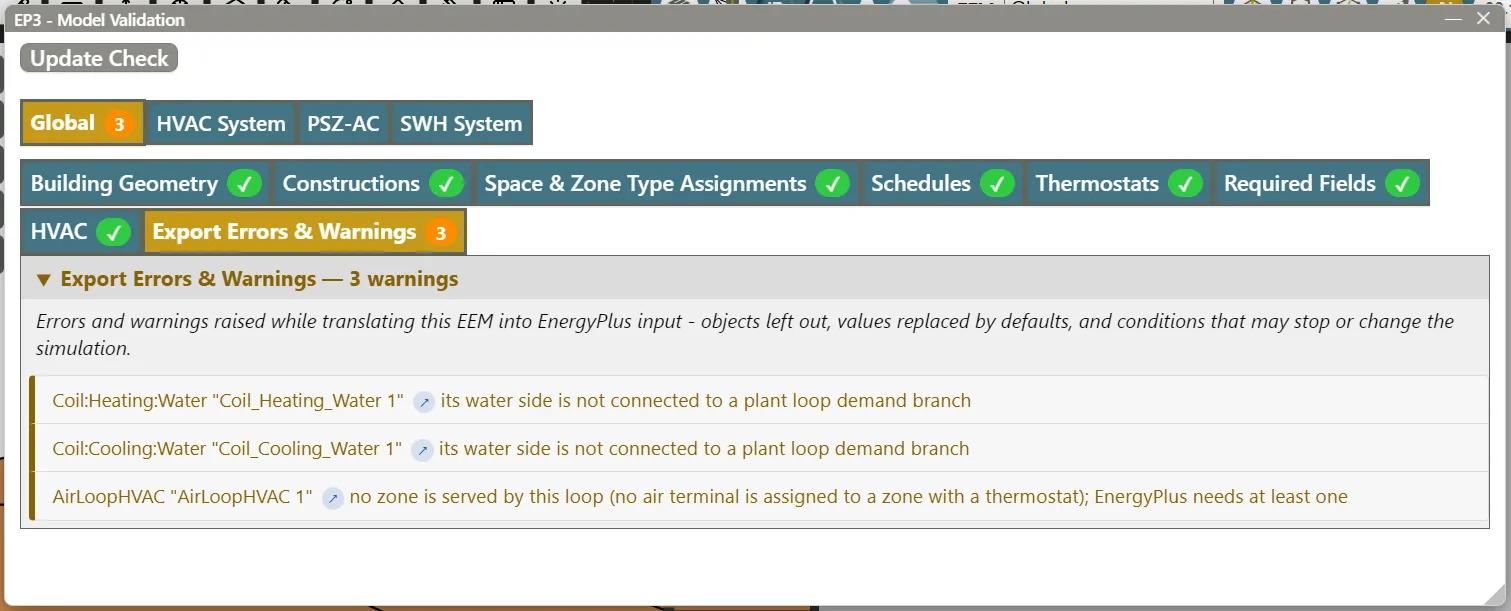
The last tab appears when writing the EEM’s EnergyPlus input raised errors (failures) or warnings, such as an air loop that serves no zone or a composite unit assigned to no zone. Each message links to its object. When a run fails, the Simulate dialog names the EEMs that did not run cleanly and has a Model Validation button that opens this dialog (Running Simulations).
3. Diagnosing unmet hours
The Results dialog’s Unmet Hours tab ranks zones by occupied unmet hours and checks the usual causes (Viewing and Interpreting Results). Atlas can explain them (The EP3 AI Assistant). A few hours at the weather extremes are expected; many, or hours spread through the year, point to a cause. Check, in this order:
- Equipment scheduled off while the zone is occupied: an availability or fan operating mode schedule (Schedules, Fans and Fan Power).
- Zone sizing that does not match the equipment (Zone-Level HVAC Equipment and Zone Sizing).
- A loop setpoint that misses its design temperature, which Setpoint Manager Coverage warns about (§2.8.2).
- Plant capacity short of what the coils ask for (Central Plant Equipment and Plant Loops).
- Design conditions milder than the weather the run sees (Weather, Climate, and Design Conditions).
To see what the equipment did in those hours, request node data before simulating and view it in the Timestep Viewer (Air Loops, Branches, and Nodes, Viewing and Interpreting Results).
4. Reading EnergyPlus errors
4.1 Opening a run’s errors
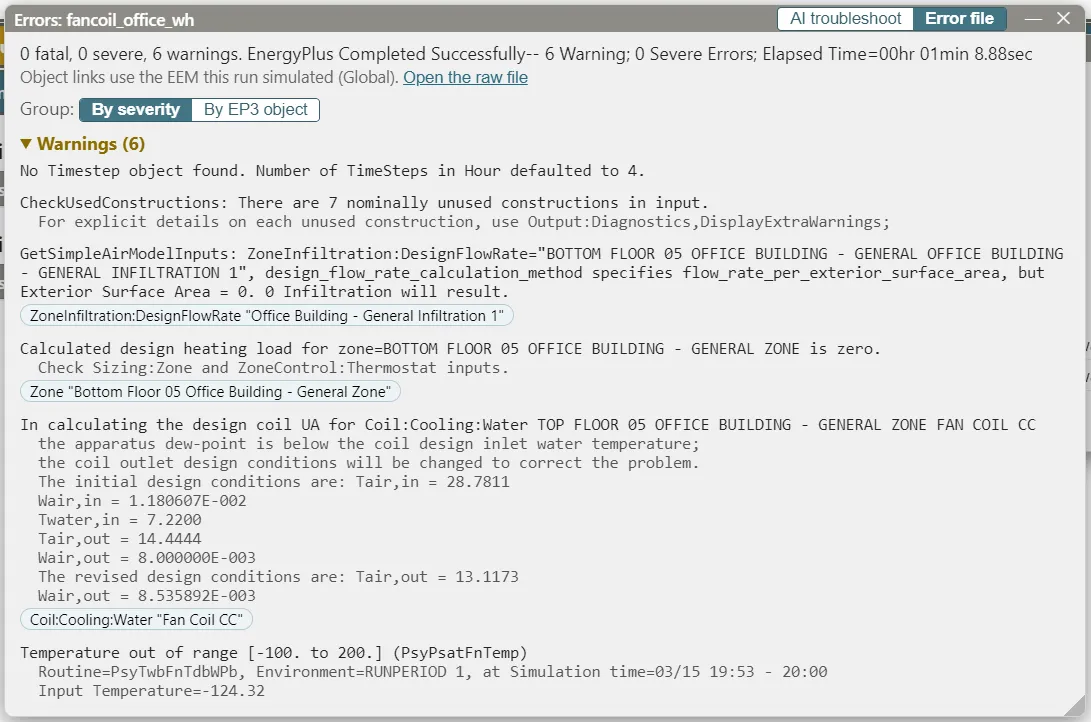
The Results dialog’s Simulation Status panel has a button for each run: ✅ for a run with no severe or fatal errors, a gold ✓ for severe errors, and ❌ for a fatal error or a missing .err file. Its tooltip gives the counts. Click it to open the error viewer, titled Errors: and the run’s name (Viewing and Interpreting Results).
The viewer’s header gives the counts and EnergyPlus’s completion line, names the EEM its links use, and has Open the raw file, which opens the .err file in the application the system uses for it.
When a run was simulated with incognito set differently from the model now, its names do not match the model’s; the viewer says so and offers a button that simulates the EEM again in the current mode.
4.2 Grouping
Group: sets how messages are listed, and the choice is remembered:
- By severity lists the messages under Fatal, Severe, and Warnings. Warnings starts collapsed when there are 30 or more.
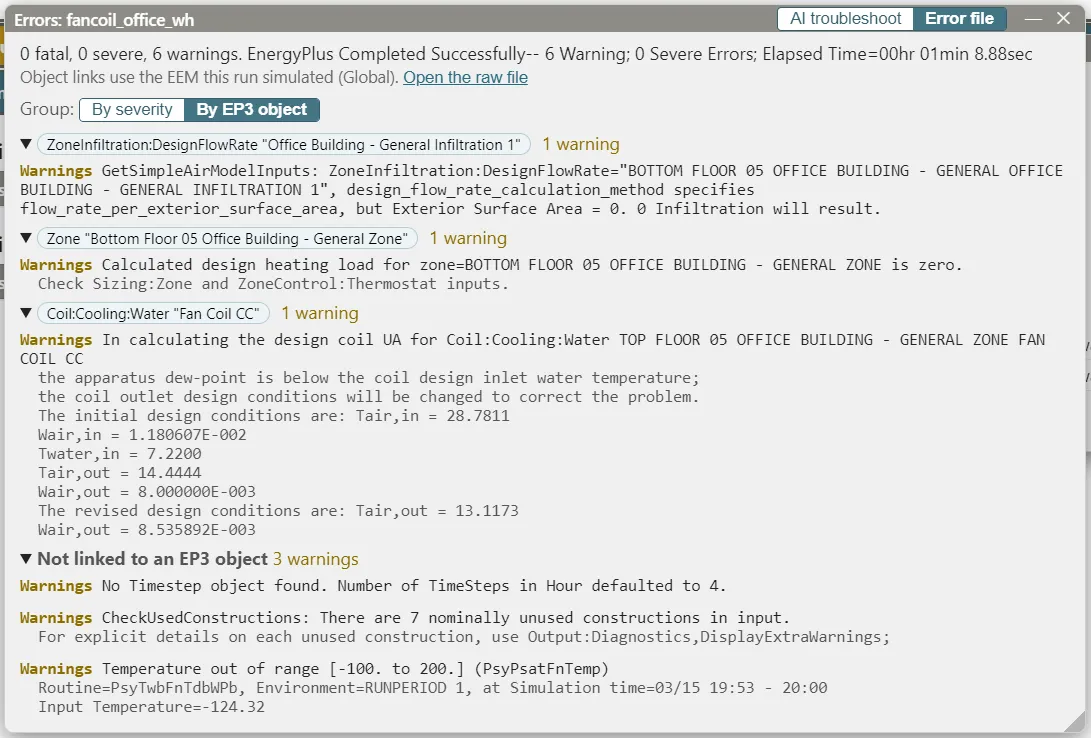
- By EP3 object lists, under each EP3 object, every message that names it, with the object’s counts in its heading. Objects with fatal and severe messages come first; messages that name no EP3 object come last, under Not linked to an EP3 object. A message that names two objects appears under both. Use this view to fix one object at a time.
In both, identical messages are folded into one with a count (×12), and continuation lines are indented below their message.
4.3 Links to EP3 objects
EP3 links the object names in each message to the EP3 objects that wrote them, including objects written at export and the <zone> <object> copies EnergyPlus makes of an object assigned to a ZoneList. Under By severity the links are chips below the message, each the object’s type and name; under By EP3 object they head the groups. Click one to open the object (not a field). Links use the EEM the run simulated, or Global when the run is not linked to one.
4.4 AI troubleshoot
AI troubleshoot, in the header, opens Atlas beside the errors, on a conversation about the run, in the EEM the run simulated. Error file shows the errors alone. AI troubleshoot needs Atlas set to Analysis or Full for the model; otherwise the switch stays on Error file. With no AI provider set up, choosing AI troubleshoot opens Atlas’s provider settings. See The EP3 AI Assistant.
4.5 Reading the messages
EnergyPlus writes the .err file in the order the run proceeds: input processing, sizing, then each simulated period (Output Details and Examples: eplusout.err).
- Fatal stops the run. The fatal message often says only that earlier errors caused the termination; the cause is in the severe messages before it.
- Severe is an error that leads to a fatal one or makes the results unreliable. Fix every severe error.
- Warnings often report a default EnergyPlus applied or an input outside its expected range. Read those about sizing and curves.
A recurring message is summarized with the number of times it occurred. Fix the cause in EP3, run Validate, and simulate again.
5. The Error Log panel
When an EP3 action, an undo, or a redo fails, the status bar reports "<action>" failed: <message>, the action makes no change, and the Error Log panel opens at the top left of the 3D view. It lists the errors newest first, each with its time, the action, and the message. Copy copies them, Export saves them, with their technical detail, to a file named ep3-error-log.txt, and × closes the panel. Include that file when you report a problem with EP3.
6. A quality assurance checklist
Before simulating:
- Weather file and design days suit the site (Weather, Climate, and Design Conditions).
- Geometry passes Building Geometry in every EEM (Creating Building Geometry).
- Constructions: the R-values, U-factors, and SHGCs on the Constructions tab match the design documents (Constructions and Materials).
- Space Types and Zone Types are assigned, with the right load densities and thermostats (Internal Loads, Space Types, and Zone Types).
- Schedules pass, and their occupied hours match the building’s operation (Schedules).
- Each conditioned zone has one thermostat and its zone equipment (Zone-Level HVAC Equipment and Zone Sizing).
- Loops pass their cards (Air Loops, Branches, and Nodes, Central Plant Equipment and Plant Loops).
- Outdoor air and economizers match the design (Outdoor Air, Ventilation, and Energy Recovery).
- Fan power matches the design (Fans and Fan Power).
- Service hot water loads and tanks are in place (Service Hot Water and Solar Water Heating).
- The EnergyPlus version is the one the project calls for, and its EnergyPlus Version tab has no failures (EnergyPlus Versions).
- The EEMs chosen for the run are the ones intended, and each has been validated (Energy Efficiency Measures (EEMs)).
After a run:
- No fatal or severe errors, and the warnings read (§4).
- Autosized capacities and flows are plausible in the Component Sizing Summary (Viewing and Interpreting Results).
- Unmet hours are low (§3).
- End-use energy is plausible for the building type, and each EEM changes the end uses it targets (Viewing and Interpreting Results).
This handbook is also built into EP3 (Help), where its EnergyPlus links open the EnergyPlus Reference. Technical specifications · Book a demo