Schedules
1. Overview
A schedule is EnergyPlus’s mechanism for a value that varies over time. Dozens of other objects reference one by name wherever they need a time-varying input instead of a single fixed number: occupancy and lighting fractions, equipment availability, thermostat setpoints, fan operating mode, an outdoor-air-reset target, and many more.
This chapter covers the schedule objects: the object types EP3 offers, how to build a full year of data with each, and the tools EP3 gives for editing them. What a schedule means to the object that uses it (a fan’s availability schedule as opposed to its operating mode schedule, for instance) is covered in the chapter for that object (§8). Schedules are under Schedules in the main object dialog.
Every schedule resolves to one value per hour (or per time step) for every hour of the year. EP3 offers four ways to build one:
Schedule:Compact(§3) — the usual choice, and the one with a graphical editor.Schedule:Year, assembled fromSchedule:Week:DailyorSchedule:Week:CompactandSchedule:Day:*objects (§4).Schedule:Constant(§5) — one value all year.Schedule:File(§6) — values read from a file prepared before the simulation.
2. Schedule Type Limits
Every schedule, including the Schedule:Day:* objects, names a ScheduleTypeLimits in its Schedule Type Limits Name field. The limits object holds no data; it defines the valid range and meaning of the schedule’s values:
- Lower Limit Value / Upper Limit Value — the valid numeric range.
- Numeric Type —
Continuous(any value in range) orDiscrete(integers only). - Unit Type — a category describing what the numbers mean:
Temperature,DeltaTemperature,Percent,Power,Capacity,Velocity,ActivityLevel,Angle,Availability,Control,ConvectionCoefficient,Mode,PrecipitationRate, or the default,Dimensionless.
Every new model has five ScheduleTypeLimits:
| Name | Lower Limit | Upper Limit | Numeric Type | Unit Type | Typical use |
|---|---|---|---|---|---|
| Fraction | 0 | 1 | Continuous | Dimensionless | Occupancy/lighting/equipment operating fraction; most availability and multiplier schedules |
| Temperature | -60 | 200 | Continuous | Temperature | Setpoint schedules, outdoor-air-reset targets |
| On Off | 0 | 1 | Discrete | Dimensionless | Binary on/off schedules |
| Control Type | 0 | 4 | Discrete | Dimensionless | Zone Control Type schedules driving ThermostatSetpoint:* selection (0–4: Uncontrolled/Heating/Cooling/Heat-Cool/Dual-Setpoint) |
| Any Number | (none) | (none) | (none) | (none) | Values that shouldn’t be range-checked at all — e.g. an Activity Level schedule in W/person |
Schedule values are stored in SI. Only two unit types are converted for display: Temperature and DeltaTemperature, whose values show in °F in IP units. A schedule of any other unit type (Power, Velocity, Capacity, and the rest) shows and stores the numbers you enter as they are, in either unit system. The limits also set the graphical editor’s axis and the range and discrete-value checks of Model Validation (§7).
3. Schedule:Compact
Most schedules built in EP3 are Schedule:Compact. It uses EnergyPlus’s compact schedule grammar: one or more Through: blocks in date order (each covering the calendar up to a date), each with one or more For: lines naming the day types it applies to, each followed by Until: lines giving a value that holds up to a time.
3.1 Structure
The blocks must reach 12/31, and within each block every day type must be covered exactly once, either by name (Monday through Sunday, Holiday, SummerDesignDay, WinterDesignDay, CustomDay1, CustomDay2) or through a group (Weekdays, Weekends, AllDays, AllOtherDays).
3.2 Editing a schedule
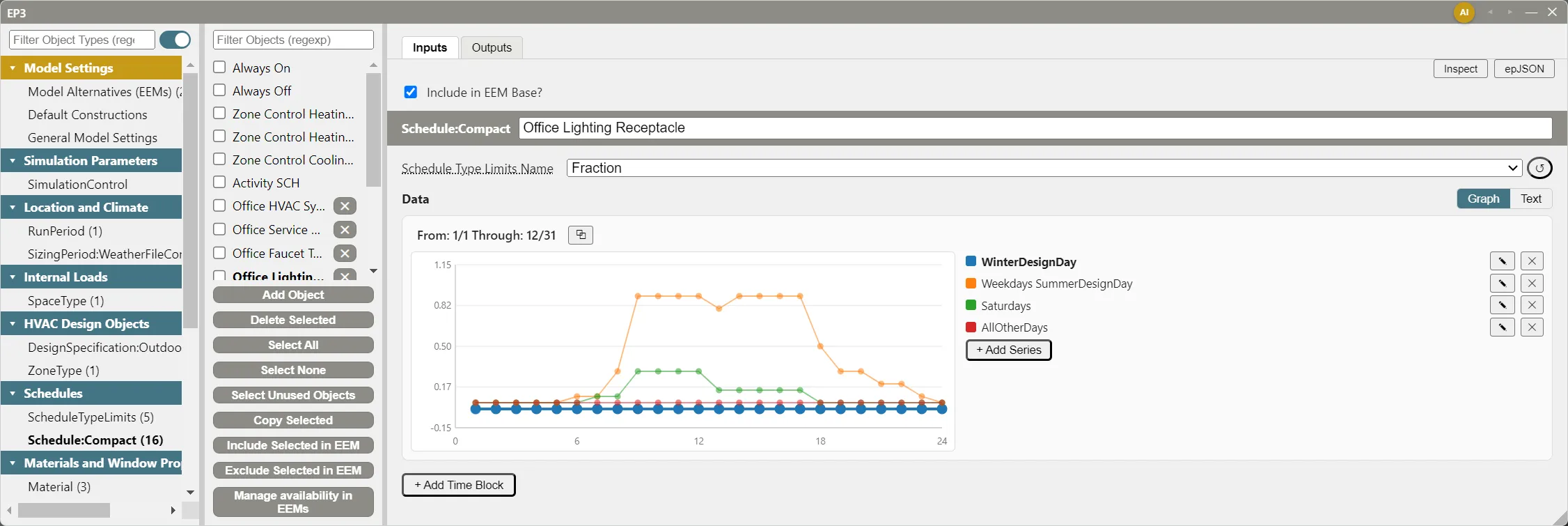
A Schedule:Compact’s Data has two views, switched with the Graph and Text buttons beside it:
- Text — the raw
Through:/For:/Until:text, which you can type or paste (comma, semicolon, or line separated). It is the only view for a schedule with sub-hourlyUntil:times (Until: 7:30), which the graph cannot show. - Graph (the default) — one chart per
Through:block, headed by its date range (From: 1/1 Through: 12/31), with one line per group of day types across the 24 hours.
In the graph:
- Choosing a line to edit. Click a series in the legend to make its points editable; only that series’s points can be dragged, since points of several series often overlap.
- Changing values. Drag a point up or down (values stay within the schedule’s limits), or right-click a point to type an exact value. Select several points to set them all at once.
- Series. + Add Series adds a line, choosing its day types and a starting value; the ✎ beside a series changes which day types it covers, and its ✕ removes it. The day-type choices list only day types no other series in the block covers, so a block’s day types always divide without gaps or overlaps.
- Time blocks. + Add Time Block splits the year at a date you pick on a calendar, the ⧉ beside a block’s title copies it, and clicking a block’s title changes its Through date. Blocks stay in date order, and removing the last block makes the one before it run through 12/31.
Edits are saved as you make them, and Ctrl+Z undoes them.
3.3 EP3’s built-in default schedules
Every new model also has these Schedule:Compact objects:
- Always On / Always Off — constant 1 / constant 0,
Fractiontype. - Zone Control Heating Cooling Type Schedule / Zone Control Heating Only Type Schedule / Zone Control Cooling Only Type Schedule — constant
Control Typevalues (4, 1, and 2 respectively) for the three corresponding thermostat control modes. - Activity SCH — a constant value under the
Any Numbertype, used as a default People Activity Level schedule.
Objects that need a constant schedule, such as a thermostat’s control type or always-available equipment, use these.
4. Schedule:Year, Schedule:Week:Daily, Schedule:Week:Compact, and Schedule:Day:*
Schedule:Year builds a full year out of smaller, reusable pieces instead of one continuous block of text:
- A
Schedule:Year’s Schedule Weeks field is a table of rows, each pairing a Schedule Week Name with a Start Month/Start Day/End Month/End Day date range. - Each row points at either a
Schedule:Week:Daily— which names oneSchedule:Day:*object for each of 12 required day-type fields (Sunday through Saturday, Holiday, SummerDesignDay, WinterDesignDay, CustomDay1, CustomDay2) — or aSchedule:Week:Compact, whose Data field instead takes a table ofDaytype List/Schedule Day Namepairs, grouping day types the same way aSchedule:Compact’sFor:line does rather than requiring a separate field per individual day. - Each
Schedule:Day:*object supplies one day’s worth of values, in one of three forms:Schedule:Day:Hourly(24 explicit Hour 1–Hour 24 fields),Schedule:Day:Interval(a table ofTime/Value Until Timepairs, the same Until-time structure asSchedule:Compactbut as literal rows instead of free text), orSchedule:Day:List(a fixed-size Minutes per Item interval, giving one value every N minutes rather than at named times).
These objects have no graphical editor; each is edited through its fields in the main object dialog.
Use Schedule:Year to keep a schedule that is already built this way (from an imported EnergyPlus file, a library, or a reference standard), or when one weekly pattern recurs in several separate date ranges and one Schedule:Week:* can serve them all. For a schedule built from scratch, Schedule:Compact and its graphical editor are more direct.
5. Schedule:Constant
Schedule:Constant holds one Hourly Value, used for every hour of the year.
6. Schedule:File
Schedule:File reads its values from an external file instead of storing them in the object itself:
- File Name — path to the file.
- Column Number — which column holds the values.
- Rows to Skip at Top — header rows to ignore.
- Number of Hours of Data — 8760, or 8784 for a run period spanning a leap year.
- Column Separator — Comma, Semicolon, Space, or Tab.
- Interpolate to Timestep — how to reconcile the file’s resolution with the simulation timestep (No / Average / Linear).
- Minutes per Item — the file’s resolution (60 for hourly data).
- Adjust Schedule for Daylight Savings — whether to shift the file’s values for daylight savings, or use them exactly as given.
Schedule:File lets you compute a value for every hour of the year outside EnergyPlus, in a spreadsheet or a script, whenever the value depends only on something known before the simulation runs. The weather file’s hourly data (dry-bulb temperature, for instance) is known in advance; a zone’s temperature or a unit’s output is not, since it comes from the simulation. The same applies to any pattern you can define ahead of time and want identical across runs: an irregular, hour-by-hour occupancy pattern for a hotel, say, where which rooms are occupied on which night should not change between the base model and an EEM, can be generated once, saved to a file, and referenced the same way.
EP3 does not read or convert the file. EnergyPlus reads its values at simulation time, so every value must already be in the units EnergyPlus expects (°C for a temperature schedule), whichever unit system the model displays. The file’s path is written to the export as it is, so incognito mode cannot hide it.
covers the object’s fields in full.
Worked example: an outdoor-air-reset hot water supply temperature schedule
Suppose a heating hot water loop’s supply temperature should reset with outdoor air temperature along a four-point curve — more breakpoints than a single SetpointManager:OutdoorAirReset object’s two-segment reset can express for one setpoint node list ():
| Outdoor Air Temperature | Hot Water Supply Setpoint |
|---|---|
| ≤ 10°F | 180°F |
| 30°F | 160°F |
| 50°F | 140°F |
| ≥ 65°F | 120°F |
with linear interpolation between adjacent breakpoints.
Building the file:
- Take the hourly dry-bulb temperature column from the model’s weather file, which is known before the simulation runs. Weather, Climate, and Design Conditions covers where that file is assigned.
- For every hour, apply the reset curve to that hour’s temperature (interpolating between the two nearest breakpoints, clamping at the two ends) to get that hour’s setpoint.
- Convert every resulting value from °F to °C — the units a Temperature-type schedule needs internally, independent of which units your model displays in (see the limitation above).
- Save one column of 8760 values (8784 for a leap year) as a CSV, with as many header rows as you’d like
Rows to Skip at Topto skip. - Create the
Schedule:Fileobject: File Name pointing at the CSV, Column Number = the column holding your computed values, Rows to Skip at Top matching your header, Number of Hours of Data = 8760, Column Separator = Comma, Minutes per Item = 60, Interpolate to Timestep = Linear or Average if your simulation timestep is finer than hourly, Adjust Schedule for Daylight Savings per your project’s convention. - Reference the
Schedule:File’s name wherever a Schedule Name field wants it — aSetpointManager:Scheduled’s Schedule Name, in place ofSetpointManager:OutdoorAirReset.
Checking one hour’s value: take an hour where the weather file reports 15°F outdoor air temperature, between the 10°F/180°F and 30°F/160°F breakpoints:
fraction = (15 − 10) / (30 − 10) = 0.25 Setpoint = 180 − 0.25 × (180 − 160) = 175°F
Converted to the °C the file actually stores: (175 − 32) × 5/9 = 79.4°C.
Check via the same interpolation done in °C directly: 10°F = −12.2°C, 30°F = −1.1°C, 180°F = 82.2°C, 160°F = 71.1°C, and 15°F = −9.4°C:
fraction = (−9.4 − (−12.2)) / (−1.1 − (−12.2)) = 2.8 / 11.1 = 0.25 Setpoint = 82.2 − 0.25 × (82.2 − 71.1) = 79.4°C — converting back, (79.4 × 9/5) + 32 = 175.0°F, matching the first path.
7. Validation and design-day profiles
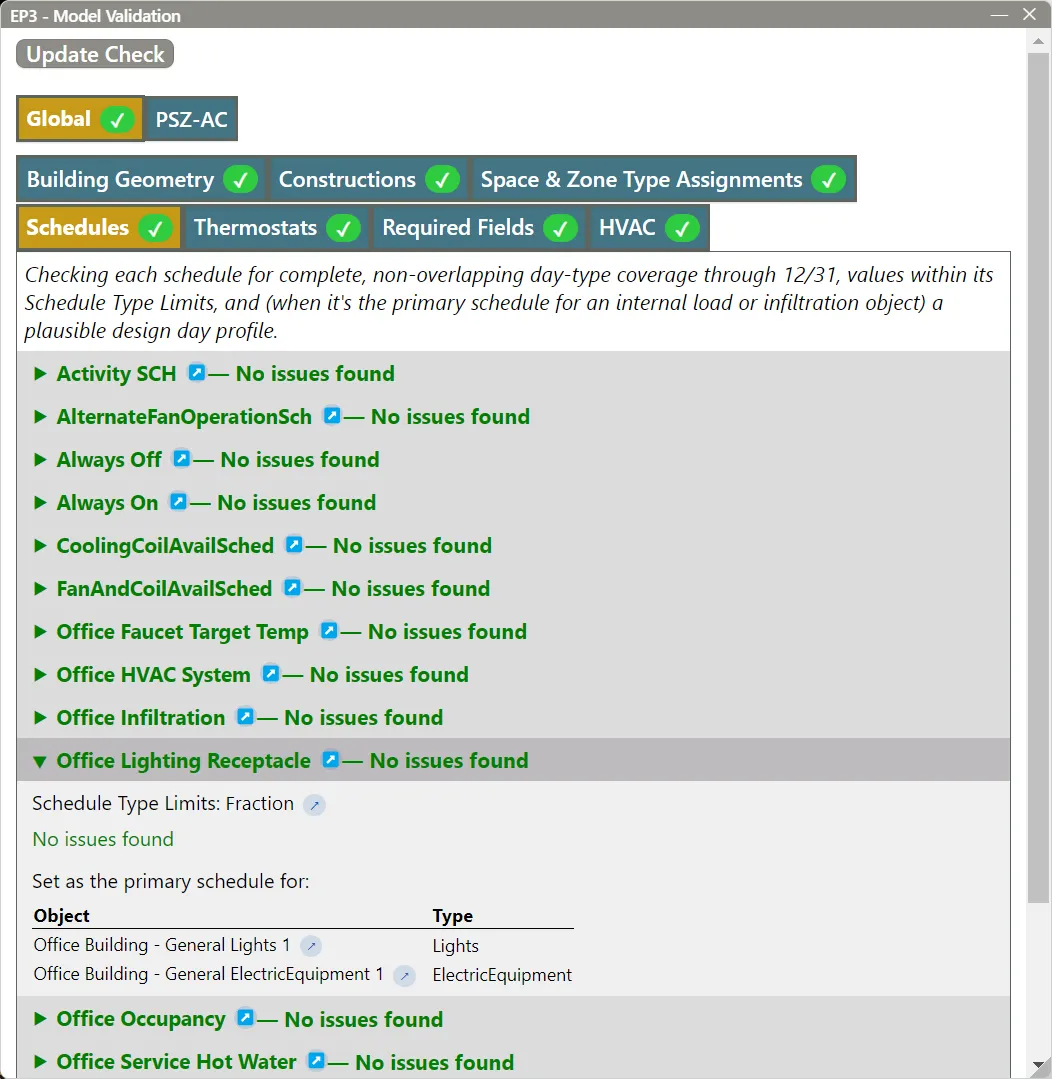
Model Validation’s Schedules tab (Validate in the top toolbar; Model Troubleshooting and Quality Assurance) checks each Schedule:Compact for day-type coverage through 12/31, values within its limits, and, where it is the primary schedule of an internal load or infiltration object, its design-day profiles. Each schedule has a section that names its limits, lists its issues, and lists the objects it is the primary schedule for.
A schedule’s SummerDesignDay and WinterDesignDay values drive the sizing runs, and what they should be depends on what the schedule drives.
SummerDesignDay, regardless of what the schedule drives, should equal the schedule’s own typical annual peak value — cooling design sizing assumes the coincident peak condition, so a design-day value lower than the schedule’s normal peak understates the cooling load the equipment needs to handle.
WinterDesignDay differs depending on what the schedule is the primary schedule for:
- Infiltration (
ZoneInfiltration:DesignFlowRate,ZoneInfiltration:EffectiveLeakageArea,ZoneInfiltration:FlowCoefficient) — WinterDesignDay should equal that same annual peak value. Infiltration doesn’t stop because it’s a design day; using anything less than the typical peak understates the heating load the equipment needs to overcome. - Internal loads (
People,Lights,ElectricEquipment,GasEquipment,OtherEquipment) — WinterDesignDay should be zero for every hour. Heating design sizing conventionally assumes no internal gains at all, so the equipment is sized for the worst case rather than one that credits gains that may not be there when they’re needed most.
A schedule that is the primary schedule of both an infiltration object and an internal load is flagged: the two need different WinterDesignDay values, so give one of them its own schedule.
The check looks only at an object’s primary schedule field (a People object’s Number of People Schedule Name, for instance). A schedule used elsewhere, such as a People object’s activity schedule, is not checked against these rules, so a schedule with no objects listed may still be in use.
8. Covered elsewhere
- Availability and fan operating mode schedules — Fans and Fan Power.
- The schedules templates use (thermostats, loads, and zone equipment settings) — Internal Loads, Space Types, and Zone Types.
- Model Validation’s other checks — Model Troubleshooting and Quality Assurance.
This handbook is also built into EP3 (Help), where its EnergyPlus links open the EnergyPlus Reference. Technical specifications · Book a demo