Weather, Climate, and Design Conditions
1. Overview
Every EP3 model uses climate data in two ways. The annual simulation runs against a full year (or a chosen part of one) of hourly weather from the model’s .epw file. Sizing calculations run against a handful of SizingPeriod objects representing extreme or statistically defined days. The two are configured through different objects and serve different purposes: the annual run predicts energy use and comfort over time, and the design days size equipment for worst-case conditions without oversizing it for conditions that occur only a few hours a year.
This chapter covers assigning a weather file, Site:Location data, the SizingPeriod objects that set sizing conditions, and the RunPeriod object that bounds the annual simulation. Zone-Level HVAC Equipment and Zone Sizing covers what Sizing:Zone, Sizing:System, and Sizing:Plant do with the results, and Heating and Cooling Loads covers how a full annual load profile is built from the same weather inputs.
2. Assigning a weather file
2.1 The model’s weather file
Every model has one primary weather file, set in the main object dialog under Model Settings > General Model Settings > Weather File (or on the Model Wizard’s Model Settings tab). The button shows the file’s name, or “No Weather File Selected for the Project” when none is set; clicking it opens a file browser filtered to .epw files. EP3 stores the file’s full path. When you open a model whose weather file is not at that path (the model was sent to you, or the files moved), EP3 looks for a file of the same name in the model’s own folder, then in your Weather files folders (File > Settings…, under Library Locations). If it finds one, the status line names the folder with a Use it button; press it to point the model, and any EEM that named the same file, at the file found. Nothing changes until you press it. If no file is found, or the file was renamed, assign it again. To share a model, put its .epw file beside the .ep3.
Select Weather File starts in the first Weather files folder when you have set one, else in the folder you last picked a weather file from.
EnergyPlus installs a few weather files in its WeatherData folder. Weather files for thousands of locations are available from EnergyPlus and from Climate.OneBuilding.Org; each download usually includes the .epw file, a .ddy file of design days (§4.3.2), and a .stat summary.
2.2 A weather file is required to simulate
The Simulate dialog checks that every EEM being simulated has a weather file. If one does not, it names the EEM and asks you to set a weather file in Model Settings or on the EEM. Export Only writes the epJSON files without one.
2.3 Weather files by EEM
An EEM can use its own weather file in place of the model’s, which is useful for comparing a project against several climate scenarios or for an alternative that must use different weather data. Set it with the Weather File field of the EEM, in Model Settings > Model Alternatives (EEMs). An EEM without its own weather file uses the model’s. Energy Efficiency Measures (EEMs) covers EEMs.
3. Site location data (Site:Location)
Site:Location holds the latitude, longitude, time zone, and elevation EnergyPlus uses for solar position. EP3 does not create this object: with no Site:Location in the model, EnergyPlus uses the weather file’s location. Create a Site:Location object (under Location and Climate in the main object dialog) only when you need to override the weather file’s location, for example when the site differs meaningfully from the weather station the .epw represents.
| Field | Notes |
|---|---|
| Latitude | + is North, − is South |
| Longitude | − is West, + is East |
| Time Zone | Relative to GMT |
| Elevation | |
| Keep Site Location Information | See below |
If you create the object, also set Keep Site Location Information to Yes. At its default of No, EnergyPlus replaces the values you entered with the weather file’s location at simulation time, and the override has no effect.
Caution: EP3 does not update a
Site:Locationobject when the model’s weather file changes. If you create one to override the weather file’s location and later assign a different weather file, theSite:Locationobject still holds the old location, so EnergyPlus computes solar position for one place against another place’s climate. EnergyPlus reports the discrepancy in its error file. Delete or update the object whenever you change the weather file.
Worked example. The weather files for Washington Dulles International Airport, which install with EnergyPlus, include this location in their .ddy file:
Site:Location,
  Washington Dc Dulles IntL Ar_VA_USA Design_Conditions,
      38.98,     !- Latitude {N+ S-}
     -77.47,     !- Longitude {W- E+}
      -5.00,     !- Time Zone Relative to GMT {GMT+/-}
      82.00;     !- Elevation {m}
To override the weather file’s location with these values (Latitude 38.98, Longitude −77.47, Time Zone −5.00, Elevation 82.0 m, or 269 ft), create a Site:Location object, enter them, and set Keep Site Location Information to Yes. With no reason to override, leave the model without a Site:Location and let the weather file govern.
Site:VariableLocation, for a building whose location changes during the simulation (a ship, for example), is outside this chapter’s scope; it also needs a weather file that follows the changing location.
4. Sizing periods and design days
4.1 The three SizingPeriod:* object types
EP3 offers all three EnergyPlus SizingPeriod:* object types, under Location and Climate in the main object dialog:
SizingPeriod:DesignDay— a single day defined by explicit values (dry-bulb, humidity, wind, solar, and so on): the object for standard ASHRAE design conditions.SizingPeriod:WeatherFileConditionType— a period EnergyPlus selects statistically from the weather file at run time (for example, the extreme summer week).SizingPeriod:WeatherFileDays— a date range taken directly from the weather file’s recorded data.
All three, along with RunPeriodControl:SpecialDays and RunPeriodControl:DaylightSavingTime, are edited in the main object dialog like any other object.
4.2 What a new model has
Every new model starts with two SizingPeriod:WeatherFileConditionType objects: “Summer Extreme” (Period Selection SummerExtreme) and “Winter Extreme” (Period Selection WinterExtreme). They tell EnergyPlus to select an extreme summer and an extreme winter period from whichever weather file is assigned; they hold no fixed values and follow the weather file when it changes.
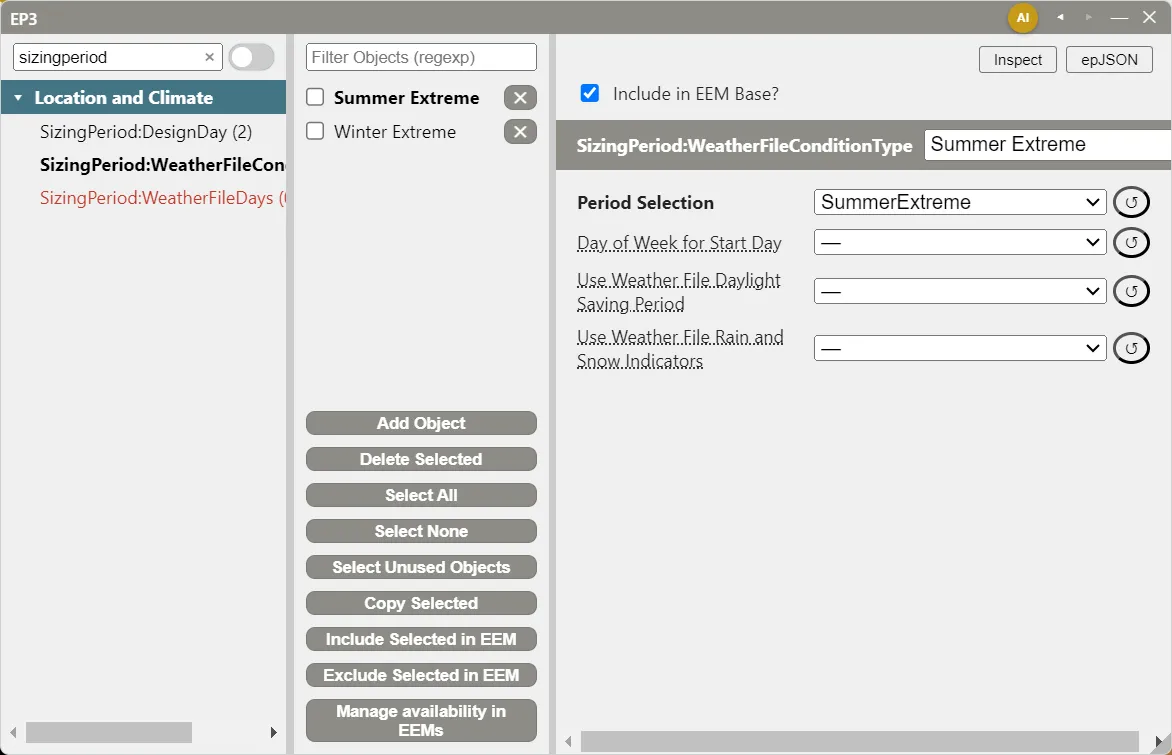
SummerExtreme and WinterExtreme are two of the period selections EnergyPlus offers; others include SummerTypical/WinterTypical, WetSeason/DrySeason, and TropicalHot/TropicalCold. In a hot, humid, or tropical climate, where humidity and the wet season drive the governing load more than a dry-bulb extreme does, WetSeason or TropicalHot may represent the project better than SummerExtreme. Change the Period Selection of a default object, or add another SizingPeriod:WeatherFileConditionType with the selection that fits.
ASHRAE’s 99.6% heating and 0.4%/1%/2% cooling design conditions (§4.3) are a separate, standard basis, entered as SizingPeriod:DesignDay objects. Which basis a project’s sizing uses is a design decision: add design days whenever a project calls for ASHRAE design-condition sizing, alongside the defaults or in their place.
4.3 Getting ASHRAE design conditions into a model
ASHRAE Handbook—Fundamentals, Chapter 14 (“Climate Design Data”), publishes standard design conditions for thousands of weather stations, most commonly the 99.6% heating dry-bulb and the 0.4%/1%/2% cooling dry-bulb with mean coincident wet-bulb. There are two ways to bring them into a model as SizingPeriod:DesignDay objects: import them from the weather file’s .ddy file, or enter them by hand.
4.3.1 Entering design days by hand
This worked example uses the Washington Dulles design conditions from the station’s .ddy file:
| Condition | Value (SI) | Value (IP) |
|---|---|---|
| 99.6% heating design dry-bulb | −11.8°C | 10.8°F |
| 0.4% cooling design dry-bulb / mean coincident wet-bulb | 34.1°C / 23.9°C | 93.4°F / 75.0°F |
| Daily cooling dry-bulb range | 11.4°C | 20.5°F |
(°F = °C × 1.8 + 32 for temperatures; a range converts by × 1.8 alone, with no offset: 11.4°C × 1.8 = 20.5°F.)
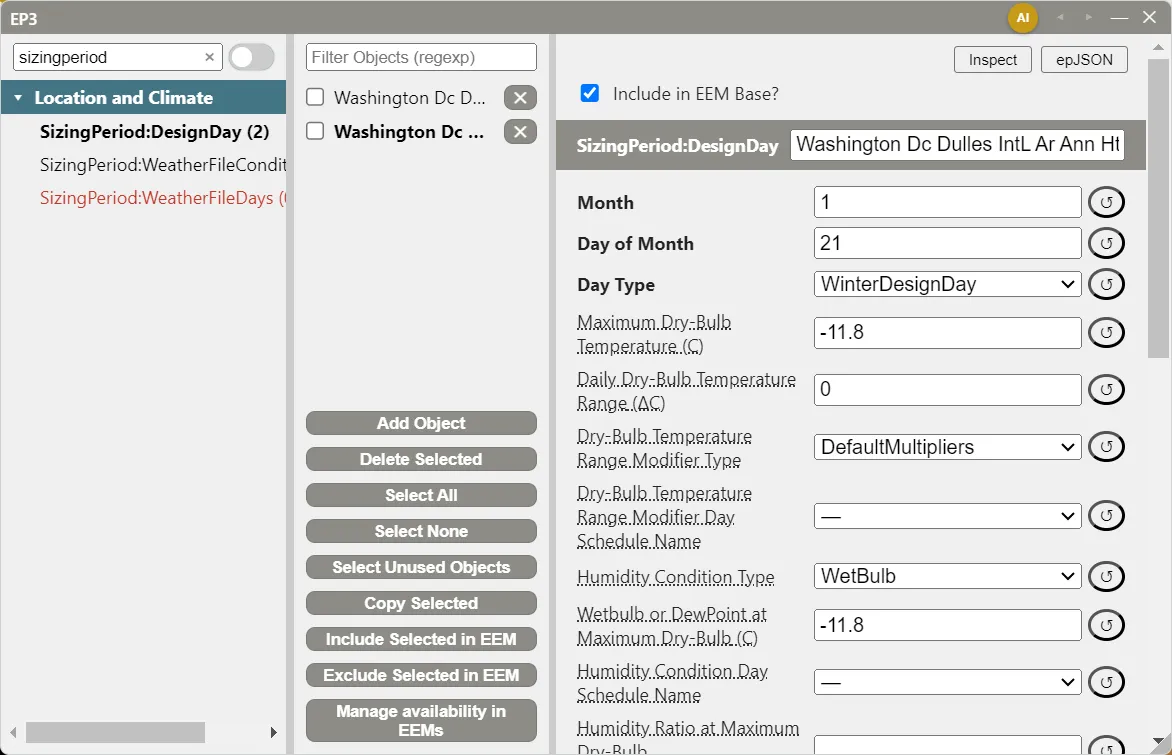
In the main object dialog, select SizingPeriod:DesignDay under Location and Climate, click Add Object twice, and fill in the two objects as follows. Fields not listed keep their defaults (Rain Indicator and Snow Indicator No, and so on) unless your source data says otherwise.
Winter design day (“Washington Dc Dulles IntL Ar Ann Htg 99.6% Condns DB” in the .ddy file):
| Field | Value |
|---|---|
| Month / Day of Month | 1 / 21 (ASHRAE design days are conventionally dated the 21st of the coldest or hottest month) |
| Day Type | WinterDesignDay |
| Maximum Dry-Bulb Temperature | −11.8°C |
| Daily Dry-Bulb Temperature Range | 0°C (winter design days conventionally have no daily swing) |
| Humidity Condition Type | WetBulb |
| Wetbulb or DewPoint at Maximum Dry-Bulb | −11.8°C (the coincident wet-bulb for this station’s heating condition; take it from your source rather than assuming it always equals the dry-bulb) |
| Barometric Pressure | 100,344 Pa (the station’s standard pressure for its elevation; see §4.4) |
| Wind Speed / Wind Direction | 2.7 m/s / 310° (the station’s coincident design wind) |
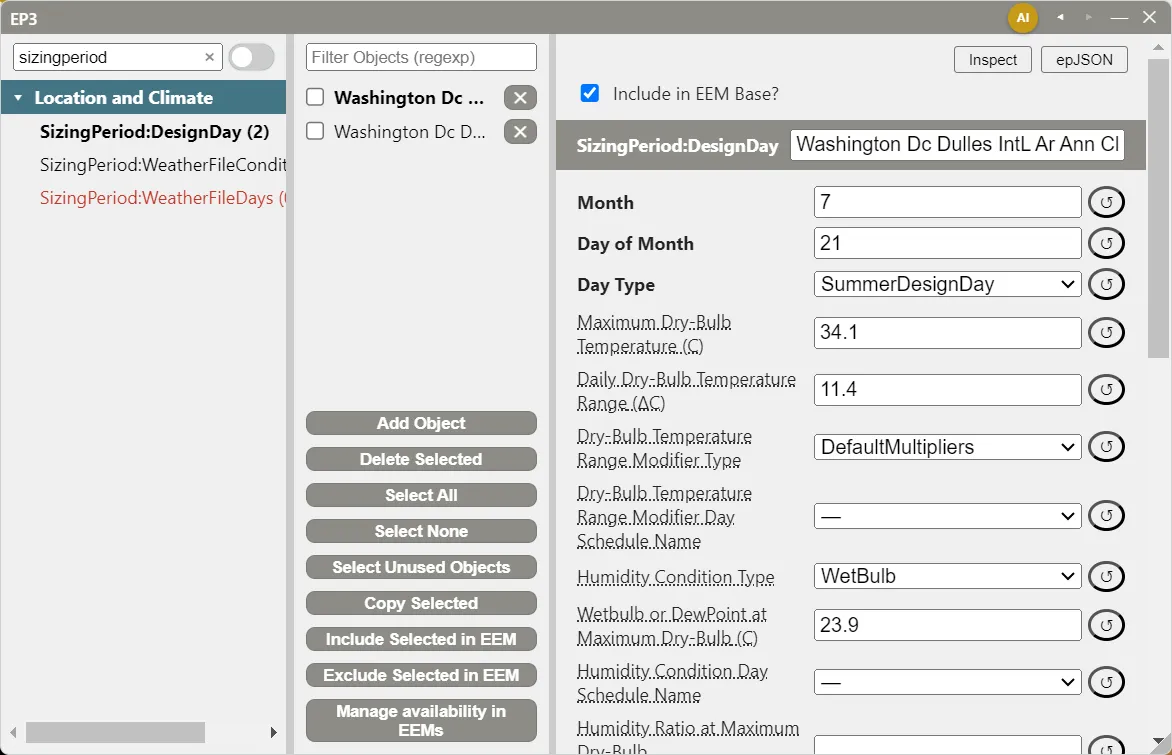
Summer design day (“Washington Dc Dulles IntL Ar Ann Clg .4% Condns DB=>MWB”):
| Field | Value |
|---|---|
| Month / Day of Month | 7 / 21 |
| Day Type | SummerDesignDay |
| Maximum Dry-Bulb Temperature | 34.1°C |
| Daily Dry-Bulb Temperature Range | 11.4°C |
| Humidity Condition Type | WetBulb |
| Wetbulb or DewPoint at Maximum Dry-Bulb | 23.9°C (the mean coincident wet-bulb) |
| Barometric Pressure | 100,344 Pa, or blank (when it is blank, EnergyPlus calculates the standard pressure from the elevation; see §4.4) |
| Wind Speed / Wind Direction | 4 m/s / 290° |
| Solar Model Indicator | ASHRAETau, with ASHRAE Clear Sky Optical Depth for Beam Irradiance (taub) 0.544 and for Diffuse Irradiance (taud) 1.787 |
4.3.2 Importing design days from a .ddy file
Most published EnergyPlus weather downloads include a .ddy file: plain IDF text holding SizingPeriod:DesignDay objects with the station’s ASHRAE design conditions, plus a matching Site:Location object. It shares the weather file’s name (USA_VA_Sterling-Washington.Dulles.Intl.AP.724030_TMY3.epw pairs with USA_VA_Sterling-Washington.Dulles.Intl.AP.724030_TMY3.ddy).
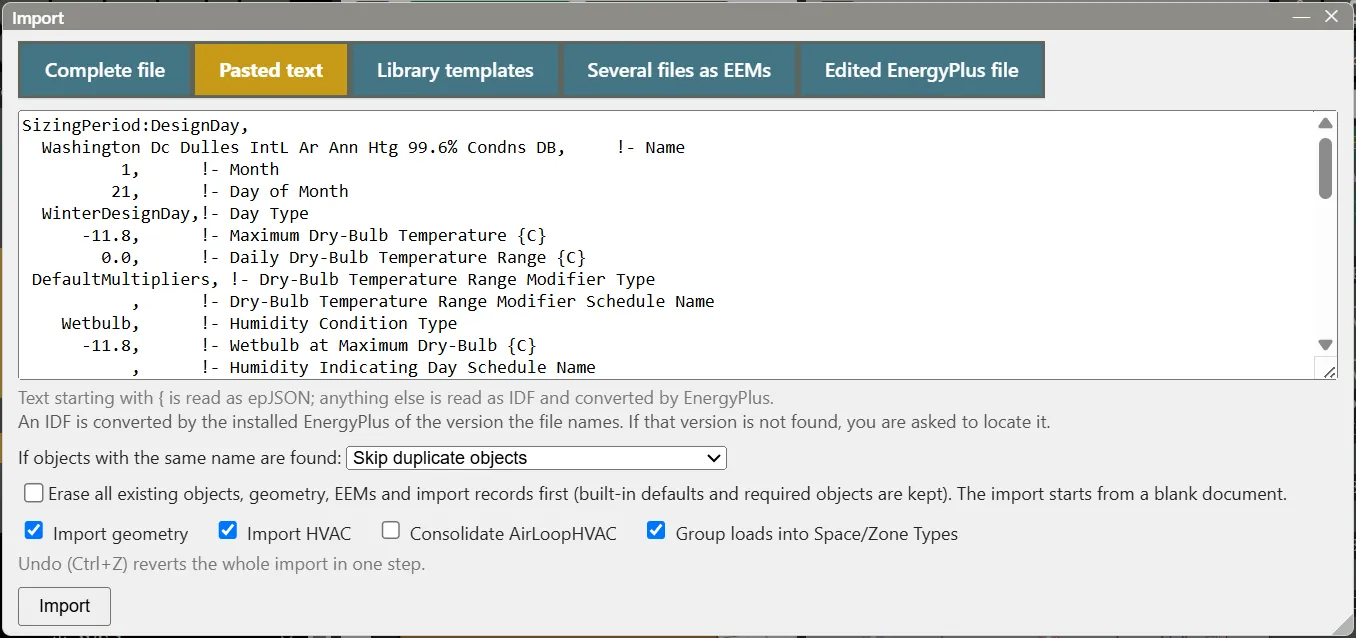
A typical .ddy file holds many design-day variants: 99.6% and 99% heating, humidification and heating-wind conditions, and 0.4%, 1%, and 2% cooling defined against dry-bulb, wet-bulb, dew point, and enthalpy. Import only the ones your design basis uses:
- Open the
.ddyfile in a text editor and copy theSizingPeriod:DesignDayobjects you want, each from itsSizingPeriod:DesignDay,line through the line ending in;. - Click Import in the top toolbar, open the Pasted text tab, and paste them.
- Click Import. The report lists each design day created.
The imported objects are ordinary SizingPeriod:DesignDay objects, the same as ones entered by hand. Pasted IDF text is converted by EnergyPlus, so the EnergyPlus folder must be set (The EP3 Interface and Model Settings). The .ddy file’s Site:Location is not needed unless you are overriding the weather file’s location (§3).
The objects in an EnergyPlus .ddy file are named consistently, so the standard ones are easy to find:
<Station> Ann Htg 99.6% Condns DB— the 99.6% heating design day<Station> Ann Clg .4% Condns DB=>MWB— the 0.4% cooling design day, defined by dry-bulb with mean coincident wet-bulb
4.4 SizingPeriod:DesignDay fields
| Field | Purpose |
|---|---|
| Month, Day of Month, Day Type | When the design day falls and which schedules apply on it (WinterDesignDay or SummerDesignDay, or a weekday for a design day that follows ordinary schedules) |
| Maximum Dry-Bulb Temperature, Daily Dry-Bulb Temperature Range | The design condition and its daily swing (§4.3.1) |
| Humidity Condition Type and its value field | Which second variable sets humidity: wet-bulb, dew point, humidity ratio, enthalpy, or a schedule |
| Barometric Pressure | Checked against the standard pressure for the elevation; a value out of range, or a blank, is replaced by the standard pressure |
| Wind Speed, Wind Direction | The design-day wind, which mainly affects infiltration and exterior surface heat transfer |
| Solar Model Indicator (with its optical depth or schedule fields) | How solar radiation is generated: ASHRAEClearSky by default, or ASHRAETau/ASHRAETau2017 with the location’s taub and taud coefficients |
| Rain Indicator, Snow Indicator, Daylight Saving Time Indicator | Flags for the whole day |
The Input Output Reference documents every field and option.
5. RunPeriod: the annual simulation window
RunPeriod sets the dates of the annual simulation. It is under Location and Climate, with Site:Location and the SizingPeriod:* objects, and whether it runs at all is set in SimulationControl (§6). It does not name the weather file: the .epw passed to EnergyPlus at run time supplies the hourly data for the dates the RunPeriod covers.
| Field | Default | Notes |
|---|---|---|
| Begin Month / Begin Day of Month | — | Required |
| End Month / End Day of Month | — | Required |
| Begin Year / End Year | blank | When blank, a year is chosen to match the start day of the week |
| Day of Week for Start Day | — | Sunday when no year is specified |
| Use Weather File Holidays and Special Days | Yes | |
| Use Weather File Daylight Saving Period | Yes | |
| Apply Weekend Holiday Rule | No | |
| Use Weather File Rain Indicators / Use Weather File Snow Indicators | Yes / Yes | |
| Treat Weather as Actual | No | |
| First Hour Interpolation Starting Values | Hour24 | Interpolation when the weather data’s time step is coarser than the simulation’s |
A model can have more than one RunPeriod, which is uncommon; the Model Wizard sets the begin and end dates of the first one. Every field is documented in the Input Output Reference.
6. How design conditions feed sizing
Whether these objects run, and what they are used for, is set in SimulationControl (under Simulation Parameters):
| Field | EnergyPlus default | Effect |
|---|---|---|
| Do Zone Sizing Calculation | No | Whether Sizing:Zone autosizing runs |
| Do System Sizing Calculation | No | Whether Sizing:System autosizing runs (needs zone sizing) |
| Do Plant Sizing Calculation | No | Whether Sizing:Plant autosizing runs |
| Run Simulation for Sizing Periods | Yes | Whether the SizingPeriod:* objects run as simulations |
| Run Simulation for Weather File Run Periods | Yes | Whether the RunPeriod (the annual run) runs |
| Do HVAC Sizing Simulation for Sizing Periods | No | Coincident plant sizing, with Sizing:Plant |
EP3 creates every model’s SimulationControl with Yes for zone, system, and plant sizing and for both run flags, so sizing is on by default. No Sizing:Zone or Sizing:System is linked to a particular design day: EnergyPlus sizes against all the SizingPeriod:* objects in the model. The chain is: a weather file is assigned, SizingPeriod:* objects are present (the defaults or your own, §4), SimulationControl turns sizing on, and Sizing:Zone and Sizing:System autosize from whichever design days ran.
Zone-Level HVAC Equipment and Zone Sizing covers Sizing:Zone and Sizing:System in full, and Heating and Cooling Loads covers how the annual run builds into a load profile.
7. Climate zone
The Climate Zone (in General Model Settings, and on the Model Wizard’s Model Settings tab) is the ASHRAE 90.1 climate zone (ClimateZone 0A through ClimateZone 8) for the project. Choosing a weather file sets it from the file’s .stat, the statistics file beside the .epw with the same base name (EnergyPlus weather downloads include it), which states the file’s climate type, such as 4A. The field’s first option shows it as Automatic (from weather file) with the zone. With no .stat, or no zone EP3 offers in it, the zone is left blank. Picking a zone yourself keeps your choice when the weather file changes; picking Automatic returns to the file’s zone. EP3 does not derive it from Site:Location. The ASHRAE 90.1 Appendix G (PRM) generator uses it to choose the baseline envelope, and will not generate a baseline until it is set.
8. Common pitfalls
An EEM with its own weather file. An EEM with its own weather file (§2.3) has results that differ from the others for a reason that is not visible unless you check that EEM’s Weather File. Before comparing EEM results side by side, confirm which EEMs set one.
A Site:Location object without Keep Site Location Information set to Yes. At its default of No, EnergyPlus replaces the values in Site:Location with the weather file’s location (§3), and the override has no effect.
Changing the weather file after creating a Site:Location override. EP3 does not update or remove a Site:Location object when you assign a different weather file (§3). Check it whenever you change weather files.
This handbook is also built into EP3 (Help), where its EnergyPlus links open the EnergyPlus Reference. Technical specifications · Book a demo