EnergyPlus Versions
1. Overview
EP3 builds models for EnergyPlus 23.1, 23.2, 24.1, 24.2, 25.1, 25.2, 26.1 and 26.2. A new model starts in 26.2. You can keep a project in the version a client, a standard or a reviewer asks for, and move it to another version at any time without rebuilding it.
Each model has one EnergyPlus version. Exports and simulations are written for that version, and the dialogs show what that version has. The model keeps every value you enter in any version, so a change of version never loses work: values the version can’t use are kept and come back when you change to a version that uses them.
This chapter covers choosing the version (§2), what the version changes in EP3 (§3), changing it (§4), the Model Validation tab for it (§5), opening and importing files of other versions (§6, §7), and the units of the results (§8).
2. Choosing the version
2.1 In the Model Wizard
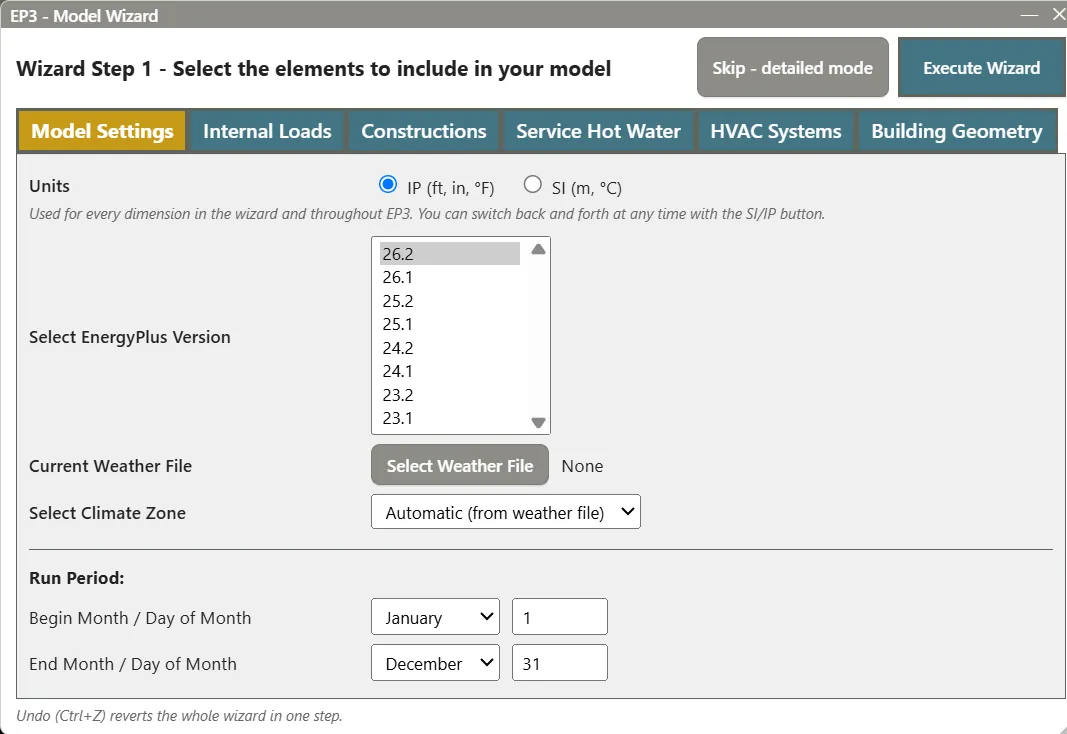
The Model Wizard’s Model Settings tab has Select EnergyPlus Version, listing every supported version, newest first. A new model shows 26.2. Pick another version there and the model is set to it at once (The Model Wizard).
2.2 Changing it later
Change the version at any time with File > EnergyPlus Version…, or with Change version… in the Simulate dialog, beside the EnergyPlus folder (Running Simulations). Both open the EnergyPlus Version dialog (§4).
2.3 One installation per version
Each model runs in exactly the EnergyPlus version it is set to, never another. Install each version you use from energyplus.net. EP3 finds the usual install folders itself, such as C:\EnergyPlusV24-1-0, and lists them in File > Settings… under EnergyPlus Installations, one row per version, with the folder and Found by (EP3 or You). Add installation… adds a folder EP3 didn’t find, and Change… on a row picks another folder for that version. A folder whose version could not be read, or that reports another version, is marked Not verified.
When a model’s version is not installed, the Simulate dialog’s folder line reads “not found” with the message “EnergyPlus 24.1 was not found. Install it, or locate its folder in Settings > EnergyPlus Installations.” Set… there locates it.
3. What the version changes
The model’s version decides what the dialogs offer, so you only see inputs that version reads. Nothing is deleted when something is hidden: a hidden value is kept and no export writes it, so it can’t affect that version’s results.
3.1 Hidden types, fields and choices
In a version older than 26.2:
- Object types the version doesn’t have are left out of the HVAC Components dialog, the add menus and every type list. For example,
ThermalStorage:PCMis not offered before 25.2. - Fields the version doesn’t have are left out of the object dialogs, such as the inside-face absorptance fields of
Materialbefore 26.2. - Choices the version doesn’t have are left out of the dropdowns. A field already set to such a choice shows the value that version uses (its default, or a blank to fill when the field is required), and keeps the newer choice for the newer versions. Hovering over the field says so.
- Defaults follow the version. A blank field shows the default of the model’s version, and the export leaves it blank so that version applies it.
Atlas follows the same rules: it proposes only object types and fields the model’s version has (The EP3 AI Assistant).
3.2 Inputs EnergyPlus changed
Where EnergyPlus changed how an input works, an older version shows the fields that version has, in that version’s order, and they are the ones exported. Edits to them leave the newer fields alone, and the reverse.
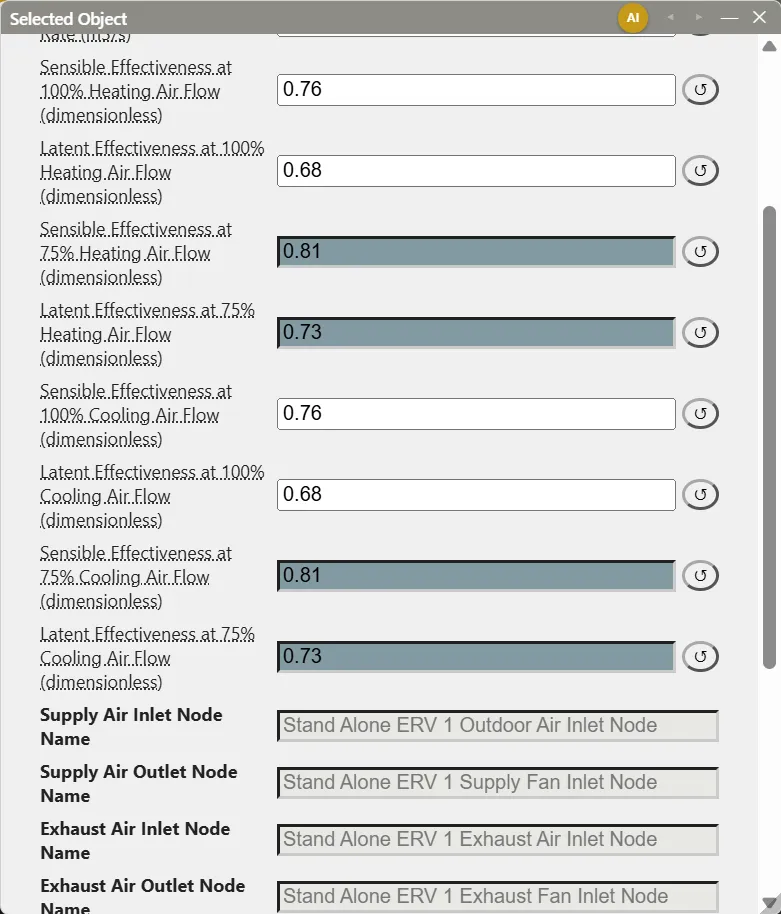
HeatExchanger:AirToAir:SensibleAndLatent in 23.1 and 23.2. EnergyPlus 24.1 replaced the four effectiveness-at-75%-airflow values with effectiveness curves. In 23.1 and 23.2 the dialog shows Sensible Effectiveness at 75% Heating Air Flow, Latent Effectiveness at 75% Heating Air Flow and the two cooling equivalents, each after its 100% field, and hides the curve fields. Until you enter a value, each shows the value the curves give at 75% airflow; with no curve it shows the 100% value, which is what a blank curve means in 24.1 and later.
Water-to-air heat pumps in 23.1. In EnergyPlus 23.1 the unit, not its cooling coil, holds the inputs for latent degradation. In a 23.1 model, AirLoopHVAC:UnitarySystem, AirLoopHVAC:UnitaryHeatPump:WaterToAir and ZoneHVAC:WaterToAirHeatPump show Maximum Cycling Rate, Heat Pump Time Constant, Fraction of On-Cycle Power Use and Heat Pump Fan Delay Time. The first, second and fourth start from the cooling coil’s values. The coils’ part load fraction curve is hidden, because 23.1 works out the part load fraction from the unit’s fields.
3.3 Fields only older versions have
A few fields were removed from EnergyPlus after an older version. EP3 shows them in the versions that have them:
| Object | Field | Versions |
|---|---|---|
| The three water-to-air heat pump units above | Fraction of On-Cycle Power Use | 23.1 |
ComfortViewFactorAngles |
Zone Name | 23.1 to 23.2 |
AirLoopHVAC:UnitaryHeatPump:AirToAir:MultiSpeed |
Minimum Outdoor Dry-Bulb Temperature for Compressor Operation | 23.1 to 25.1 |
ChillerHeaterPerformance:Electric:EIR |
Condenser Type | 23.1 to 26.1 |
In newer versions these values are kept and hidden.
4. Changing the version
The EnergyPlus Version dialog states the model’s version (“This model uses EnergyPlus 26.2. Simulations and exports use the version you choose here.”) and lists every supported version, newest first, with the current one marked (current). Choose a version, read what the change does, and click Change to EnergyPlus ⟨version⟩. The button stays off until EP3 has worked out the change (“Checking which values the change touches…” and, for an older version, “Working out what would change…”). Cancel leaves the model as it is.
4.1 Versions you can’t choose
Changing to a newer version is always possible. An older version is greyed out, with the reason in red below it, while the model has something that version can’t hold:
- An object type the version doesn’t have, for example “The model has 1 ThermalStorage:PCM object (not in EnergyPlus 25.1)”. Objects that are off in every EEM don’t count.
- A Space in a field that takes only a Zone before 24.2. EnergyPlus 24.2 let
Output:IlluminanceMap,ZoneRefrigerationDoorMixing,ZoneCoolTower:ShowerandZoneThermalChimneyname a Space. While one of them names a Space, versions below 24.2 show, for example,ZoneThermalChimney "Chimney 1" names the Space "Atrium"; EnergyPlus 24.1 takes only a Zone there. Point it at the Space’s Zone to make those versions available.
The object names in a reason are links that open the object, so you can delete it, switch it off or change it.
4.2 Changing to an older version
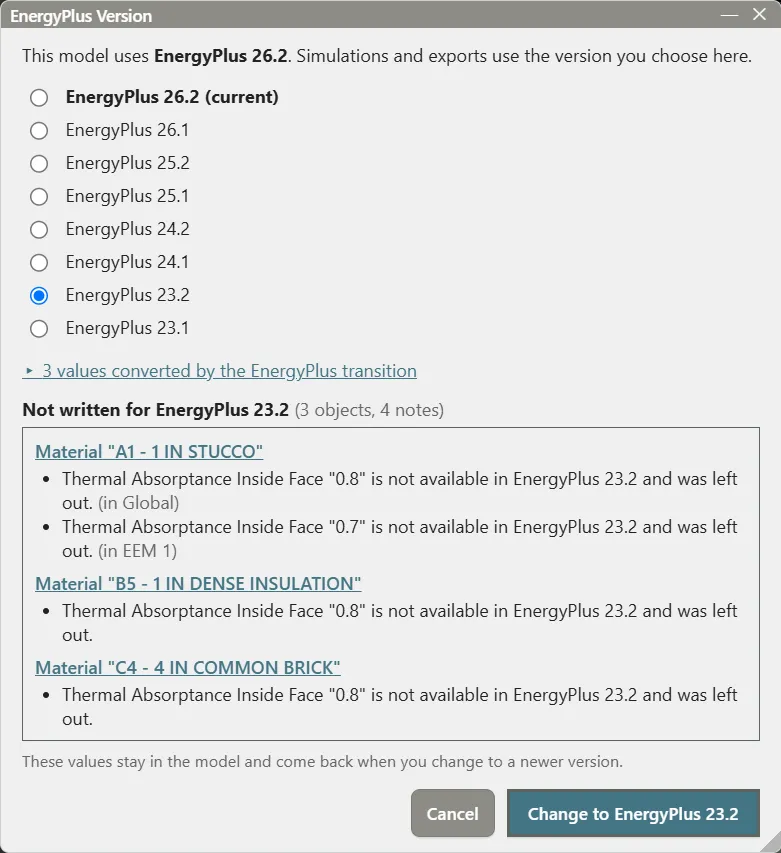
Choosing an older version lists, under Not written for EnergyPlus ⟨version⟩, each object with something that version won’t write, with a count of objects and notes. Each note says what is left out or written differently, such as a field the version doesn’t have, a choice it doesn’t offer, or a heat exchanger effectiveness curve the older version can’t read. Ordinary effectiveness curves become 75% values without a note; they are counted in the collapsed line of values converted by the EnergyPlus transition. A note that applies only in some EEMs names them. When nothing differs, the dialog says “Everything in the model is written for EnergyPlus ⟨version⟩.”
Under the list: “These values stay in the model and come back when you change to a newer version.” A downgrade only changes what is written. Every value stays stored, hidden in the older version’s dialogs, and is used again when you change back up.
4.3 Keep the values from before, or apply the transition
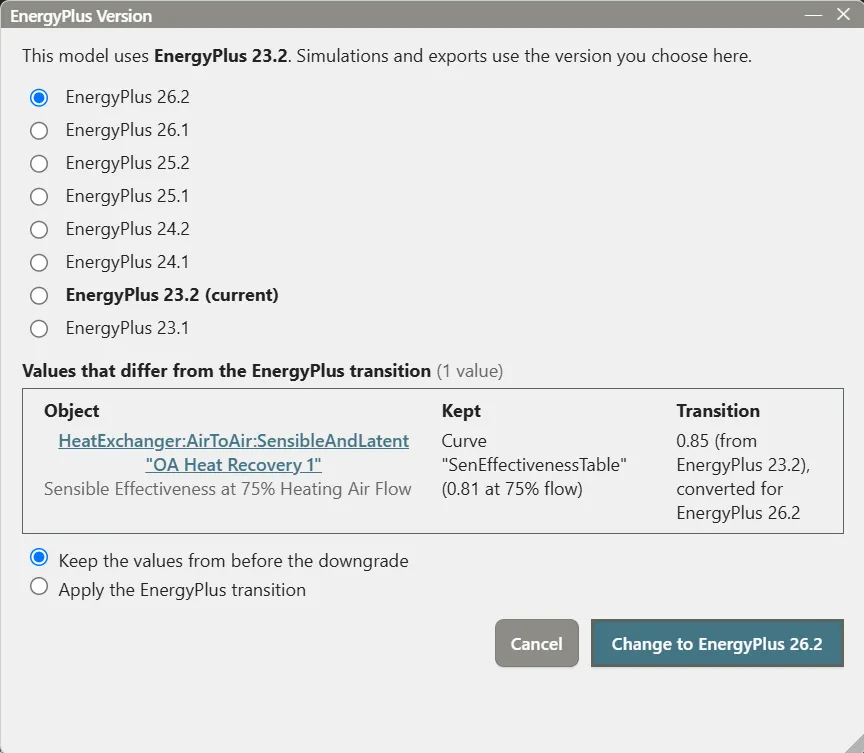
A value you entered in one version can differ from what EnergyPlus’s version transition would give from the values you entered in the other. When a change of version, up or down, meets such values, the dialog lists them under Values that differ from the EnergyPlus transition, one row for each value that differs, with the object, what was changed, the EEMs when it applies to some only, the Kept value and the Transition value. One choice covers them all:
- Keep the values from before the downgrade (changing to a newer version) or Keep the values from before the upgrade (changing to an older one), the default, keeps what you entered when the model was last in that version.
- Apply the EnergyPlus transition replaces them with what the transition gives from the values in the version you are leaving.
Example: an energy recovery ventilator. A 26.2 model has a heat exchanger with effectiveness curves. Changing to 23.2 needs no choice: its 75% fields show the curves’ values at 75% airflow. You enter 0.85 for Sensible Effectiveness at 75% Heating Air Flow and run the model in 23.2. Changing back to 26.2 lists that one value, because the curves still give the old one. The heat exchanger’s other three 75% fields are not listed, as they still match their curves:
- Keep the values from before the downgrade keeps the 26.2 curves as they were. The 0.85 stays with the 23.2 fields for a later return to 23.2.
- Apply the EnergyPlus transition gives the heat exchanger a new curve for that value, so 26.2 simulates the 0.85 you entered, and leaves the other three curves as they were. The curves it used before stay in the model, unused. Changing back and forth again updates the curves EP3 made rather than adding more.
The 23.1 water-to-air heat pump inputs work the same way. Going up with Apply the EnergyPlus transition, the coils take the unit’s 23.1 values and a part load fraction curve made from them. With Keep, the coils keep the values and curve they had, a curve you made included.
4.4 Conversions that need no choice
Some conversions have only one answer, and EP3 makes them without asking. A collapsed line, “⟨n⟩ values converted by the EnergyPlus transition”, opens a list of them. For example:
- a heat exchanger whose 75% values were never changed shows the curves’ values in 23.2, and one made in 23.2 gets curves from its 75% values on the way up;
- a field the newer version requires is set to its default, or listed as needing a value when it has none;
- a choice the older version doesn’t have is shown as that version’s default, and the newer choice is kept.
When none of this applies, changing to a newer version shows only “Upgrading keeps everything in the model.”
4.5 Undo
A change of version is one undo step, with every value it set. Ctrl+Z returns the model to the version and the values it had.
5. The EnergyPlus Version tab in Model Validation
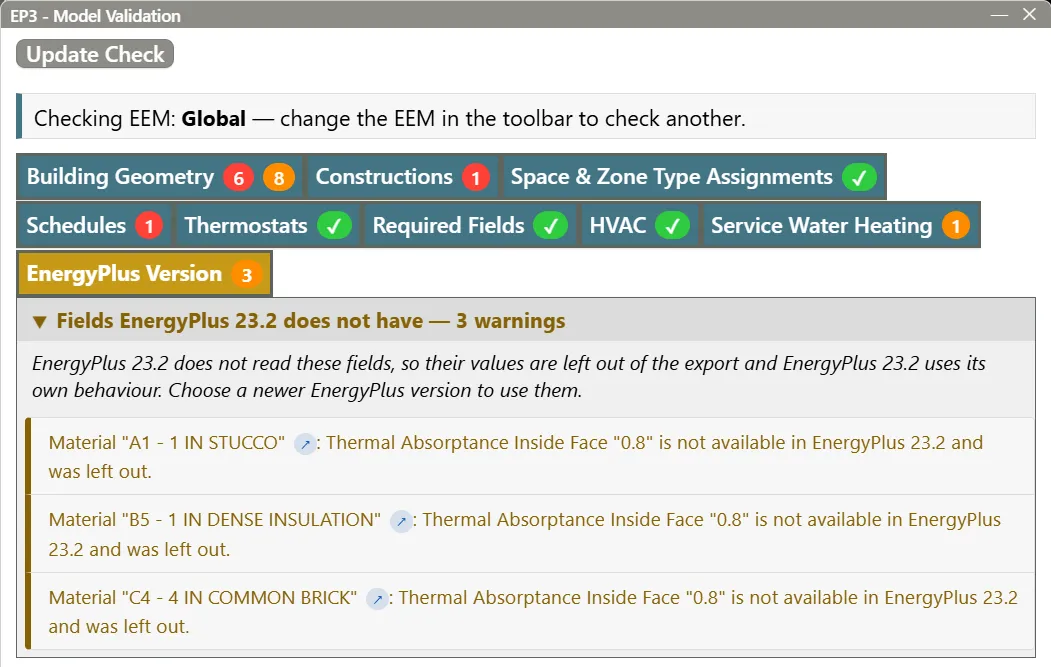
When the model is in a version older than 26.2 and the checked EEM has something that version won’t write, the Model Validation dialog has an EnergyPlus Version tab, before Export Errors & Warnings (Model Troubleshooting and Quality Assurance). Each entry links to its object:
- Values EnergyPlus ⟨version⟩ needs (failures): a field the version requires is set to a choice it doesn’t have, such as an ice storage tank’s capacity set to Autosize before 25.2. The field is left out, so enter a value or choose a newer version, or the simulation stops.
- Objects EnergyPlus ⟨version⟩ does not have, Fields EnergyPlus ⟨version⟩ does not have and Choices EnergyPlus ⟨version⟩ does not have (warnings): what the export leaves out, so EnergyPlus uses the version’s behaviour or default.
- Other changes for EnergyPlus ⟨version⟩ (warnings): objects written differently, such as a heat exchanger effectiveness curve the version can’t read, which can change the results.
The Export epJSON dialog counts these notes apart from other warnings and points to this tab.
6. Opening older EP3 files
An .ep3 file from an earlier release of EP3 opens as it was saved: EP3 converts its inputs as it loads, and the model keeps the EnergyPlus version the file had. A file saved before EP3 offered several versions opens as an EnergyPlus 26.1 model, the version it was written for. Change it with File > EnergyPlus Version… when you are ready. Templates in your Library Locations are read the same way.
7. Importing files of other versions
7.1 Older files
An epJSON or IDF file from EnergyPlus 23.1 or later is converted to EP3’s current inputs as it is imported, and the import report says so: “File is EnergyPlus 24.1; its objects were converted to EP3’s current input format.” The model stays in the version it was in. The same applies to the files of Several files as EEMs, an edited epJSON brought back, library files and .ep3 files.
An IDF is first converted to epJSON by the installation of the version the IDF names, so importing a 24.1 IDF needs EnergyPlus 24.1. When it is missing, EP3 asks you to locate it (“EnergyPlus 24.1 was not found”, with Locate… and Cancel).
7.2 Files that need a newer version
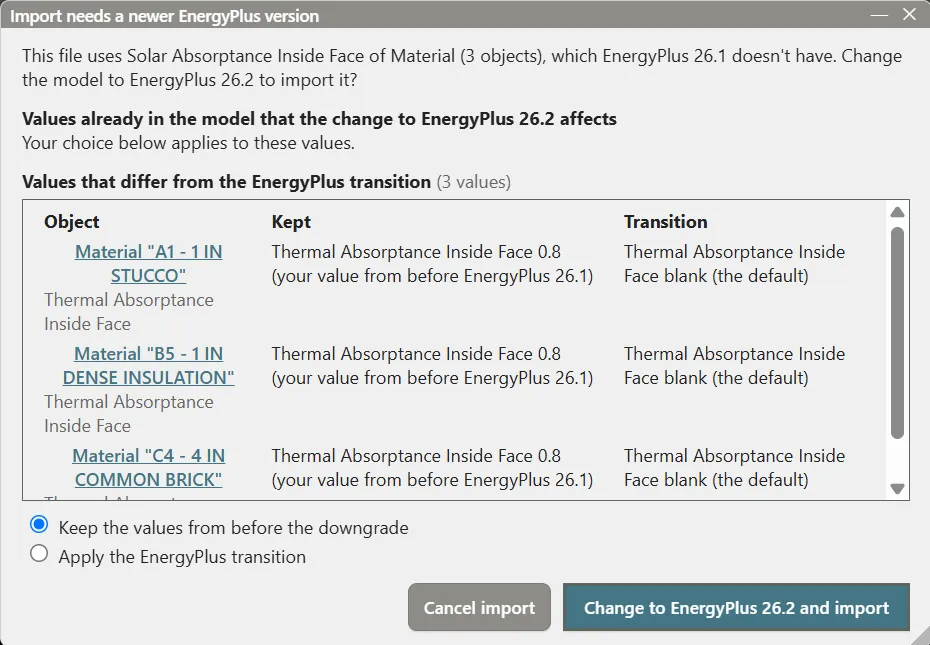
A file can hold object types, fields set to values other than their default, or choices that the model’s version doesn’t have. Importing it asks first, in Import needs a newer EnergyPlus version:
This file uses Solar Absorptance Inside Face of Material (3 objects), which EnergyPlus 26.1 doesn’t have. Change the model to EnergyPlus 26.2 to import it?
The version offered is the lowest one that holds everything in the file. Below the question, under Values already in the model that the change to EnergyPlus ⟨version⟩ affects, the dialog lists the values of the model, not of the file, that the change touches, with the keep-or-transition choice of §4.3, which applies to them. The section is left out when the change touches none.
- Change to EnergyPlus ⟨version⟩ and import changes the model’s version and imports the file, as one undo step. The status line says “The model was changed to EnergyPlus ⟨version⟩ for this import.”
- Cancel import imports nothing: “The import was cancelled: the file needs EnergyPlus 26.2, and the model stays on EnergyPlus 26.1.” EP3 never imports part of a file or keeps objects hidden.
Every import asks this way: a file, pasted text, several files as EEMs, an edited epJSON, an .ep3 file, templates and the Model Wizard. An import that takes the file’s version for the model (Erase all existing objects and geometry first, and Overwrite inputs in the Global model for an .ep3 file) doesn’t ask.
7.3 26.2 load definitions and construction assignment sets
EnergyPlus 26.2 added two ways to share inputs. EP3 imports both as ordinary objects, which every version has, so they never ask for a newer version:
- Definition and Instance pairs of
People,Lights,ElectricEquipment,GasEquipment,HotWaterEquipment,SteamEquipment,OtherEquipmentandElectricEquipment:ITE:AirCooledbecome one load per Instance, named after the Instance, with its quantity scaled by the Instance’s multiplier. Space Types and Zone Types are EP3’s way to share loads (Internal Loads, Space Types, and Zone Types). - Construction assignment sets (
ConstructionAssignmentSetwith its surface and sub-surface assignments) give each surface, window, door and internal mass with a blank construction the construction EnergyPlus would assign, from its Space’s set, else the Building’s.
The import report notes what each one became.
7.4 Files EP3 can’t read
A file older than 23.1 or newer than 26.2 is refused:
- older: “EP3 supports EnergyPlus 23.1 to 26.2; this file is EnergyPlus 22.2. Update it with EnergyPlus’s IDFVersionUpdater first.” The IDFVersionUpdater is in the
PreProcess\IDFVersionUpdaterfolder of an EnergyPlus installation (Auxiliary Programs: Using Older Version Input Files). - newer: “EP3 supports EnergyPlus 23.1 to 26.2; this file is EnergyPlus 27.1, which is newer. Save it for EnergyPlus 26.2 or older first.”
8. Results units
Every export, simulated or not, asks EnergyPlus for its tabular reports in kWh when the model has no OutputControl:Table:Style. The HTML, CSV and JSON tables are then in kWh in every version. A table style in the model is always used as it is, and an imported file’s table style comes in as an object of the model.
The Results dialog reads whatever units a run wrote, from any version and any table style, and shows them in its SI / IP setting (Viewing and Interpreting Results). A unit EP3 doesn’t convert is shown as written, and the dialog names it. Time series are in SI whatever the table style.
EnergyPlus 23.1 and 23.2 don’t accept the table style’s InchPoundExceptElectricity choice; use InchPound there, or leave the model without a style.
9. Where to Look Next
- The Model Wizard — choosing the version for a new model.
- Running Simulations — EnergyPlus installations and the Simulate dialog.
- Model Troubleshooting and Quality Assurance — the Model Validation dialog.
- Importing EnergyPlus Files — the Import dialog and its report.
This handbook is also built into EP3 (Help), where its EnergyPlus links open the EnergyPlus Reference. Technical specifications · Book a demo