Running Simulations
1. Overview
This chapter covers running EnergyPlus from EP3: the settings that control a simulation, the outputs a run requests, the Simulate / Export dialog, and where each run’s files go.
A model can be simulated once it has a weather file (Weather, Climate, and Design Conditions) and EP3 knows where EnergyPlus is installed (§2). Click Validate first: the Model Validation dialog lists the problems EP3 found while writing the EnergyPlus input, the usual cause of a failed run (Model Troubleshooting and Quality Assurance, which also covers the .err file). Choosing which EEMs and combinations run is in Energy Efficiency Measures (EEMs), and reading the results in Viewing and Interpreting Results.
2. EnergyPlus versions and installations
Each model is written for one EnergyPlus version, from 23.1 to 26.2, and runs in exactly that version, never another. Install every version your models use. EP3 finds the usual install folders itself and lists them, one per version, in File > Settings… under EnergyPlus Installations (EnergyPlus Versions).
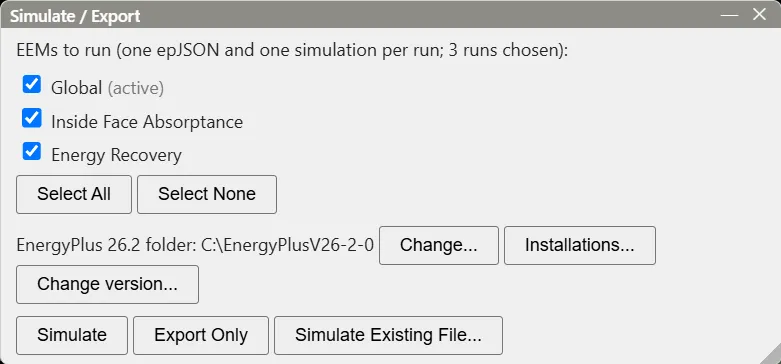
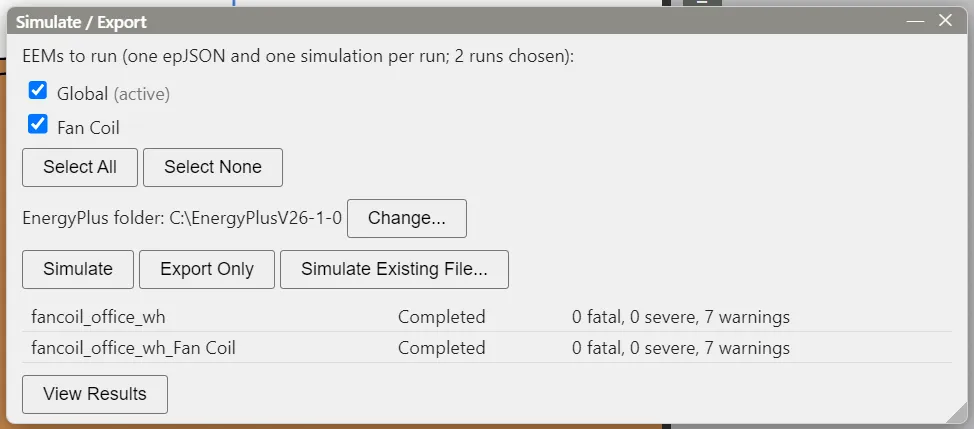
The Simulate dialog shows the folder for the model’s version, “EnergyPlus 26.2 folder: C:\EnergyPlusV26-2-0”, with three buttons:
- Set… (or Change…) picks the folder of that version’s installation.
- Installations… opens the EnergyPlus Installations settings.
- Change version… opens the EnergyPlus Version dialog, to run the model in another version (EnergyPlus Versions).
When the model’s version is not installed, the line reads “not found” with “EnergyPlus 26.2 was not found. Install it, or locate its folder in Settings > EnergyPlus Installations.”, and Simulate asks you to locate it before anything runs. Simulating needs the desktop app; in a browser, use File > Export epJSON… (§5.3).
3. Simulation settings
The objects that control how EnergyPlus runs are edited in the main object dialog. Most are in Column 1’s Simulation Parameters group; RunPeriod and the sizing periods are under Location and Climate.
3.1 SimulationControl
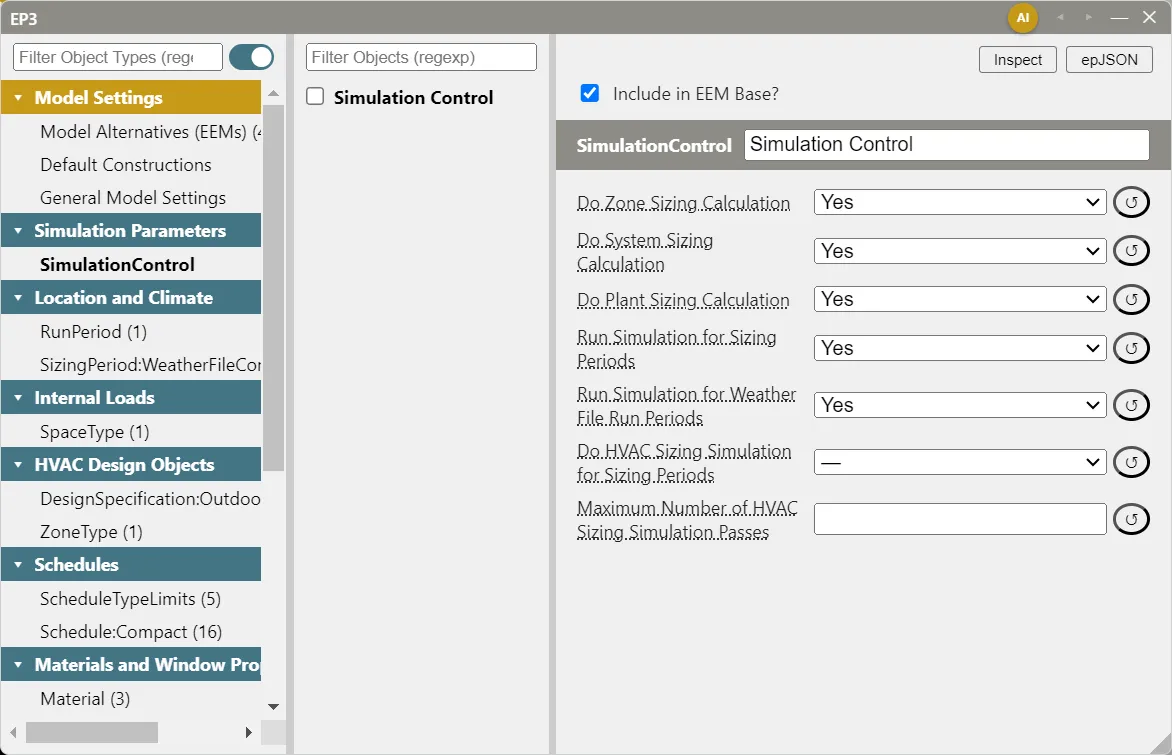
Every model has one SimulationControl, which cannot be deleted. EP3 creates it with zone, system, and plant sizing and both run flags set to Yes; Do HVAC Sizing Simulation for Sizing Periods is left blank (EnergyPlus default No) and is needed only for coincident plant sizing (Central Plant Equipment and Plant Loops). Weather, Climate, and Design Conditions lists the fields.
With Run Simulation for Weather File Run Periods set to No, a run covers only the sizing periods: a quick check that the model sizes and runs without fatal errors before an annual run.
3.2 RunPeriod and sizing periods
RunPeriod sets the dates of the annual run. The Model Wizard creates one from its Run Period dates; a model started without the Wizard has none until you add one (Weather, Climate, and Design Conditions). Sizing runs against the model’s SizingPeriod:* objects (§4 of that chapter), scaled by the factors in Sizing:Parameters (Zone-Level HVAC Equipment and Zone Sizing).
3.3 Timestep and ConvergenceLimits
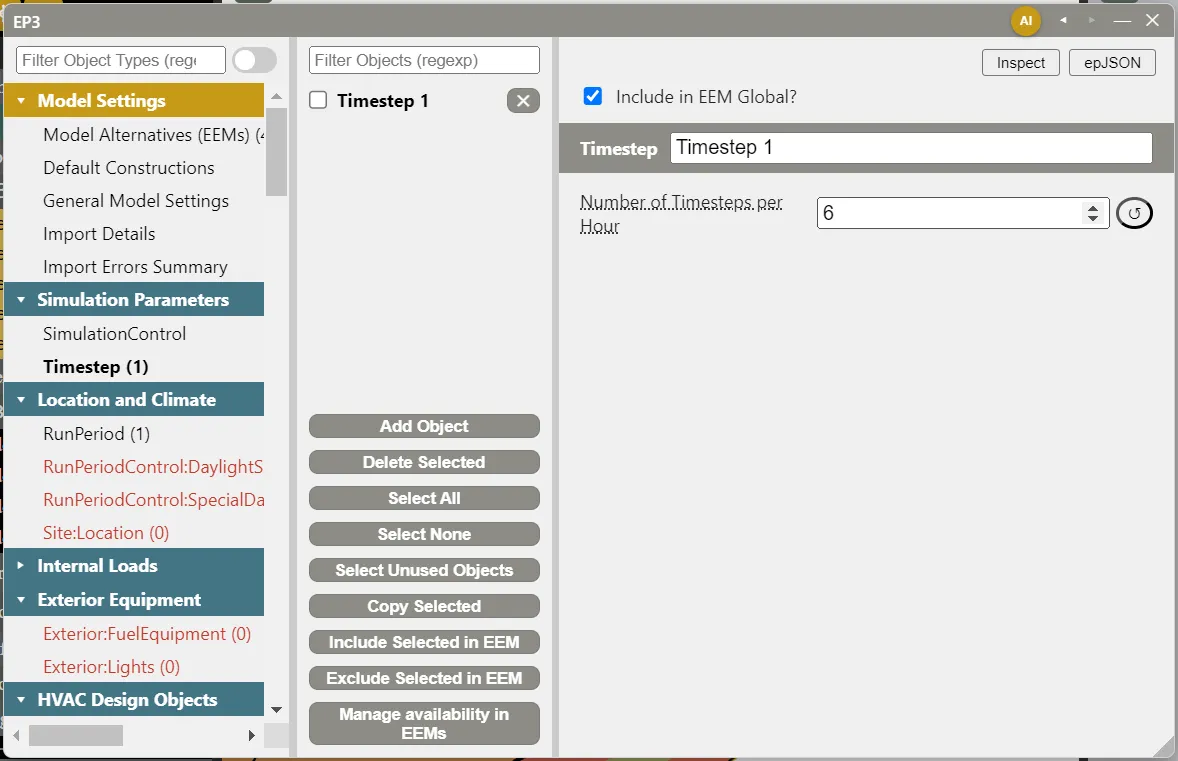
EP3 does not create either object. Without them, EnergyPlus uses the defaults below.
| Object | Field | EnergyPlus default | Notes |
|---|---|---|---|
Timestep |
Number of Timesteps per Hour | 6 | Must divide evenly into 60. 6 gives a 10-minute zone timestep, 4 gives 15 minutes. EnergyPlus suggests at least 20 for the ConductionFiniteDifference and CombinedHeatAndMoistureFiniteElement heat balance algorithms, and at least 12 with Material:RoofVegetation. |
ConvergenceLimits |
Minimum System Timestep | blank | In minutes; 0 sets it to the zone timestep. |
| Maximum HVAC Iterations | 20 | ||
| Minimum Plant Iterations | 2 | Higher values add run time and can improve accuracy on complex plants. | |
| Maximum Plant Iterations | 8 | Lower values save run time and can reduce accuracy on complex plants. |
Like any field, the timestep can differ by EEM, so a finer timestep can be tested against the base model.
3.4 Other simulation parameters
Simulation Parameters also holds the objects that set the physics and numerical methods, such as ShadowCalculation, HeatBalanceAlgorithm, SurfaceConvectionAlgorithm:Inside, and PerformancePrecisionTradeoffs. The EnergyPlus defaults suit most models (Heating and Cooling Loads; Input Output Reference: ShadowCalculation).
4. Outputs a run requests
4.1 What every run requests
A run from the Simulate dialog adds these output objects to its epJSON, each only when the model has no object of that class:
Output:JSON(TimeSeriesAndTabular), which the Results dialog reads.Output:Table:SummaryReportswith AllSummary.Output:VariableDictionary, which writes the.rddand.mddlists of the variables and meters the model can report.
A model’s own object of one of these classes is kept as it is; an Output:JSON of your own must still produce JSON, or the Results dialog has nothing to read.
Every export, simulated or not, also adds an OutputControl:Table:Style with CommaAndHTML and JtoKWH when the model has none, so the HTML, CSV and JSON tables are in kWh in every EnergyPlus version. A table style in the model is used as it is; the Results dialog reads any units (EnergyPlus Versions).
Every export, simulated or not, also requests the outdoor dry-bulb, wet-bulb, and dew-point temperatures and each zone’s Zone Mean Air Temperature at the model’s Default Reporting Frequency for Output:Variable (Hourly unless changed in General Model Settings, The EP3 Interface and Model Settings). For the Results dialog’s Unmet Hours tab it adds each zone’s thermostat setpoints, occupant count, and delivered sensible heating and cooling, and each air loop’s on/off status, at Timestep when that default is Timestep and Hourly otherwise, plus each zone’s occupied unmet hours monthly (Viewing and Interpreting Results). Each node a setpoint manager sets reports its temperature, flow, and setpoint (Air Loops, Branches, and Nodes). While Energy Flow outputs is on in General Model Settings, the export also requests each zone’s heat balance terms and the fuel use and heat output of fuel-burning equipment for the Results dialog’s Energy Flow tab, and a run adds the monthly end use tables (Viewing and Interpreting Results).
4.2 Requesting more
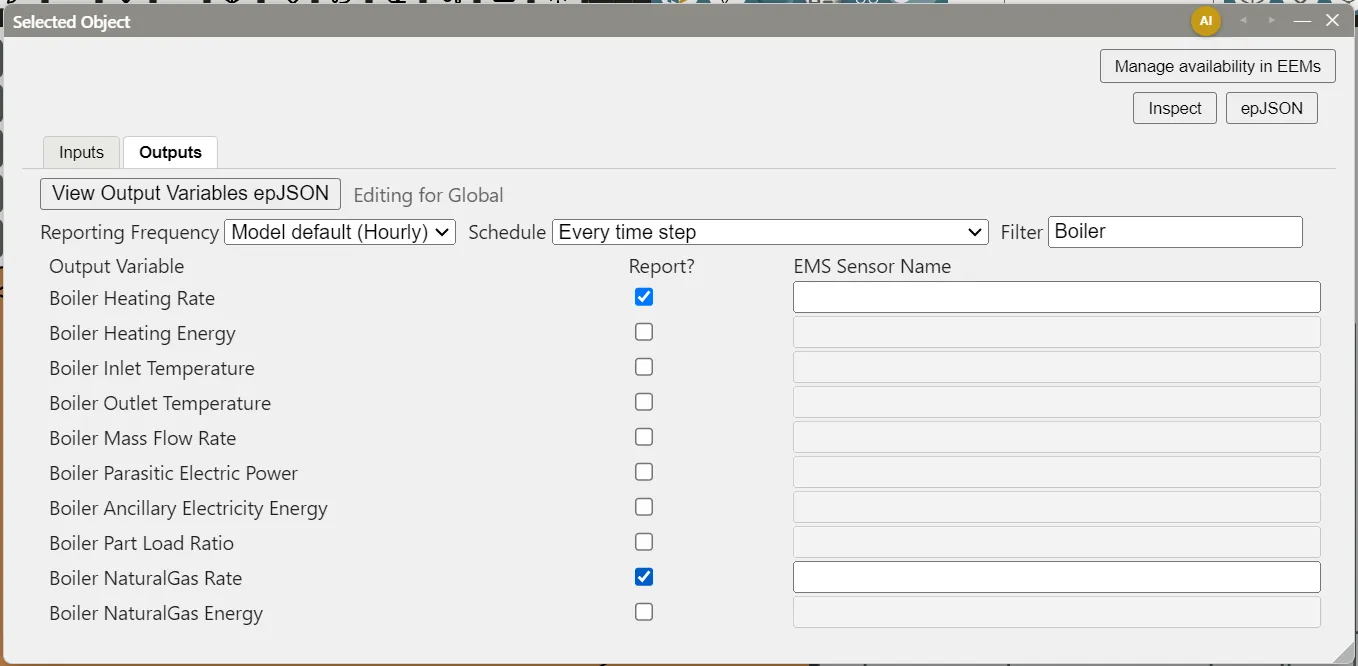
- An object’s Outputs tab. A Space, surface, window, SpaceType, ZoneType, or HVAC object with output variables has Inputs and Outputs tabs in the Selected Object dialog. The Outputs tab has one sub-tab for the object and one for each object it contains that has variables of its own: the fan and coils of a composite unit, the availability managers and controllers of a loop, a Space’s Zone, and the Lights, People, equipment and infiltration objects of a SpaceType or ZoneType. Each sub-tab keeps its own choices. Tick Report? for each variable, and set the Reporting Frequency (Model default unless changed) and Schedule (Every time step unless changed). EMS Sensor Name adds an
EnergyManagementSystem:Sensor. The epJSON button at the top of the dialog shows what the export writes: on the Outputs tab, theOutput:Variableand sensor objects of the open sub-tab. An object a SpaceType or ZoneType holds is exported once for its list of Spaces or Zones; EP3 requests the variable for each Space the object is expanded to, keyed by the name EnergyPlus gives it (the Space name followed by the object’s name). The tab edits the active EEM’s list, which replaces Global’s as a whole. Heating and Cooling Loads works through a Space’s tab. - View Building Data. The Building Geometry Outliner’s View Building Data picker requests a surface, window, zone, or space variable for every object of that kind (Heating and Cooling Loads).
- NodeReport. Requests a variable at nodes picked from lists or on the HVAC diagram (Air Loops, Branches, and Nodes).
- Output Reporting objects.
Output:Variable,Output:Meter,Output:Table:Monthly, and the other EnergyPlus output objects are in Column 1’s Output Reporting group.
5. The Simulate / Export dialog
Click Simulate in the top toolbar to open Simulate / Export.
5.1 Choosing what to run
The list shows Global and every EEM whose Available for Simulation is on; the active EEM, marked (active), is checked when the dialog opens. The heading counts the runs chosen, one per EEM or per branch combination (Energy Efficiency Measures (EEMs)).
After the Model Wizard the list shows Global beside an EEM named after the HVAC system, such as PSZ-AC (HVAC system). The Wizard brings each HVAC system as an EEM that switches that system on (Model Wizard); Global switches on every system in the model. With one system, Global also runs it, marked (also switches PSZ-AC on). With two or more, a Global run has all of them in every zone, marked (every HVAC system on together), so run the system EEMs to compare them. A line under the list says the same.
5.2 Simulate
Simulate:
- Checks that every chosen EEM has a weather file: the EEM’s, else the model’s. A missing one stops the batch and names the EEM (Weather, Climate, and Design Conditions).
- Asks for confirmation when the batch has more than eight runs, since each run occupies one CPU core.
- Asks for the run folder (§7.1).
- Asks before overwriting when epJSON files of the same names are already in the folder.
- Writes one epJSON per run, with the outputs of §4.1, and runs EnergyPlus on each (§6). Before a run starts, EP3 deletes that run’s earlier EnergyPlus output files, so a run that fails never shows the previous run’s results.
5.3 Exporting without simulating
Export Only writes the same epJSON files into the run folder, with the same names, and runs nothing. It does not need a weather file and does not add the output objects of §4.1, apart from the table style. If the export raised errors, the dialog gives their count and points to the Export Errors & Warnings tab of the Model Validation dialog.
File > Export epJSON… writes the chosen EEMs’ files to a folder you pick and lists, for each run, the objects written, the objects skipped with the reason, and any errors. A file exported this way and edited in another tool can be brought back into an EEM (Importing EnergyPlus Files).
5.4 Simulate Existing File
Simulate Existing File… runs an .epJSON file already on disk, as it is. EP3 uses the model’s weather file, or asks for an .epw when the model has none. The results go beside the file. No output objects are added, so the file needs its own Output:JSON for the Results dialog to read it.
6. While the runs are in progress
6.1 Run status
The dialog lists each run with its state, Queued, Running…, Completed, Failed, Crashed, or Cancelled, and, once its .err file is written, its counts of fatal errors, severe errors, and warnings. A run is Failed when EnergyPlus exits with an error code or reports a fatal error, and Crashed when the process ends abnormally. What EnergyPlus printed for a failed or crashed run is shown under the table. The dialog can be closed while runs continue; reopening it shows their progress.
6.2 Parallel runs
EP3 runs up to 75% of the computer’s logical processors at once, rounded down, and at least one. The other runs wait as Queued and start as earlier runs finish.
Worked example. An EEM built on two system EEMs and a branching EEM with three iterations makes 2 × 3 = 6 runs (Energy Efficiency Measures (EEMs)). Checked together with Global and one more EEM, the batch has 6 + 2 = 8 runs, so no confirmation is asked. On a computer with 8 logical processors, 0.75 × 8 = 6 runs start at once and 2 queue; with runs of similar length, the batch takes about two run times. On 16 logical processors, 0.75 × 16 = 12, so all 8 start at once and the batch takes about one.
6.3 Cancel
While runs are in progress, Cancel stops the running EnergyPlus processes and marks every unfinished run Cancelled. Files a cancelled run had written are left in the folder.
6.4 HVACTemplate objects
EnergyPlus does not expand HVACTemplate:* objects in epJSON input. When a run’s epJSON holds any, EP3 converts it to IDF with EnergyPlus’s ConvertInputFormat program, from the EnergyPlus folder, and runs EnergyPlus with ExpandObjects. The expanded model is kept as <run name>.expidf. A missing ConvertInputFormat program, or a failed conversion, fails the run with a message. The HVAC Outliner and Creating HVAC Systems covers importing the .expidf to turn templates into EP3 objects.
7. Where the files go
7.1 The run folder
Every run of a batch goes in one folder, chosen each time you click Simulate or Export Only. The folder picker starts in the folder chosen for this model earlier in the session, else the folder the .ep3 file is saved in, else the last run folder. The Results dialog opens on the same folder.
With incognito on, runs go in an incognito sub-folder of the chosen folder, so placeholder-named runs never mix with or overwrite runs under real names. The EP3 AI Assistant covers incognito.
7.2 Run names
Each run’s files share a name built from the model’s file name (Untitled for an unsaved model):
| Run | Name |
|---|---|
| Global | <model> |
| An EEM | <model>_<EEM name> |
| A branch combination | <model>_<names of the EEMs and iterations in its chain> |
Characters not allowed in file names become _. A name too long for the folder path is shortened and given a hash, and two runs whose names would match get a hash suffix. The Results dialog shows a branch run by its chain, joined with ->.
7.3 Files a run writes
| File | Contents |
|---|---|
<name>.epJSON |
The EnergyPlus input |
<name>.ep3run.json |
Which EEM and combination the run is, for the Results dialog and Atlas |
<name>Output.json, <name>Output_<frequency>.json |
JSON results: the tabular reports, and the time series by frequency (hourly, monthly, …) |
<name>Table.html |
The tabular reports |
<name>.err |
EnergyPlus warnings and errors (Model Troubleshooting and Quality Assurance) |
<name>.expidf |
The expanded model, when the input had HVACTemplate objects |
<name>.log |
What EnergyPlus printed while running |
The other files EnergyPlus writes are kept with eplusout replaced by the run name: <name>.eio, <name>.rdd, <name>Zsz.csv, and so on.
8. After the run
When every run has finished, View Results opens the Results dialog on the batch’s runs (Viewing and Interpreting Results). If a run failed, crashed, or reported a fatal or severe error, the dialog names it and offers a Model Validation button, whose Export Errors & Warnings tab lists the problems found while writing that EEM’s input (Model Troubleshooting and Quality Assurance).
The ASHRAE 90.1 performance path (the balance scale on the toolbar) runs its Proposed and Baseline EEMs the same way (ASHRAE 90.1 Performance Rating Method), and its Energy Cost Budget Method runs a Proposed and a Budget the same way (§9 of that chapter), as do the runs Atlas asks for at Full access, which use the model’s run folder without asking when it has one (The EP3 AI Assistant).
9. Where to Look Next
- Weather, Climate, and Design Conditions — weather files, sizing periods,
RunPeriod, andSimulationControl. - Energy Efficiency Measures (EEMs) — building EEMs and branch combinations, and choosing what is simulated.
- Model Troubleshooting and Quality Assurance — the Model Validation dialog and the
.errfile. - Viewing and Interpreting Results — the Results dialog, time series, and node values on the HVAC diagram.
- EnergyPlus Versions — choosing and changing the model’s EnergyPlus version.
- Importing EnergyPlus Files — importing an
.expidfor an edited epJSON.
This handbook is also built into EP3 (Help), where its EnergyPlus links open the EnergyPlus Reference. Technical specifications · Book a demo