The EP3 AI Assistant (Atlas)
1. Overview
Atlas is the AI assistant built into EP3. It answers questions about EP3 and EnergyPlus from this handbook, reads your model and its simulation results, explains errors and unmet hours, and, at the highest access level, proposes changes for you to review, creates EEMs and runs simulations. It runs on a cloud AI provider under your own account (Anthropic, OpenAI or Google), or on a model running on your own computer.
Atlas never changes your model without your approval. A proposed change appears in the chat as a card that you review, then integrate or reject. Integrating it is one undo step.
Atlas sees only what it asks for, one piece at a time; your model is never uploaded as a whole. The access switch sets how much it may see (§3), and incognito hides real names (§10).
Atlas is most useful for:
- explaining what is causing a simulation error or unmet hours (§7);
- making small changes to objects already in the model (§8);
- creating schedules from a description, or from a file you attach (§6);
- answering questions about how EP3 works. Answers come from this handbook, and Atlas can show a handbook figure in the chat with a link to its section.
How well Atlas builds a whole HVAC system from scratch depends on the model you choose (§4). The most capable cloud models, such as Claude Opus, generate well-configured systems; smaller cloud models and local models are better suited to small changes and questions. With any model, EP3’s checks confirm only that a proposal is valid EnergyPlus input (§8.1), and a large proposal takes longer to review. Check anything Atlas produces before relying on it.
2. Setting up Atlas
Open the Atlas panel with the gold AI button in the top toolbar, then click ⚙ in the panel header to open AI Assistant Settings.
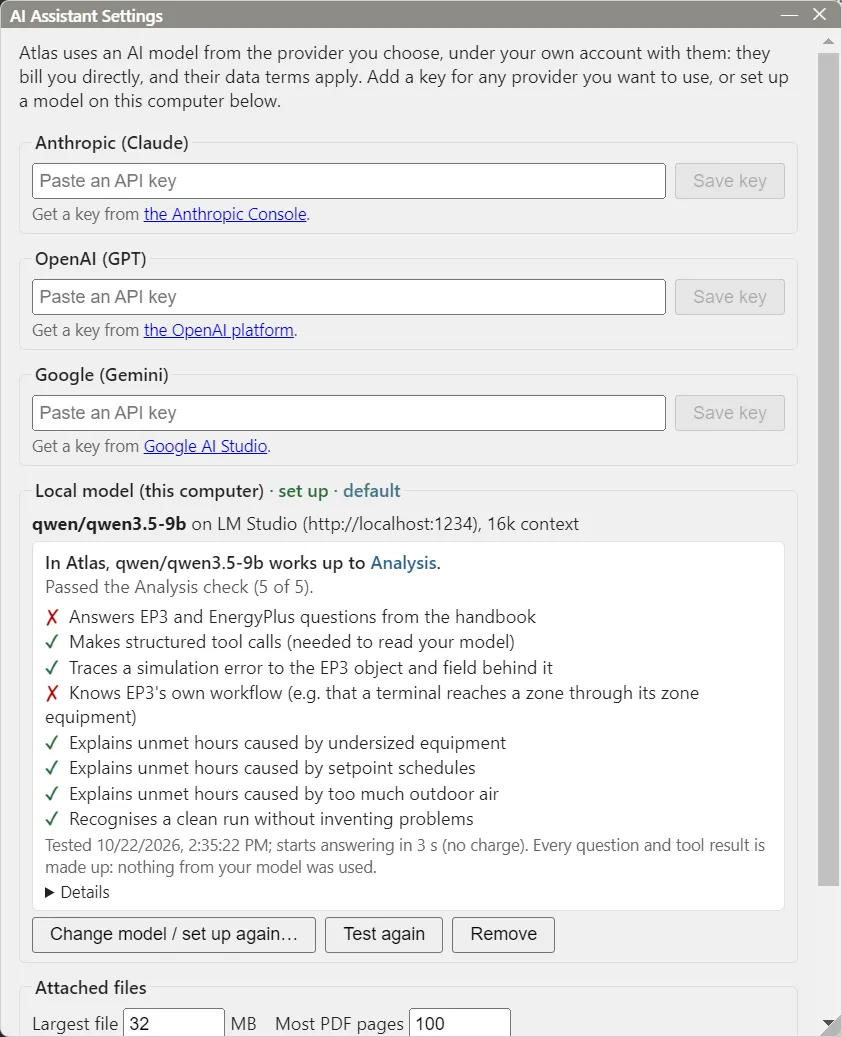
2.1 Cloud providers
Atlas works with Anthropic (Claude), OpenAI (GPT) and Google (Gemini). Each needs an API key from an account you create directly with that provider. The provider bills you for what Atlas uses; EP3 doesn’t resell or mark up usage. Each provider’s section in settings links to the page where you create a key.
Paste the key and click Save key. EP3 checks the key by listing the provider’s models, then stores it encrypted by your operating system, on this computer only. Keys are never put in a model file or a conversation.
For each provider with a key, choose a Model and, optionally, Use by default for new conversations.
2.2 Running Atlas on this computer
Atlas can also run on a model on your own computer. It’s free, and nothing leaves the computer, so it suits a project whose information can’t be sent out. Local models are much smaller than cloud ones:
- Every local model can answer EP3 and EnergyPlus questions from this handbook and read files you attach (Help).
- A local model that passes the Analysis check (§4), loaded with at least a 16k context, can also read your model and its results and explain errors and unmet hours (Analysis).
- A local model never proposes changes.
To set one up, click Get local LLM… in the settings’ local model section. A wizard walks you through it:
-
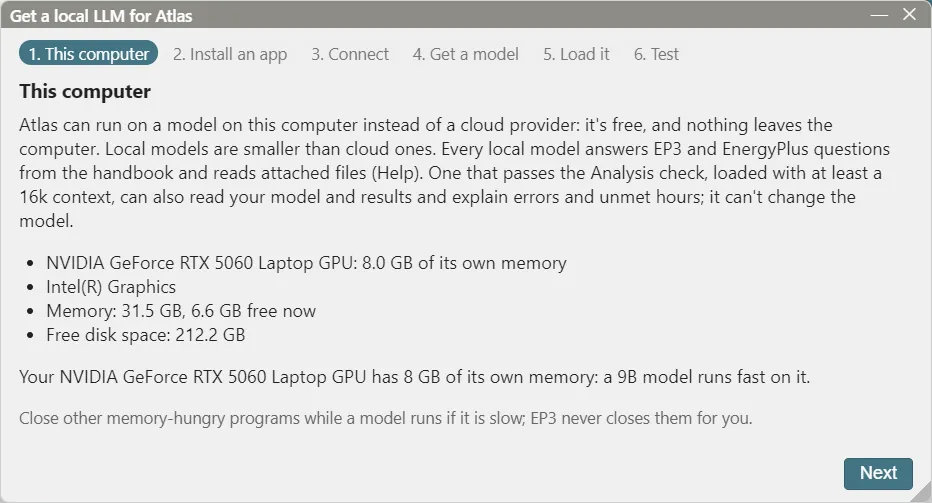
This computer. EP3 reads your graphics card and memory and says what size of model will run well. A graphics card with 8 GB of its own memory runs a 9-billion-parameter model quickly. Without one, a smaller model runs on the processor, more slowly.
-
Install an app. The model runs in a free app you install yourself: LM Studio (recommended) or Ollama. The wizard opens the download page. For LM Studio, open it once after installing and finish its welcome screens.
-
Connect. EP3 finds the app’s server, or starts it for you.
-
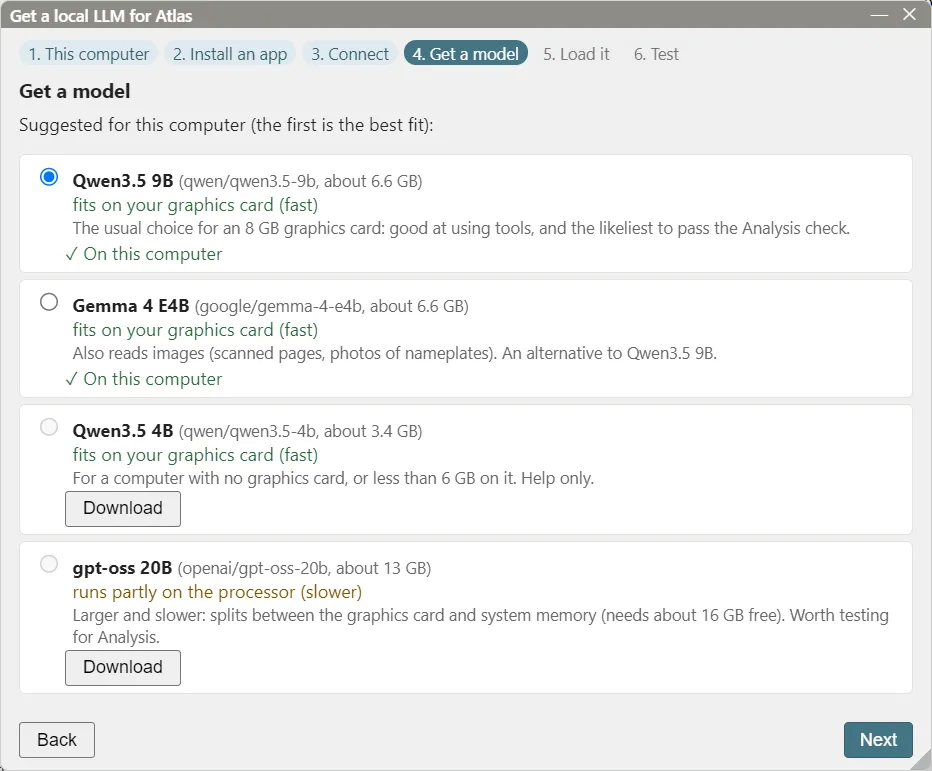
Get a model. Pick one of the suggested models and click Download. The first suggestion fits your computer best, and each says whether it fits on your graphics card. A model is several gigabytes.
-
Load it. Choose the context length: how much of the conversation the model keeps in mind. Analysis needs at least 16k.
-
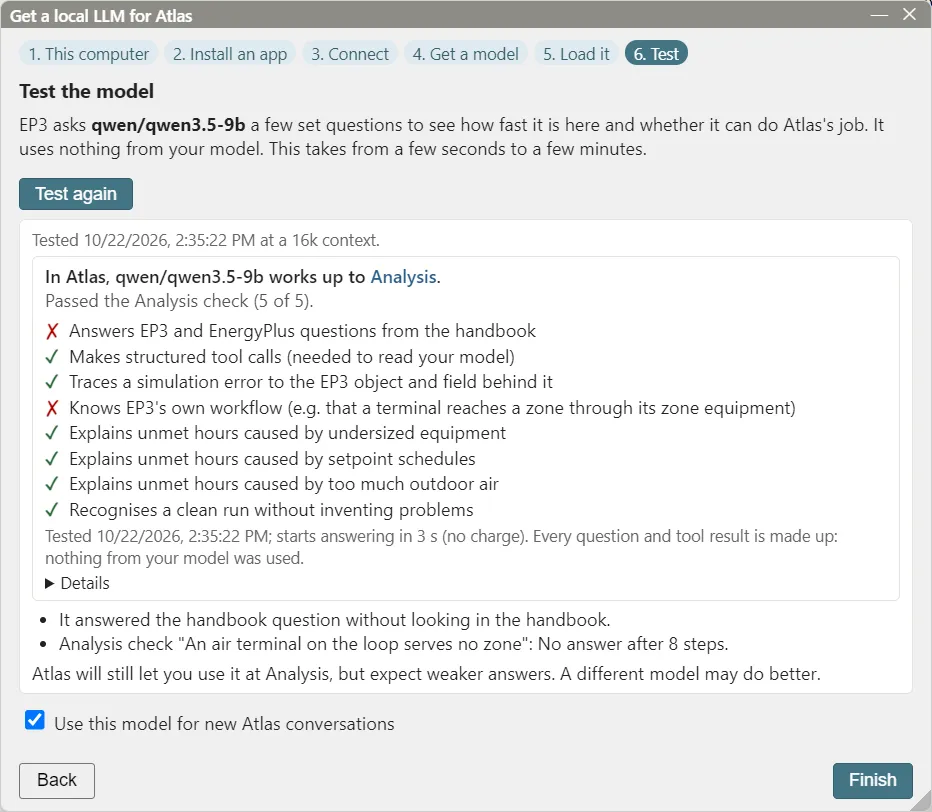
Test. EP3 runs Test this model (§4.1) and shows what the model can do.
EP3 keeps one local model loaded at a time, and unloads any other when it loads one. Models run faster with the graphics card’s memory free, so if replies are slow, close other memory-hungry programs.
3. Access levels
The switch in the Atlas panel header sets what Atlas may do with this model. It is saved in the model file, because files differ in sensitivity, and a new model starts at Off.
| Level | What Atlas can do |
|---|---|
| Off | Nothing. The chat is greyed out and nothing is sent anywhere. |
| Help | Answers EP3 and EnergyPlus questions from this handbook, and reads files you attach. It sees nothing of your model, its simulations or results. |
| Analysis | Reads your model, its simulations and results, and explains them: errors, unmet hours, what an object does. It proposes no changes and runs nothing; it tells you what to change instead: which object, which field, what value. |
| Full | Everything at Analysis, plus proposing changes for you to review (§8) and asking to run simulations (§9). |
A banner under the header shows when Atlas is at Help or Analysis.

4. What each model can do
Models differ in what they do well, so each conversation runs at the lower of your switch setting and its model’s limit.
- Switching to a weaker model lowers the level. If the switch says Full and you pick a model that works up to Analysis, the conversation runs at Analysis, and a line in the chat says so. Pick a stronger model again and it goes back to Full without touching the switch.
- Greyed-out levels. Levels the current model can’t reach are greyed out on the switch. Hover over one to see why.
A model’s limit comes from EP3’s defaults until you test it:
- Current cloud models work up to Full.
- Older or smaller cloud models (for example Claude 3.x, small OpenAI “mini” and “nano” models, and Gemini Flash-Lite) start at Analysis.
- Local models start at Help.
4.1 Test this model
Test this model asks the model the same set of questions every model gets and shows which kinds of answers it gets right:
- EP3 and EnergyPlus questions answered from the handbook;
- structured tool calls, which it needs to read your model;
- tracing a simulation error to the EP3 object and field behind it;
- knowing EP3’s own workflow (for example, that an air terminal reaches a zone through its zone equipment);
- explaining unmet hours caused by undersized equipment;
- explaining unmet hours caused by setpoint schedules;
- explaining unmet hours caused by too much outdoor air;
- recognizing a clean run without inventing problems.
The questions and their answers are made up; nothing from your model is used. The result shows the level the model can reach, a ✓ or ✗ for each kind of answer, how fast it answered, and the tokens it used. A cloud model that fails the Analysis questions is limited to Help. A local model that passes them unlocks Analysis.
Testing a local model is free. Testing a cloud model is billed to your account with that provider. Before the test runs, EP3 shows roughly how many requests and tokens it uses and what they cost at the provider’s list prices, typically a dollar or two. The test takes a few minutes.
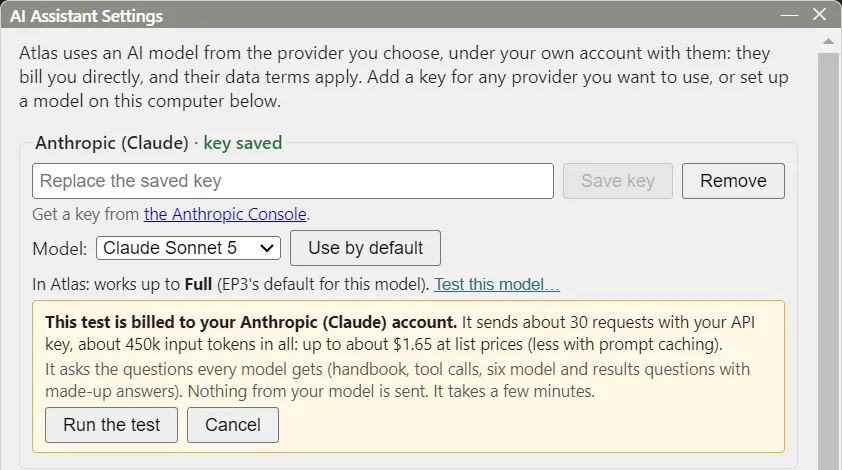
To test a cloud model, click Test this model… under its provider in settings; once it has been tested, What it can do shows the results again. To test a local model, use the wizard’s last step, or Test again in settings.
5. Starting a conversation
Atlas opens from several places, and starts with what you opened it from:
- The AI button in the top toolbar: a general conversation.
- The AI button in the Selected Object dialog, or in the main object dialog’s title bar: a conversation about that object, or about the objects checked in Column 2.
- A simulation’s errors (§7.1).
- Attach selection, below the message box: adds the objects selected in EP3 to your next message. This needs Analysis or Full.
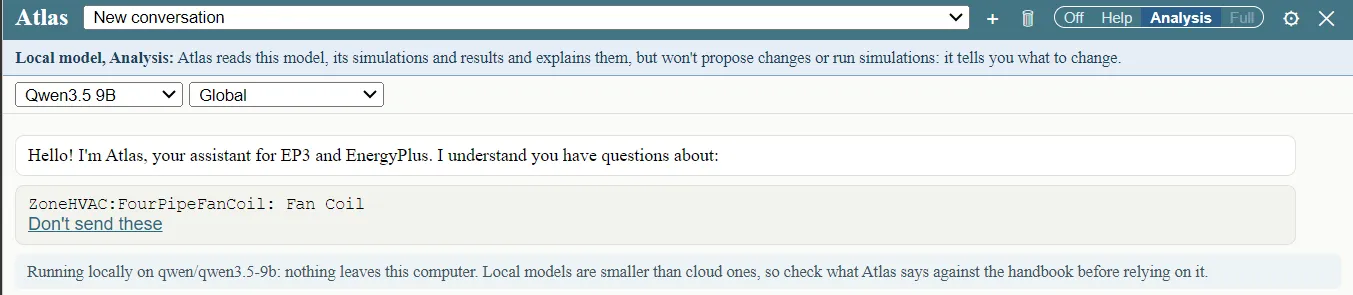
The object appears in the chat above the message box; Don’t send these removes it from your first message. If a conversation is already under way, Atlas offers Add to the current conversation or New Atlas conversation.
Above the chat:
- The model list chooses which model answers this conversation.
- The EEM list sets the EEM the conversation works in. Atlas reads and proposes changes in that EEM unless you ask about another.
At Analysis or Full, Atlas can also answer questions about EEMs:
- What an EEM changes, measured from the EEM it builds on (or Global). Atlas uses the change groups of the EEM page’s Disaggregation tab (Energy Efficiency Measures): for each group, the object type, the fields, the number of objects and the old and new values. Ask about one group to see every object and value in it. A value the EEM stores that matches what it would inherit anyway is marked as having no effect.
- Which EEMs an EEM relies on, nearest first and ending at Global, including branching EEMs and the HVAC System and SWH System choices, the iterations it includes and the runs it makes. For an EEM that makes several runs, name the run you mean; otherwise Atlas describes the first and says so.
- How two EEMs differ. When one builds on the other, Atlas lists the change groups between them. For unrelated EEMs it compares the two models EP3 writes for EnergyPlus, object type by object type. That comparison shows how the models differ, but cannot say which EEM made a given change.
Conversations are saved beside the model, in a file with the model’s name and the extension .ep3chat. They are not saved inside the model file, so sharing a model doesn’t share its conversations. Pick an earlier conversation from the list in the header, or start a new one with +.
The line at the bottom of the chat shows the tokens the conversation has used and, for a cloud model, an estimate of their cost. For a local model it says “no charge”.
Nothing is sent until you send your first message. At Analysis or Full on a cloud model, the opening notice says what will be sent and whether incognito is on. On a local model it says that nothing leaves the computer.
6. Attaching files
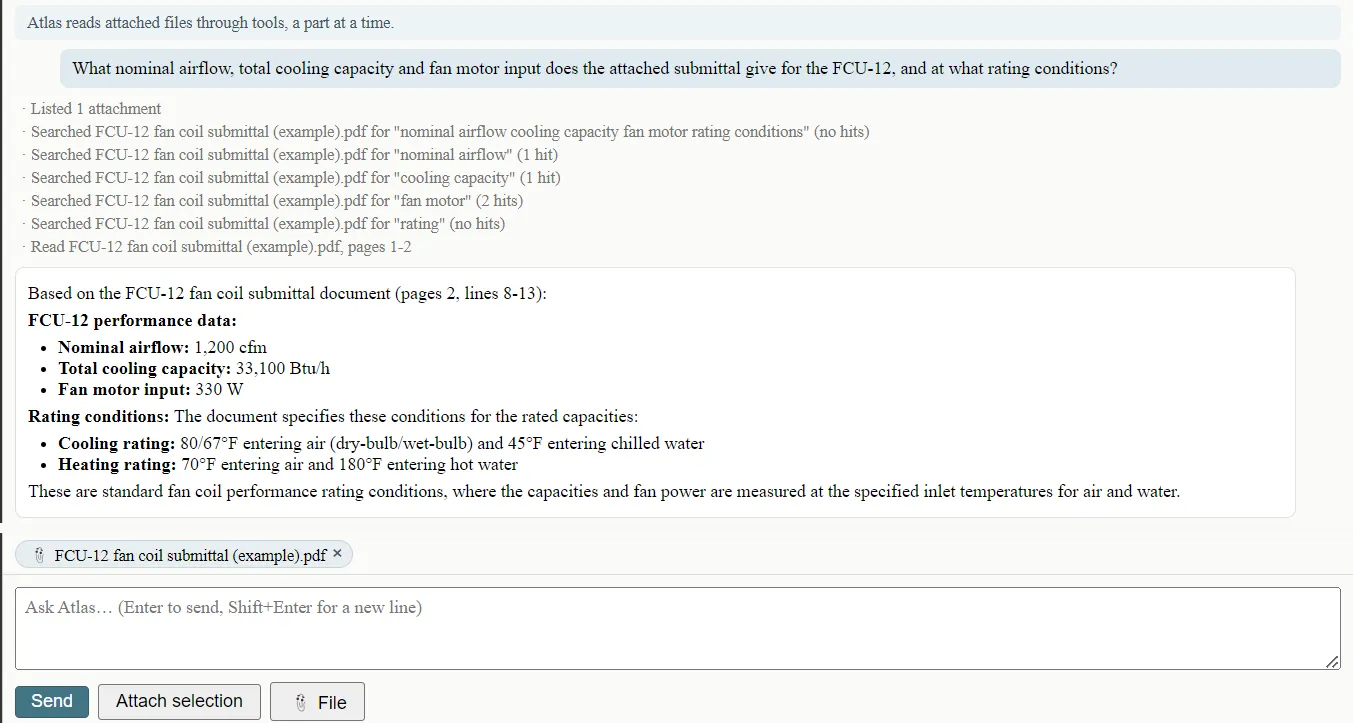
You can give Atlas files to read: an equipment spec sheet, a lighting schedule in a spreadsheet, a reference IDF, an EnergyPlus output from another run, a weather file or a screenshot. Click 📎 File below the message box, or drag files from Explorer onto the chat. Each attached file appears as a chip above the message box and stays attached for the rest of the conversation; click its × to remove it.
Atlas can read:
- PDFs, page by page. On a cloud model, a scanned page or a drawing with no text can be looked at as an image.
- Spreadsheets and tables:
.xlsx(each sheet),.csv,.tsv, and the tables in EnergyPlus’s HTML output. - EnergyPlus files:
.idf,.epJSONand other JSON outputs;.err,.eio,.rdd,.mddand other text outputs;.ddy,.statand.epwweather files. For a weather file, Atlas sees a monthly summary EP3 works out, and can read the hourly rows it needs. - Images:
.png,.jpg,.webpand.gif, on cloud models only. - Plain text:
.txt,.md,.xmland.log.
CAD drawings (.dwg, .dxf) can’t be read; attach a PDF or image of the drawing instead. Old .xls workbooks and Word documents aren’t supported yet; save them as .xlsx or PDF.
Atlas doesn’t read a whole file at once. It sees a list of what you attached, then searches and reads just the pages, sheets or rows it needs, so a long file costs only what is actually read.
On a cloud model, attached files are not anonymous: the provider sees each file’s name and contents, even in an incognito conversation. Attaching a file counts as permission to send it, so Atlas can read attached files at Help as well as Analysis and Full. The size limits (32 MB and 100 PDF pages by default) are set in AI Assistant Settings.
EP3 saves which files you attached with the conversation, but not the files themselves. If you move or edit a file after attaching it, Atlas asks you to attach it again rather than reading a different version.
7. Diagnosing errors and unmet hours (Analysis or Full)
7.1 Simulation errors
Clicking a run’s status in the Results dialog opens its errors. The viewer’s header has two modes:
- AI troubleshoot opens Atlas beside the errors, on a conversation about that run, in the EEM the run simulated. Click Troubleshoot these errors to have it explain each fatal and severe error, find the EP3 objects behind them, and then propose fixes (Full) or tell you how to make them (Analysis).
- Error file shows just the errors, with no AI.
EP3 links each message to the EP3 objects it names, and Atlas works from those same links, going straight from a message to the object to read. Nothing in the errors reaches the provider until you send a message.
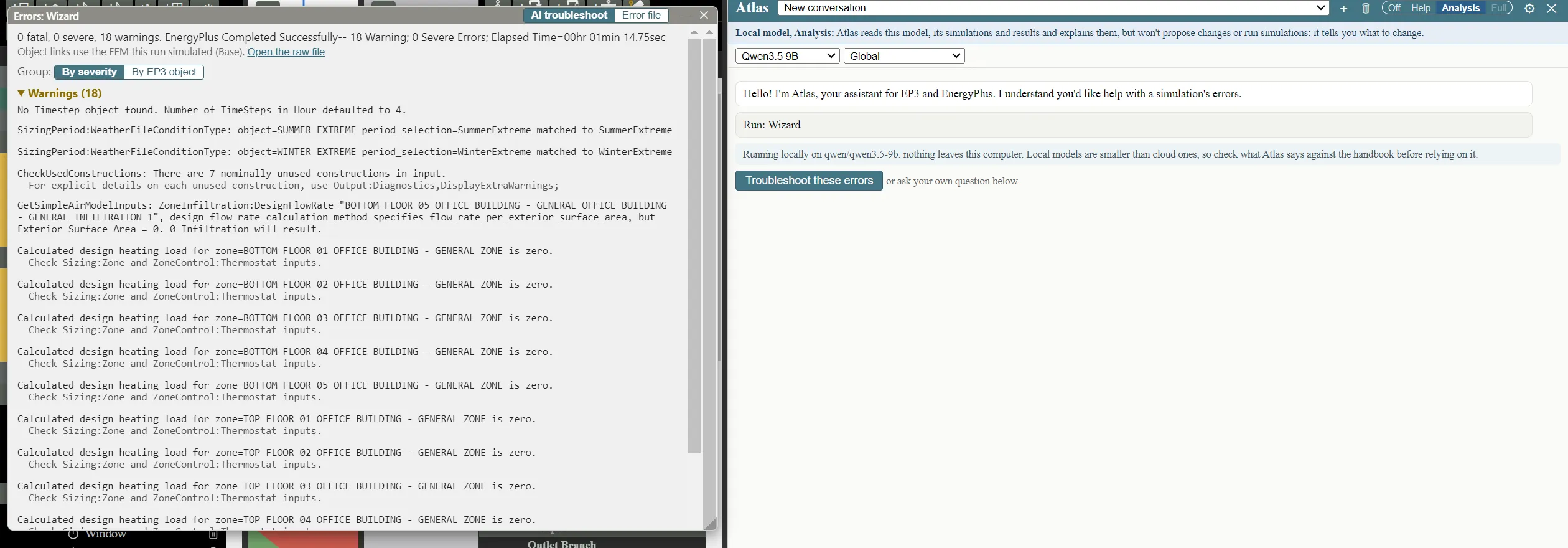
The error viewer is described in Model Troubleshooting and Quality Assurance.
7.2 Unmet hours
Ask Atlas why a zone or the building has unmet hours. Atlas starts from the same analysis as the Results dialog’s Unmet Hours tab. That analysis:
- ranks the zones by occupied unmet hours, with the months they fall in;
- lists each zone’s thermostat, setpoint schedules, zone equipment and sizing;
- runs EP3’s checks of the usual causes: hard-sized capacity below the design load, setpoints set back during working hours, too much outdoor air, sizing factors below 1, and equipment scheduled off when the hours happen.
Atlas then reads the objects involved and explains what it finds.
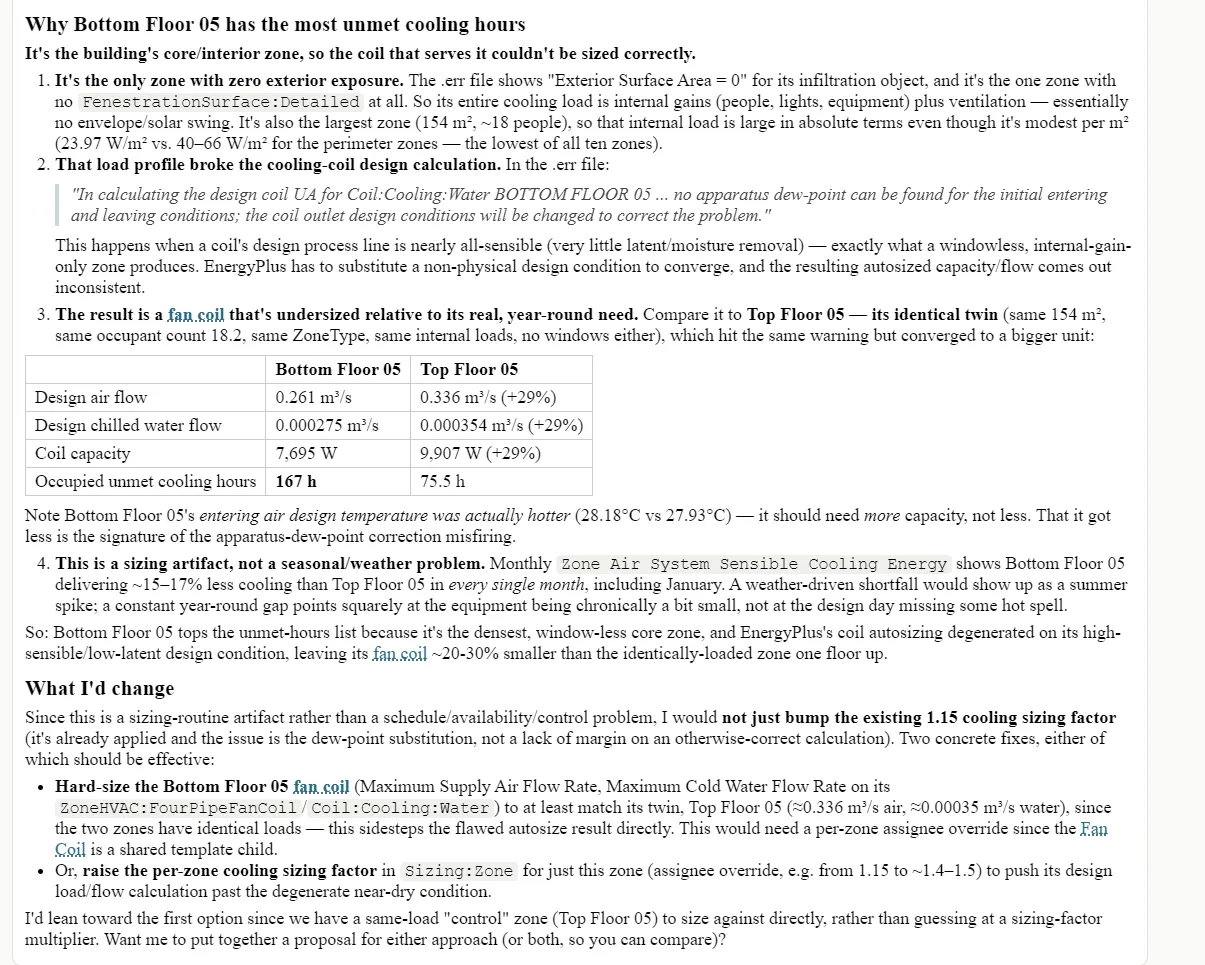
The Unmet Hours tab gives you the same analysis and checks without any AI; Atlas adds the explanation and, at Full, a proposed fix. Model Troubleshooting and Quality Assurance covers diagnosing unmet hours by hand.
8. Getting suggested model changes (Full)
At Full, Atlas can propose changes: new objects, changed fields, objects included in or excluded from an EEM, an EEM’s own on/off setting or field value cleared so it inherits again (the card names the EEM it will follow and the result, such as “currently Off → will be On”; Global has nothing to inherit from), equipment connected to loops, zone equipment assigned, daylight sensors added, window shading set, window sizes changed, and wall or roof surfaces made into windows, as Make into a window… does (Creating Building Geometry); Atlas proposes that only when you ask, and never gives a wall, roof, or floor a glazing construction itself. A window size change is checked like one made in the Selected Object dialog, in every EEM (Windows, Shading, and Daylighting). It can put a change in an existing EEM, or in a new EEM built on one you name, and asks when “based on X” is ambiguous.
8.1 What EP3 checks before you see it
EP3 checks every proposal before showing it, by writing the changed model for the target EEM from a copy; your model is untouched. Problems go back to Atlas to fix and never reach you: unknown fields or object types, references that don’t resolve, equipment left off every loop, and new export errors.
These checks establish that the proposal is valid EnergyPlus input. Whether it is sound modeling is for you to judge, so review it the way you would review a change you made by hand (Model Troubleshooting and Quality Assurance).
8.2 Integrating or rejecting
A proposal appears as a card with one row per change:
- Untick any row you don’t want.
- Change the target if needed: an existing EEM, or a new EEM with its name, the EEM it builds on (inheriting later changes) or copies, and whether it is an HVAC or SWH system alternative.
- Click Integrate or Reject.
Integrating applies everything in one step, so one Undo reverts it all. Atlas is told what happened and carries on.
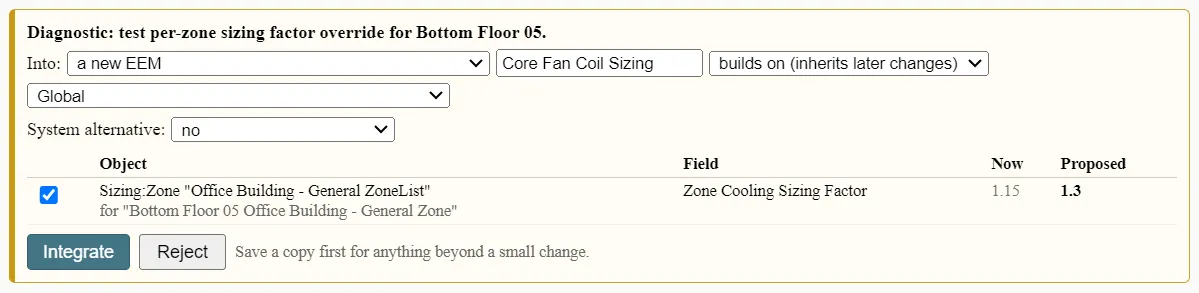
The card in the figure came from a request to hard-size the zone’s fan coil. EP3’s checks sent that proposal back twice (§8.1), and Atlas proposed the zone’s sizing factor instead, which can be set for one zone of a ZoneList.
9. Simulations and results (Full)
While the ASHRAE 90.1 PRM generator runs, the model is closed to edits and Atlas’s changes, measures, and simulation requests wait; it can still read and answer (ASHRAE 90.1 Performance Rating Method).
At Full, Atlas can ask to run EnergyPlus for one or more EEMs. A card asks you to Run EnergyPlus or Not now. When the run finishes, Atlas sees its error counts and can read its results.
At Analysis and Full, Atlas can:
- read results tables and time series, and compare runs;
- draw charts in the chat from a run’s time series, without sending that data through the conversation. A chart is shown in the model’s unit system and redrawn if you switch units;
- open the Results dialog at the report table it means, or the time-series viewer with the variables picked;
- list and open every Results view with its options: Parallel Coordinates, Unmet Hours, Energy Flow (scope, zone, period, and color mode), Disaggregation, Calibration, and the charts under the tables;
- look up Energy Flow figures to answer heat-balance questions, such as which zone gets the most solar gain during heating hours (Viewing and Interpreting Results).
Charts plot time series only. For a results table such as End Uses, Atlas compares the runs in a table in the chat and can open the Results dialog at that table.
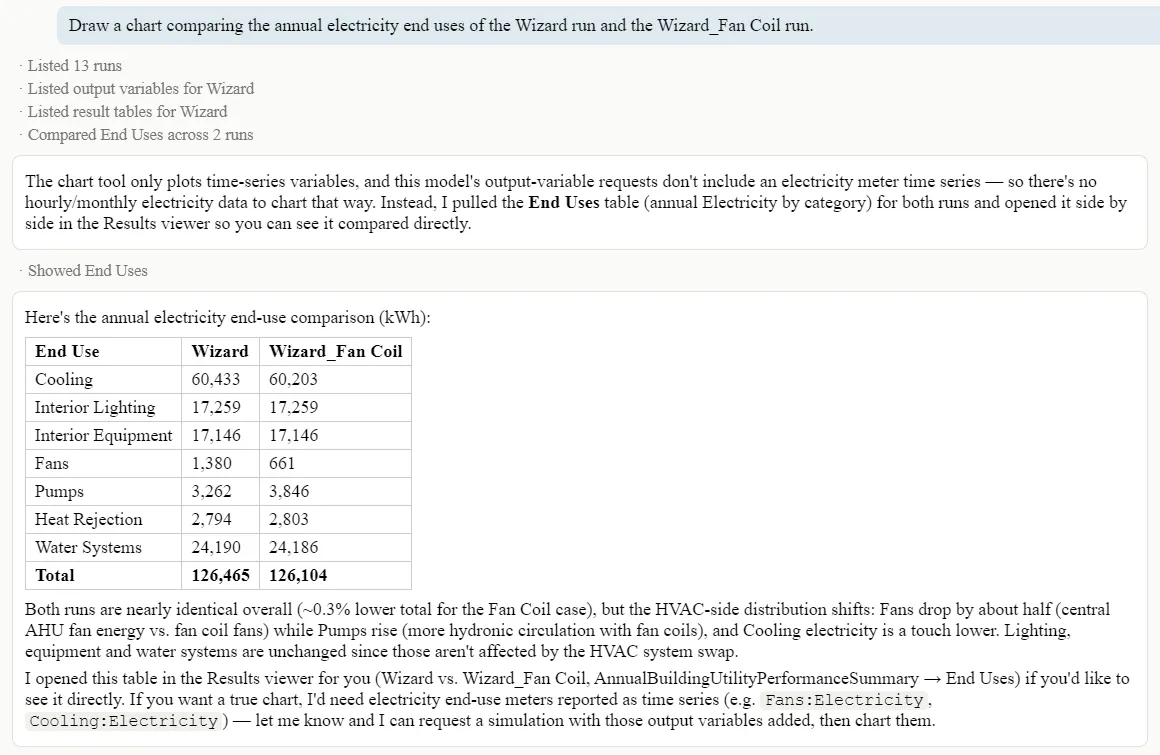
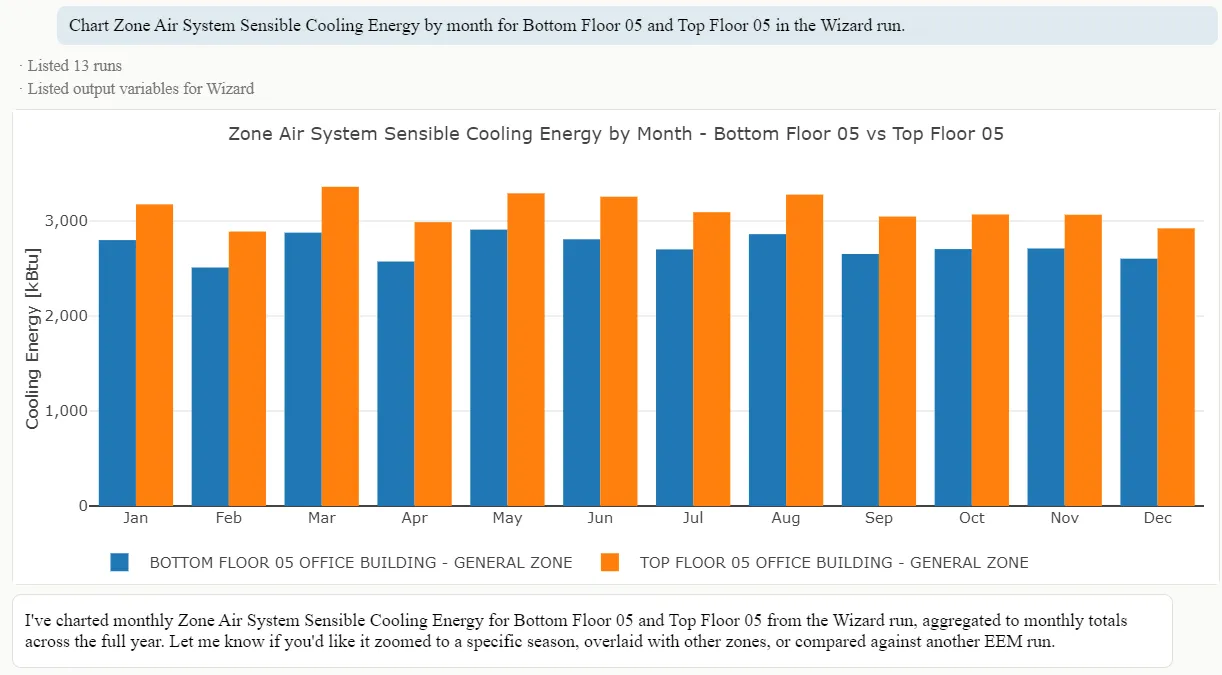
A local model at Analysis has a smaller set of tools: it reads results tables, errors and the unmet hours analysis, but not time series, and it doesn’t draw charts or open the viewers.
Viewing and Interpreting Results covers the Results dialog and the time-series viewer.
10. Privacy and incognito
With a cloud model at Analysis or Full, what Atlas reads is sent to the provider you chose, under your account and their data terms. That covers objects, fields, results and error text. At Help, nothing about your model is sent. With a local model, nothing leaves the computer at any level.
Incognito hides real names from a cloud model. With incognito on when you send a conversation’s first message, Atlas sees only placeholder names (for example “Zone 0007”), and file paths are hidden. The conversation stays incognito even if you turn incognito off later. EP3 shows Atlas’s replies with the real names. Incognito is switched on in the top toolbar (The EP3 Interface and Model Settings).
A run simulated in the other naming mode can’t be matched to the model by name. The error viewer offers to simulate it again in the current mode.
11. Where to Look Next
- Viewing and Interpreting Results: the Results dialog, the Unmet Hours tab and the error viewer, all of which work without AI.
- Model Troubleshooting and Quality Assurance: checking a model and its changes.
- Energy Efficiency Measures: how EEMs inherit, which decides where Atlas’s changes go.
This handbook is also built into EP3 (Help), where its EnergyPlus links open the EnergyPlus Reference. Technical specifications · Book a demo