Utility Costs
1. Overview
Utility costs are modeled with UtilityCost:Tariff objects and the charges, eligibility rules, ratchets, variables, and computation attached to them. EnergyPlus applies each tariff to its meter’s monthly energy and demand and reports a monthly bill (§10). The Model Wizard does not create tariffs (The Model Wizard), and a model without one reports no energy cost.
Tariffs are in the Economics group in Column 1 of the main object dialog (The EP3 Interface and Model Settings). The other UtilityCost:* types are not listed there: they are managed in the tariff’s panel in Column 3 (§3.3).
2. Currency
The CurrencyType object, also under Economics, sets the Monetary Unit for every tariff as an ISO 4217 code (USD, EUR, GBP, and so on); without one, EnergyPlus uses USD. The panel shows common codes as their symbol ($, €, £, ¥) and others as the code (“PHP 12.50”).
3. Adding a tariff
3.1 The Add Tariff form
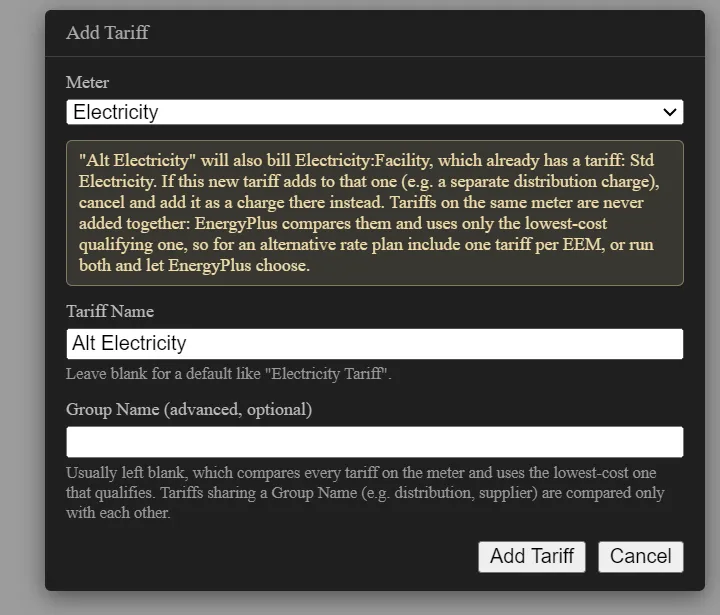
Select UtilityCost:Tariff in Column 1 and click Add Object. The Add Tariff form asks for:
- Meter — Electricity, Natural Gas, or Water (
Electricity:Facility,NaturalGas:Facility,Water:Facility), or Other, which adds a Custom Meter Name field for another EnergyPlus meter, such as a sub-meter. - Tariff Name — blank gives a name such as “Electricity Tariff”.
- Group Name (advanced, optional) — usually blank, which compares the tariff with every tariff on the meter (§9.1). It starts with the Group Name of another tariff on the meter, if one has it.
When the chosen Electricity, Natural Gas, or Water meter already has a tariff, the form warns that the new tariff, named as typed or by its default name, will also bill that meter, and lists the tariffs already on it. A charge that adds to an existing tariff, such as a separate distribution charge, belongs on that tariff: tariffs on one meter are never added together (§9.1). Cancel creates nothing.
3.2 The tariff’s fields
Column 2 lists each tariff as Name (Meter). Column 3 shows its fields:
- Conversion Factor Choice — the unit rates are per. Add Tariff sets kWh for electricity, Therm (IP) or MJ (SI) for gas, gal (IP) or m3 (SI) for water, and UserDefined for Other, which shows Energy Conversion Factor and Demand Conversion Factor (multipliers from joules and watts). Demand rates are per kW for kWh and per the chosen unit per hour otherwise (Therm/h, MJ/h, m3/h). A blank choice is treated as kWh (kW) on an energy meter and m3 (m3/h) on a water meter. The panel’s rate labels and tier summaries use these units.
- Time of Use Period Schedule Name and Season Schedule Name — see §4.2.
- Demand Window Length — the averaging interval for peak demand; Add Tariff sets QuarterHour. At 6 timesteps per hour EnergyPlus uses HalfHour instead, and at 3, FullHour.
- Monthly Charge or Variable Name — a fixed monthly service charge.
- Minimum Monthly Charge or Variable Name — a floor on the monthly bill.
Month Schedule Name (billing periods other than calendar months) and Buy Or Sell (BuyFromUtility by default, SellToUtility, or NetMetering) are in the panel’s Advanced section. The real-time pricing fields are not shown.
Unit check. Gas at $0.95 per therm, in an SI model where the unit is MJ, is entered as $0.95 / 105.5 MJ = $0.0090 per MJ.
3.3 The tariff panel
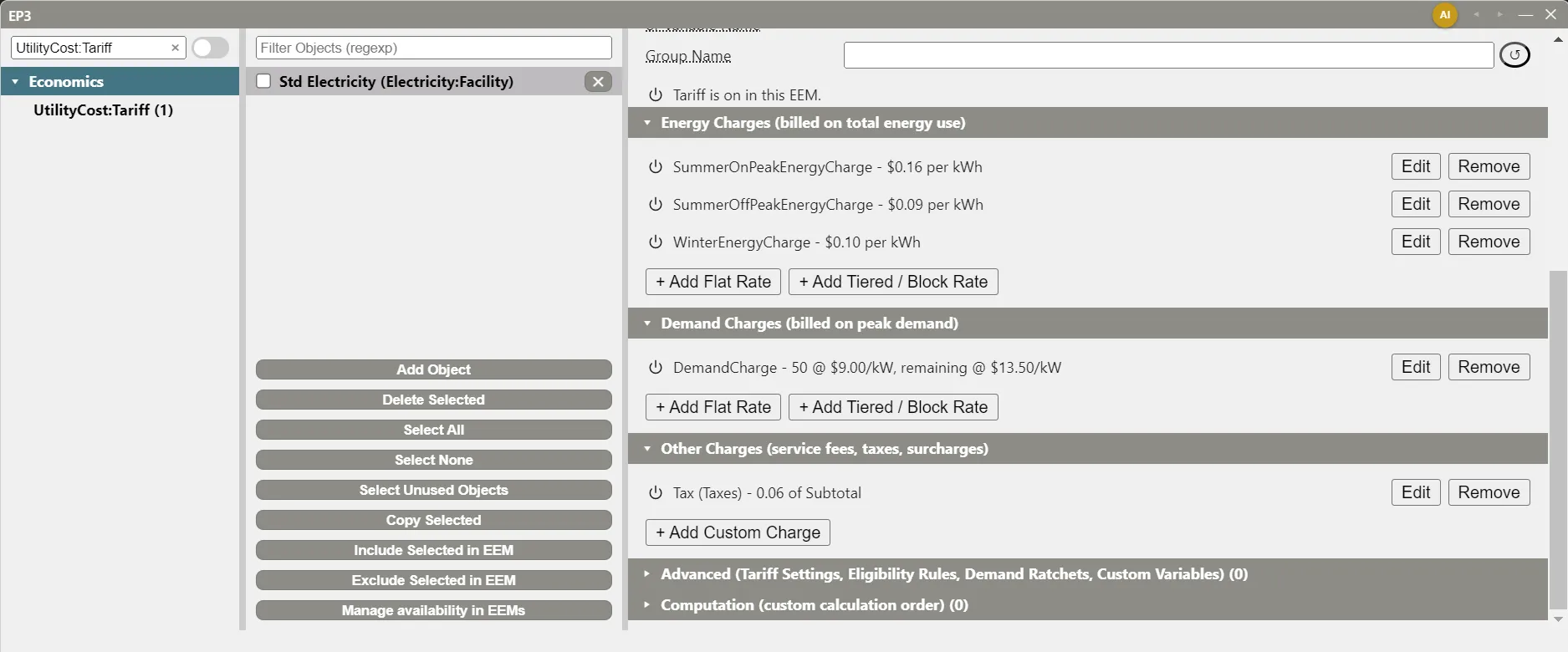
Below the fields, the tariff’s panel has these sections:
- Energy Charges (billed on total energy use) and Demand Charges (billed on peak demand), each with + Add Flat Rate and + Add Tiered / Block Rate (§4).
- Other Charges (service fees, taxes, surcharges), with + Add Custom Charge (§5).
- Advanced (Tariff Settings, Eligibility Rules, Demand Ratchets, Custom Variables) (§6).
- Computation (custom calculation order) (§7).
Each item (charge, eligibility rule, ratchet, variable, or computation) is a row with a power button and a ↺ button for the active EEM (§9.2), a summary (“SummerOnPeakEnergyCharge - $0.16 per kWh”, or for tiers “50 @ $9.00/kW, remaining @ $13.50/kW”; rates show at least two decimals, and more when entered: $0.10, $0.085), Edit, and Remove. Removing an item that another item or the computation uses asks first.
A blank name is generated from the season and billing period (SummerOnPeakEnergyCharge) or the type (Tax). Names are variables in EnergyPlus’s tariff calculation, so a typed name loses its spaces (“summer on peak” becomes SummerOnPeak), as does a name Atlas gives a new item (“Gas Charge” becomes GasCharge) and is numbered if already in use (Tax2). EnergyPlus ignores spaces and capitals in these names, so Model Validation warns when two items of one tariff differ only that way (an imported file can hold them). Rates, tier sizes, and thresholds take a number or a variable name.
4. Energy and demand charges
4.1 Flat rates
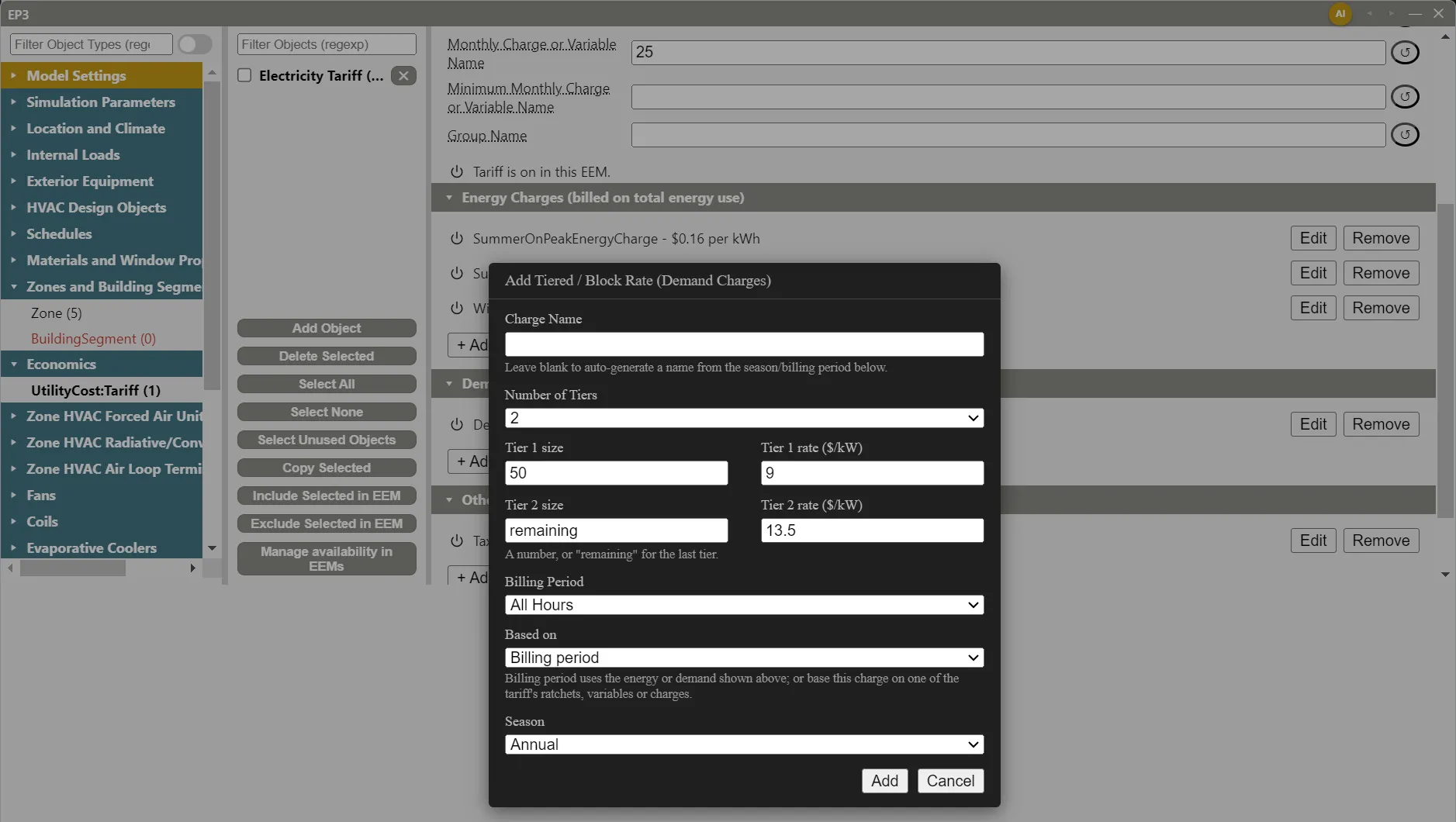
+ Add Flat Rate opens a form with Charge Name, Rate, and, when the tariff has the schedules, Billing Period and Season. Without them, the rate applies to every hour of every month.
4.2 Time-of-use and seasonal charges
Two schedules on the tariff (Schedules) add choices to the charge forms:
- Time of Use Period Schedule Name — hourly values 1 (Peak), 2 (Shoulder), 3 (Off-Peak), 4 (Mid-Peak). Adds Billing Period: All Hours, each period, and Peak + Shoulder, Peak + Mid-Peak, Shoulder + Off-Peak, and Peak + Off-Peak. Demand charges also offer comparisons such as Peak Exceeds Off-Peak.
- Season Schedule Name — monthly values 1 (Winter), 2 (Spring), 3 (Summer), 4 (Autumn). Adds Season: Annual, Summer, Winter, Spring, or Fall. Seasons must change at a billing-month boundary.
A month whose season no energy charge names has no energy charge, so give every season the schedule uses a charge.
When the tariff has ratchets, variables, or other charges, energy and demand charges also have Based on: Billing period (the default), or one of those items, such as a ratchet (§6).
4.3 Tiered (block) rates
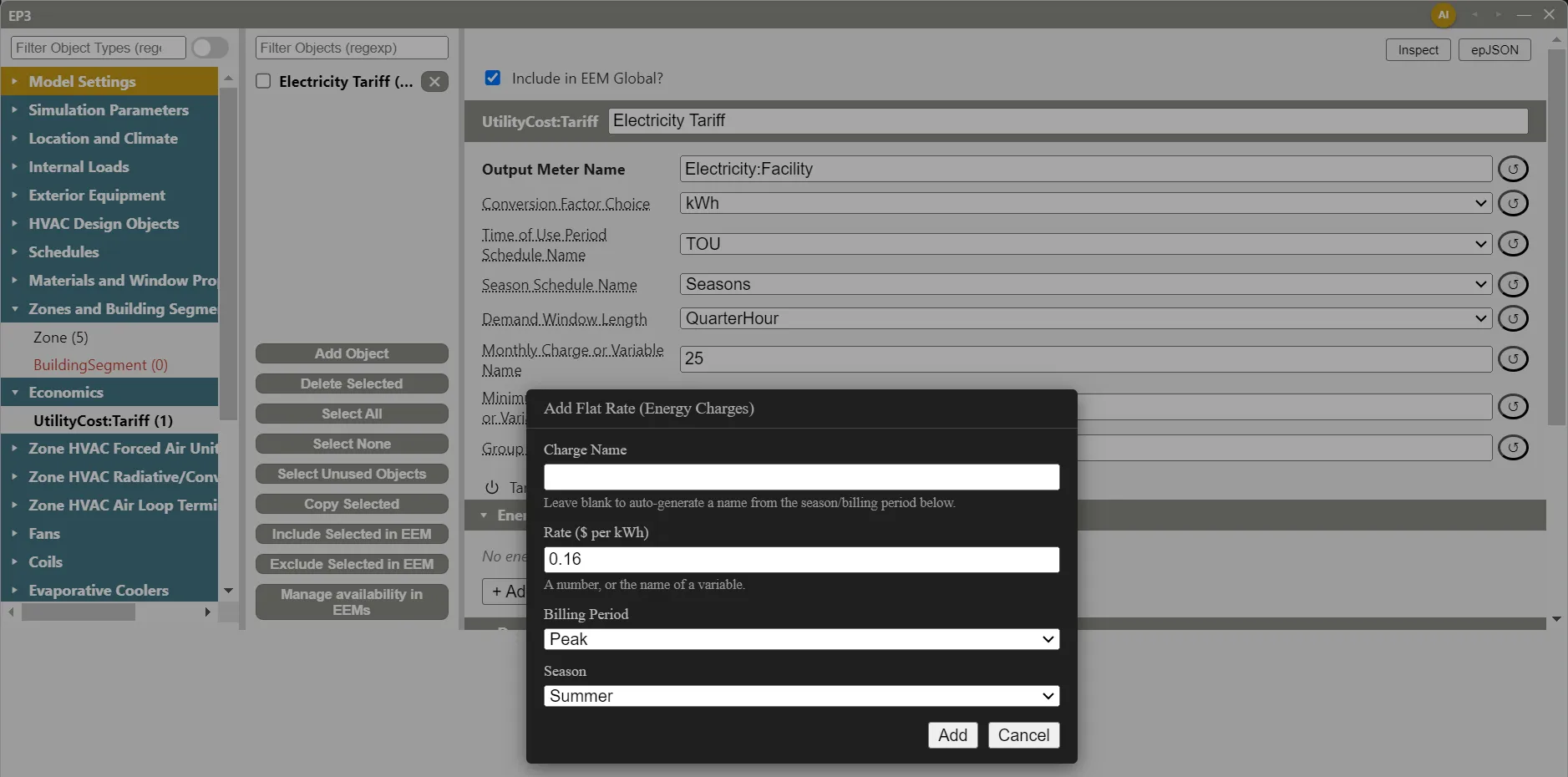
+ Add Tiered / Block Rate adds Number of Tiers (1 to 15, starting at 3) and a size and rate for each tier; the last size is usually “remaining”. Changing Number of Tiers keeps the sizes and rates already typed; a blank last tier becomes “remaining”, and “remaining” is cleared from a tier that is no longer last. Tiers beyond the number chosen are not saved.
5. Other charges and how the bill adds up
EnergyPlus builds each month’s bill in running subtotals:
- Basis = EnergyCharges + DemandCharges + ServiceCharges
- Subtotal = Basis + Adjustment + Surcharge
- Total = Subtotal + Taxes
+ Add Custom Charge asks for:
- Type — Service Charge, Tax, Surcharge, Adjustment, Basis, Subtotal, Total, or Not Included (computed but not billed).
- Based On — Total Energy Use, Total Demand, the time-of-use energy and demand, Energy Charges, Demand Charges, Basis, Subtotal, or any of the tariff’s items. A tax is usually based on Subtotal.
- Rate — a fraction for a tax: 6% is 0.06.
6. Eligibility rules, demand ratchets, and custom variables
The Advanced section holds:
- Eligibility rules (
UtilityCost:Qualify, + Add Eligibility Rule) disqualify the tariff when a variable passes a limit, such as demand over 100 kW. The form asks for Variable, Qualify Type (Minimum or Maximum), Threshold Value, Threshold Test (Count or Consecutive), and Number of Months (12 for Minimum and 1 for Maximum until changed). - Demand ratchets (
UtilityCost:Ratchet, + Add Demand Ratchet) hold billed demand to a fraction of an earlier peak. For “the greater of this month’s demand and 90% of the summer peak”, set Baseline Source Variable and Adjustment Source Variable to totalDemand, Season From to Summer, Season To to Annual, and Multiplier Value or Variable Name to 0.9, then choose the ratchet in the demand charge’s Based on. - Custom variables (
UtilityCost:Variable, + Add Custom Variable) hold twelve monthly values, January Value to December Value, for a rate or Based On to name.
A ratchet or variable opens in Column 3’s field editor; ← Back to tariff returns to the tariff.
7. Computation
EnergyPlus orders a tariff’s calculations itself, which suits most tariffs. A UtilityCost:Computation (at most one per tariff) replaces that order. + Add Computation starts from the order EnergyPlus would use, one step per line, such as EnergyCharges SUM SummerCharge WinterCharge; up to 30 steps. Reset to EnergyPlus’s Order rebuilds it from the current charges. The steps must name every charge, ratchet, and rule; EP3 does not check them, and EnergyPlus reports a misspelled name.
8. Worked example
An electric account: $25.00 per month; summer (June to September) energy at $0.16/kWh on peak (weekdays 12:00 to 18:00) and $0.09/kWh off peak; winter energy at $0.10/kWh; demand at $9.00/kW for the first 50 kW and $13.50/kW beyond; 6% tax.
Schedules (Schedule:Compact):
TOU:     Through: 12/31, For: Weekdays, Until: 12:00, 3, Until: 18:00, 1, Until: 24:00, 3,
                         For: AllOtherDays, Until: 24:00, 3
Seasons: Through: 5/31,  For: AllDays, Until: 24:00, 1,
         Through: 9/30,  For: AllDays, Until: 24:00, 3,
         Through: 12/31, For: AllDays, Until: 24:00, 1
Tariff. Add an Electricity tariff; set Time of Use Period Schedule Name to TOU, Season Schedule Name to Seasons, and Monthly Charge or Variable Name to 25; then add:
| Section | Form | Billing Period | Season | Rate |
|---|---|---|---|---|
| Energy Charges | Flat Rate | Peak | Summer | 0.16 |
| Energy Charges | Flat Rate | Off-Peak | Summer | 0.09 |
| Energy Charges | Flat Rate | All Hours | Winter | 0.10 |
| Demand Charges | Tiered / Block Rate, 2 tiers | All Hours | Annual | 50 at 9.00, remaining at 13.50 |
| Other Charges | Custom Charge, Type Tax, Based On Subtotal | 0.06 |
A July bill by hand, for 42,000 kWh (30,000 on peak) and an 80 kW peak:
| Item | Calculation | Amount |
|---|---|---|
| Energy charges | 30,000 × $0.16 + 12,000 × $0.09 | $5,880.00 |
| Demand charges | 50 × $9.00 + 30 × $13.50 | $855.00 |
| Service charges | monthly charge | $25.00 |
| Basis = Subtotal | no adjustments or surcharges | $6,760.00 |
| Taxes | 0.06 × $6,760.00 | $405.60 |
| Total | $7,165.60 |
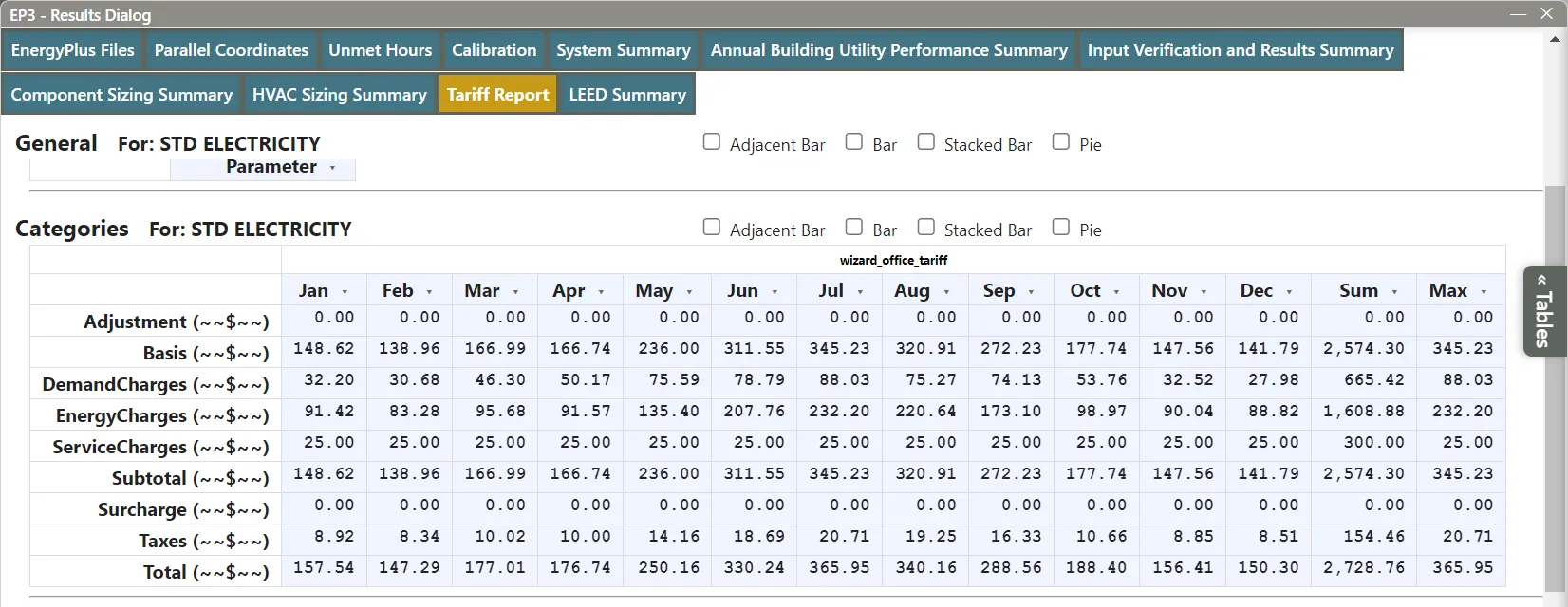
Check in EnergyPlus. The same tariff on EnergyPlus 26.1’s 5ZoneAirCooled example with Chicago O’Hare TMY3 weather gives this July in the Tariff Report:
| Item | Calculation | Tariff Report |
|---|---|---|
| On-peak energy | 2,259.38 kWh × $0.16 | $361.50 |
| Off-peak energy | 2,377.09 kWh × $0.09 | $213.94 |
| Demand | 20.22 kW × $9.00 (first tier only) | $181.95 |
| Basis | $575.44 + $181.95 + $25.00 | $782.39 |
| Taxes | 0.06 × $782.39 | $46.94 |
| Total | $829.34 |
EnergyPlus uses unrounded values (the peak is 20.217 kW), hence the one-cent differences. The year’s total is $7,154.51.
9. Several tariffs on one meter, and tariffs in EEMs
9.1 Several tariffs on one meter
When several tariffs in a run bill the same meter, EnergyPlus compares them and uses only the lowest-cost tariff that qualifies: one per meter among tariffs with a blank Group Name, and one per Group Name among tariffs that share one. The others are reported but not billed; tariffs are never added together. The Tariff Report’s Selected row shows which was billed.
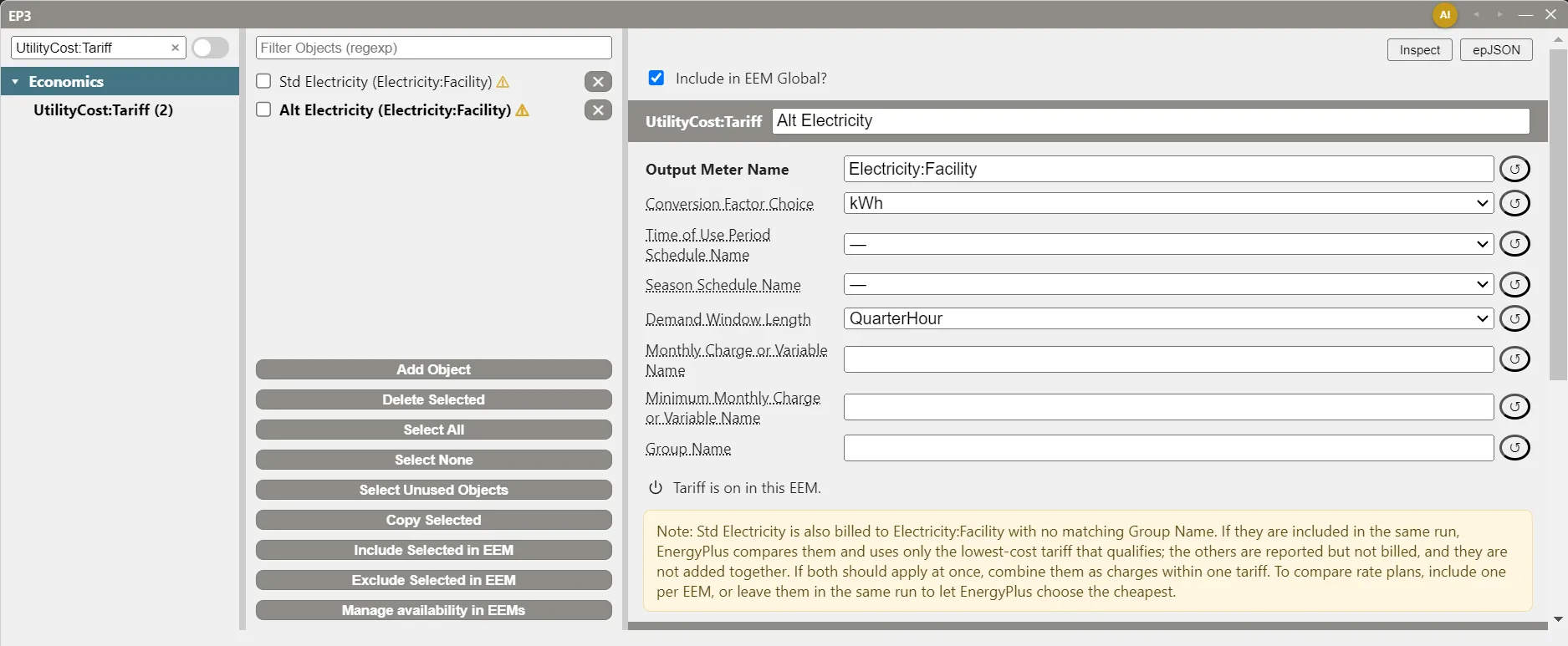
In Column 2, a gold ⚠ follows a tariff that shares its meter with no matching Group Name, and (competing) one that shares a Group Name. A banner at the top of the tariff’s panel explains it. The gold banner reads, for example, “Note: Electricity Tariff is also billed to Electricity:Facility with no matching Group Name. If they are included in the same run, EnergyPlus compares them and uses only the lowest-cost tariff that qualifies; the others are reported but not billed, and they are not added together.” The blue banner, for a shared Group Name, says that EnergyPlus uses only the lowest-cost qualifying tariff in the group and reports the others for comparison.
Charges that belong on one bill, such as distribution and energy, go on one tariff. To compare rate plans, include one per EEM (§9.2), or include them in the same run and let EnergyPlus choose the cheapest.
9.2 Tariffs in EEMs
A tariff and each item on it can be on or off in each EEM (Energy Efficiency Measures (EEMs)). The line at the top of the panel shows the tariff’s state (“Tariff is on in this EEM.” or “Tariff is off in this EEM: it and its charges are left out of the export.”) with the tariff’s power button; each item row has its own. The power button switches the object on or off in the EEM being edited. In an EEM other than Global, ↺ clears that EEM’s setting so the object follows the EEM it is built on; it is greyed while nothing is set. The power button’s tooltip reads “On in EEM name” or “Off in EEM name”, with “(inherited)” when nothing is set there. A tariff that is off takes all its items out of the export. An item that is off stays listed, struck through and marked “(off in this EEM)”. Turning off an item that items still on use asks first, since EnergyPlus would report an unknown variable. The power buttons are separate from Remove, which deletes the item.
A tariff or item added with an EEM other than Global active is on only in that EEM and the EEMs built on it; in Global it is off and listed as “(off in this EEM)”. Atlas adds objects the same way. A rate edited with an EEM active is stored in that EEM (Energy Efficiency Measures (EEMs)).
To compare two rate plans: add the standard tariff in Global and the alternate with the EEM active, both with Group Name blank, then switch the standard off in that EEM.
10. Where costs appear in results
In the Results dialog (Viewing and Interpreting Results):
- LEED Summary, EAp2-7. Energy Cost Summary (a default table) — Total Energy Cost by fuel.
- Economics Results Summary Report — Annual Cost by fuel, and Tariff Summary: each tariff’s selected and qualified status, meter, group, and annual cost.
- Tariff Report, one per tariff — monthly categories, charges, the energy and demand they are based on, ratchets, eligibility, and native variables such as PeakEnergy. Use it to check a tariff by hand, as in §8.
Add the last two with Select Reports. The parallel coordinates plot has a Total Energy Cost axis when a run reported one (Energy Efficiency Measures (EEMs)). The 90.1 PRM report uses a fuel’s tariff cost where it has one, and the energy rates entered in the PRM report otherwise (ASHRAE 90.1 Performance Rating Method).
11. Importing, copying, and deleting tariffs
- Import. Tariffs import from IDF and epJSON files (Importing EnergyPlus Files). A charge, rule, ratchet, variable, or computation is imported only when its Tariff Name names a tariff in the file or the model. Same-named charges on different tariffs, as in EnergyPlus’s
5ZoneEconomicsTariffAndLifeCycleCosts.idf, each stay with their tariff. - Export. A tariff and its items are written for every EEM they are on in.
- Copy Selected copies a tariff without its items.
- Deleting a tariff deletes its items with it, in one undo step.
12. Where to Look Next
- Energy Efficiency Measures (EEMs) — switching objects per EEM, and the parallel coordinates plot.
- Viewing and Interpreting Results — the Results dialog.
- The EP3 AI Assistant — Atlas can add tariffs, charges, and tiers, and switch a tariff or any of its items on or off in an EEM.
This handbook is also built into EP3 (Help), where its EnergyPlus links open the EnergyPlus Reference. Technical specifications · Book a demo