A measure that cuts energy use does not always cut the utility bill. This tutorial builds a small office with the Model Wizard, adds an electricity tariff with demand charges and a gas tariff, and then sets up wall and roof insulation, better windows, lower lighting power, a heat pump system and a different electricity rate as Energy Efficiency Measures (EEMs). One batch run compares them. The results viewer shows energy and annual cost side by side, and Disaggregation splits the combined result into the share each measure contributes to energy and to cost.
All tariff numbers in this tutorial are illustrative. Use your utility’s published rate schedule for a real project.
What you need
- EP3 3.0 with EnergyPlus 26.2 installed.
- The starting model, small-office-start.ep3, or follow the first section to build it yourself. The finished model is small-office-eems-and-costs.ep3 if you want to compare your work with it.
- An EnergyPlus weather file. The screenshots use
USA_IL_Chicago-OHare.Intl.AP.725300_TMY3.epw(Chicago O’Hare, climate zone 5A). Download it from https://energyplus.net/weather. - About 90 minutes. The runs take about a minute for the first batch and a few minutes for the 16 disaggregation runs.
- The screenshots use SI units (m, °C, kWh).
Build the starting model with the Model Wizard
The Model Wizard opens when EP3 starts without a file, and each time you choose File > New.
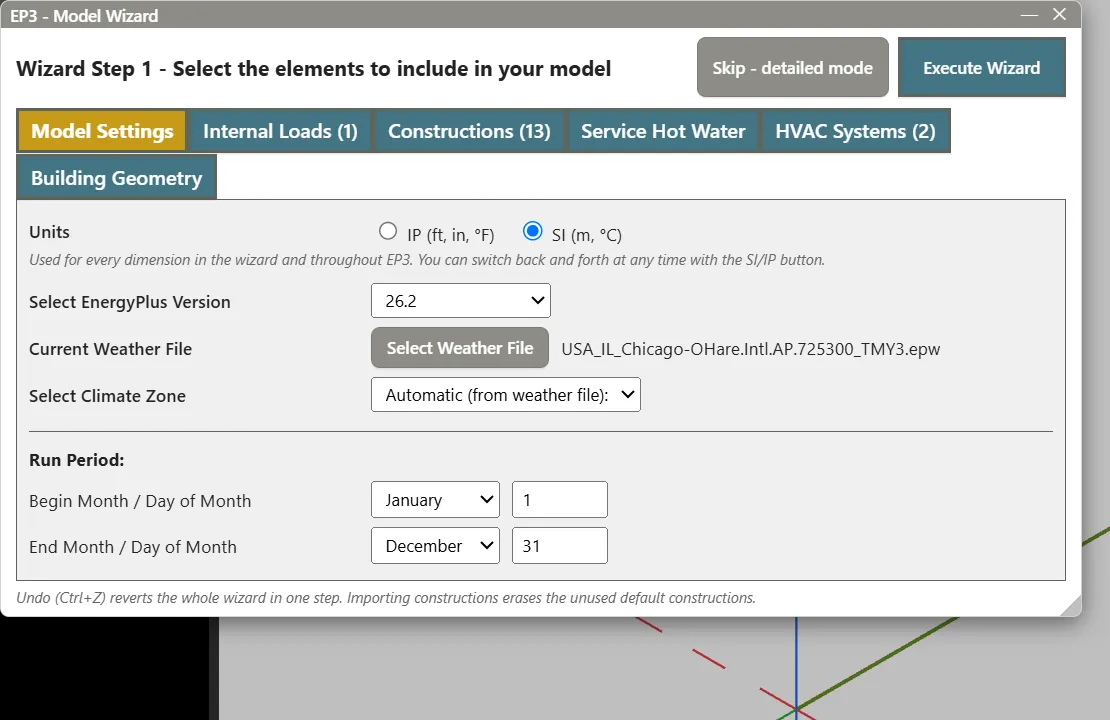
- On Model Settings, choose SI (m, °C) for Units, click Select Weather File and choose your weather file. Leave Select Climate Zone at Automatic (from weather file).
- On Internal Loads, type
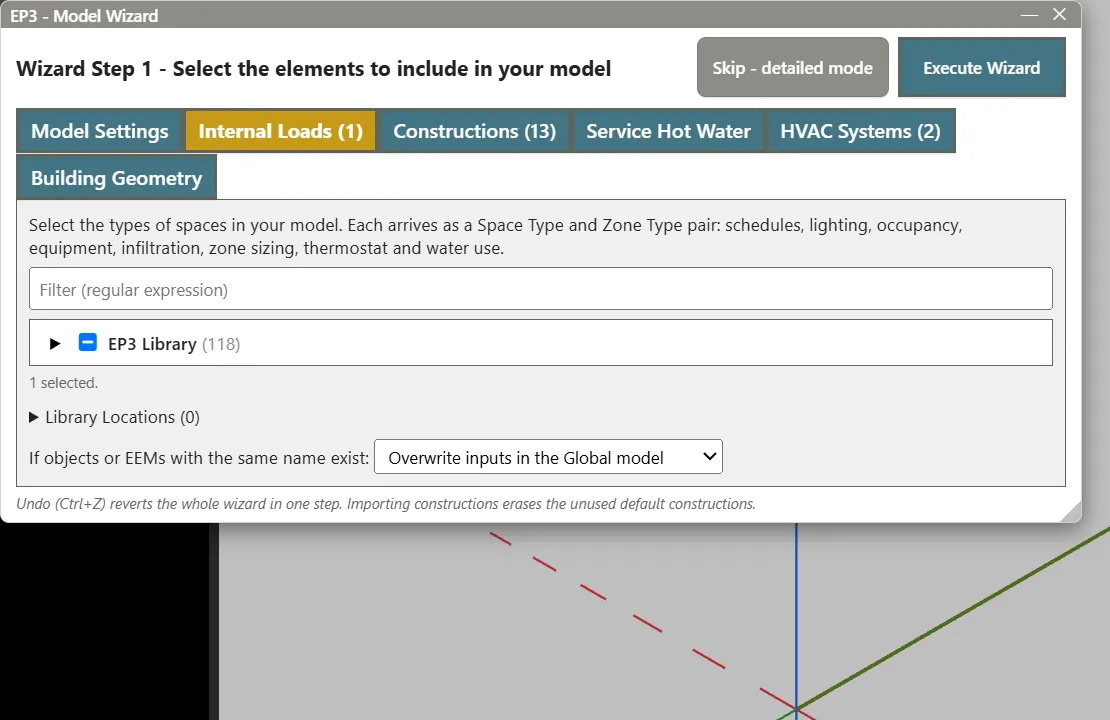
Officein the filter, expand EP3 Library > Internal Loads > Space-by-Space Occupancy Types and tick Office - Open Plan.
- On Constructions, type
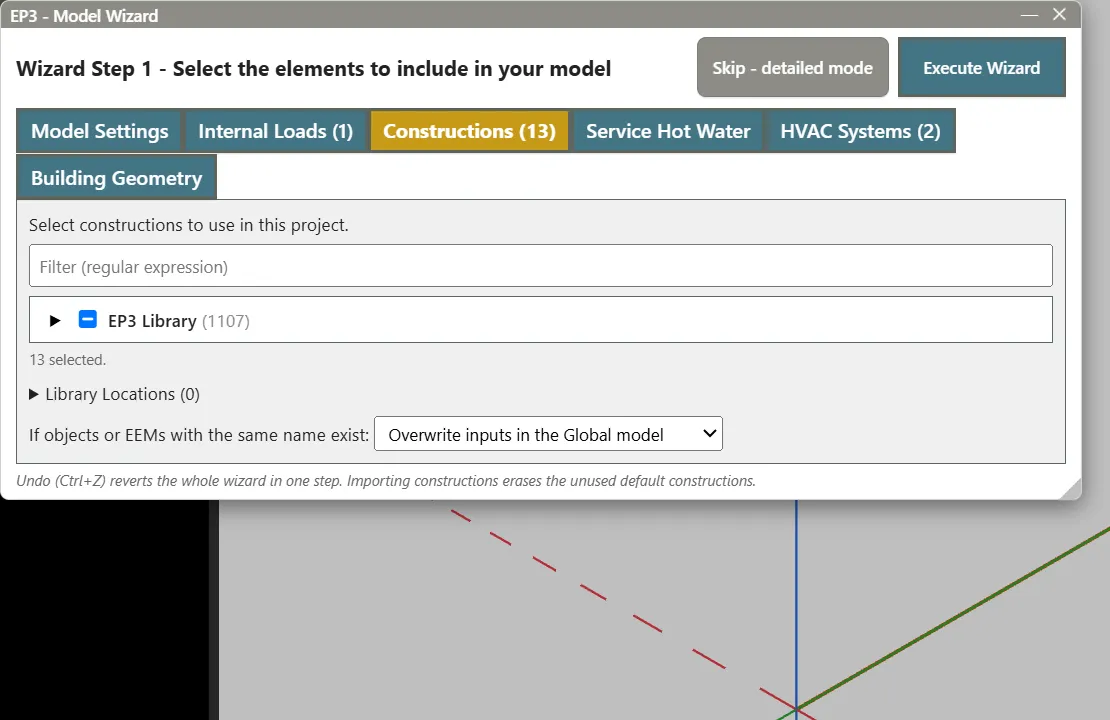
CZ5 NonResidentialin the filter, then tick the NonResidential group under ASHRAE 90.1-2022 > CZ5. The tab shows 13 constructions selected. The filter also lists the Appendix G Baseline and eQuest groups with the same names, so check the group’s parent in the list.
- Leave Service Hot Water empty.
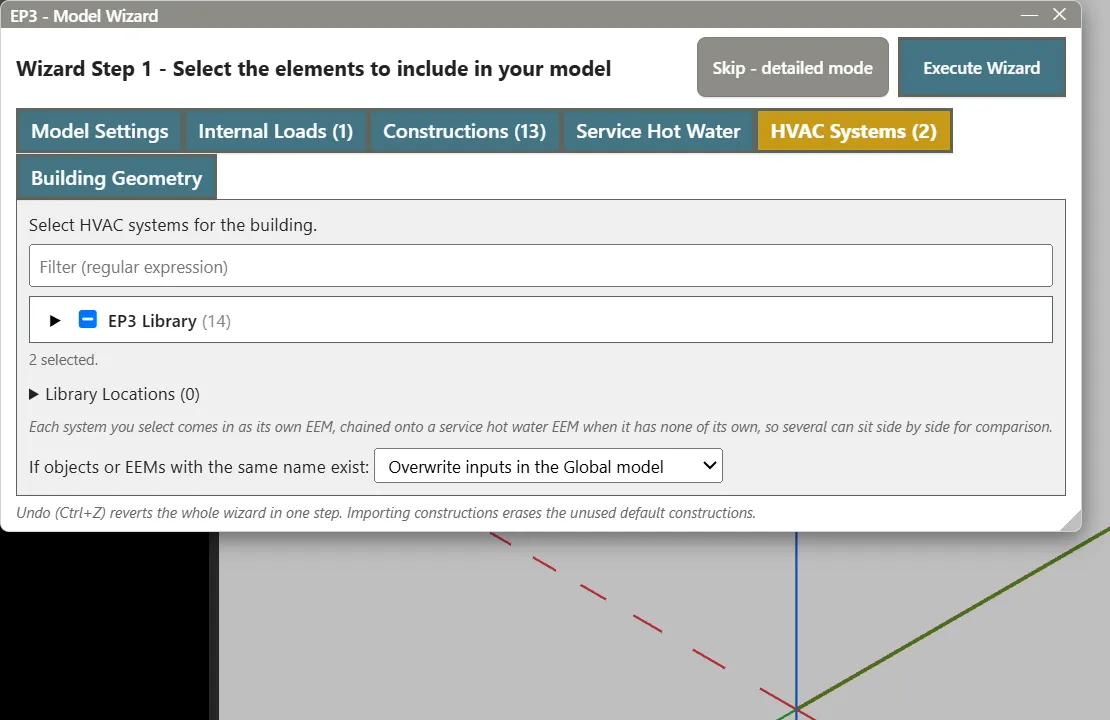
- On HVAC Systems, expand EP3 Library > Systems > HVAC and SWH Systems and tick PSZ-AC and PSZ-HP. These are the packaged single-zone air conditioner (PSZ-AC), with a gas furnace, and the packaged single-zone heat pump (PSZ-HP). Each system becomes an EEM, so the model starts with two HVAC alternatives.
- On Building Geometry, choose Let EP3 draw a rectangular building for me and enter Building Width 30, Building Depth 20, Number of Floors 2 and Floor to Floor Height 3.5. Leave Window to Wall Ratio at 30. Type
Office - Open Planin Perimeter Space Type and in Core Space Type.
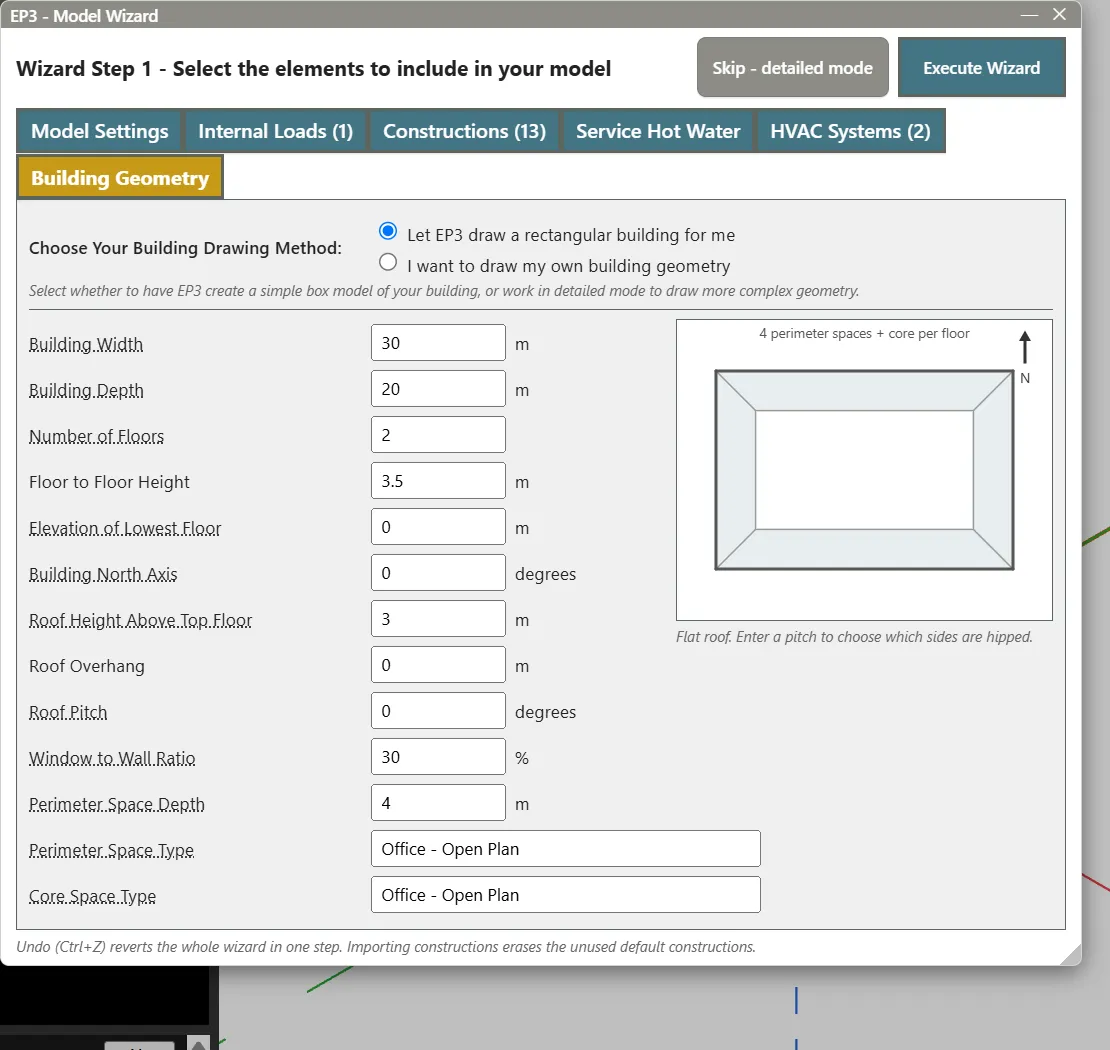
- Click Execute Wizard. The status bar reads “Templates: 3 file(s), 70 object(s) added, 2 EEM(s). Building drawn.” The building has two floors, each with a perimeter ring and a core, for 10 Spaces and 8 windows in all.
Use the Fixed Fenestration construction for windows
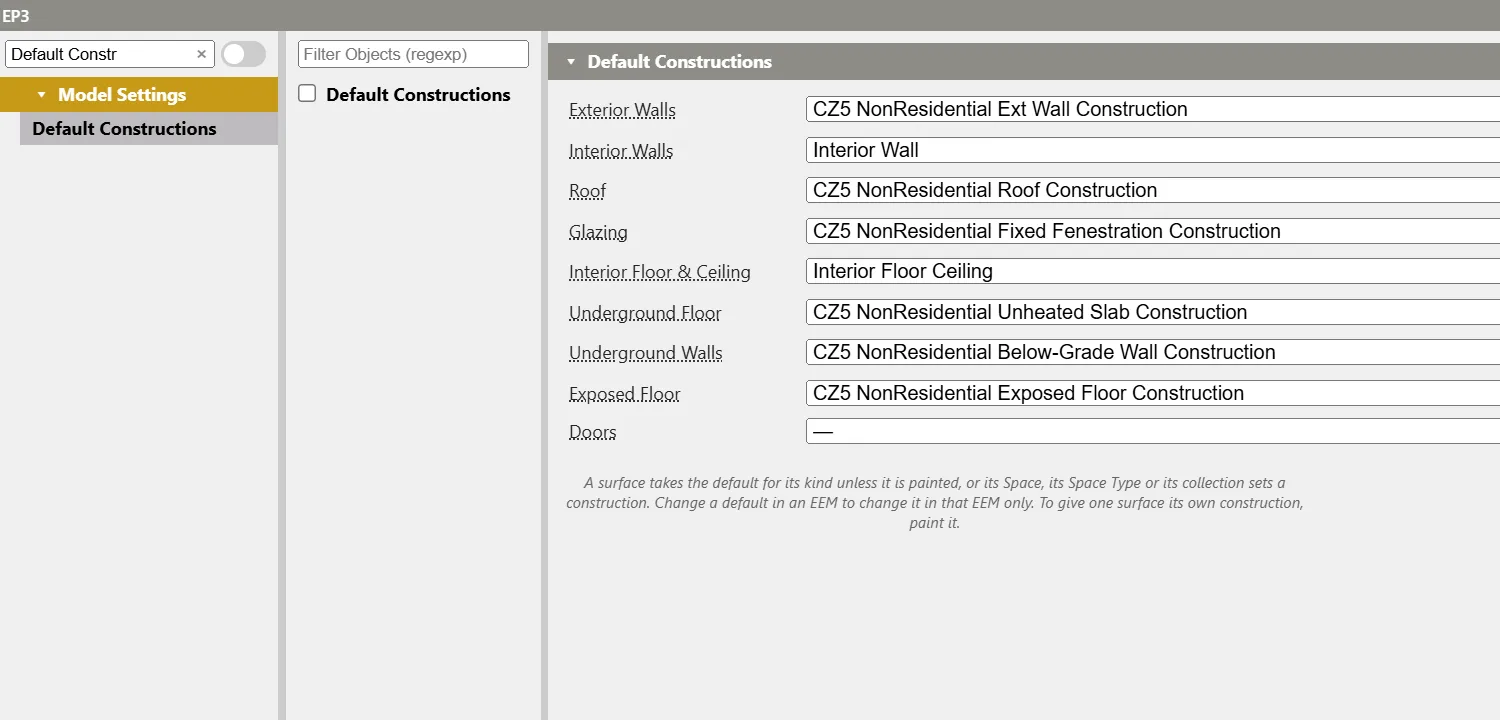
The windows the Wizard draws take the Glazing default construction, which starts as the entrance-door glazing. Switch it to the fixed-window construction so that the window measure later applies to these windows.
- Click Edit input fields for objects with no physical representation in the top toolbar to open the main object dialog. In Column 1, turn off the switch beside the filter box so every object type is listed, type
Default Constrin the filter and click Default Constructions. - With Global in the EEM dropdown at the top, set Glazing to CZ5 NonResidential Fixed Fenestration Construction.
Tip: Drag the corner of the main object dialog to make it larger. The tariff panels and EEM pages are easier to read at about 1000 pixels wide.
Save the model.
Add the utility tariffs
The Wizard does not create tariffs, and a model without one reports no energy cost. Tariffs are in the Economics group in Column 1. Add them with Global active so every EEM starts with the same rates.
Electricity with demand charges
- In the main object dialog filter, type
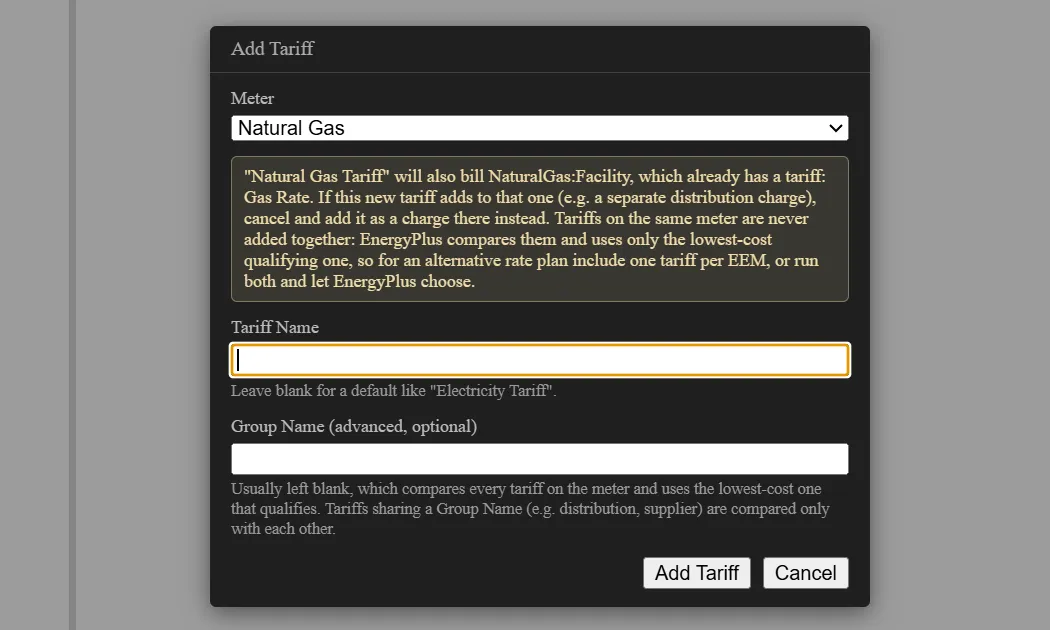
Tariffand click UtilityCost:Tariff, then click Add Object. - In Add Tariff, leave Meter at Electricity, type
Electric Demand Ratefor Tariff Name, leave Group Name blank and click Add Tariff.
- In the tariff’s fields in Column 3, type
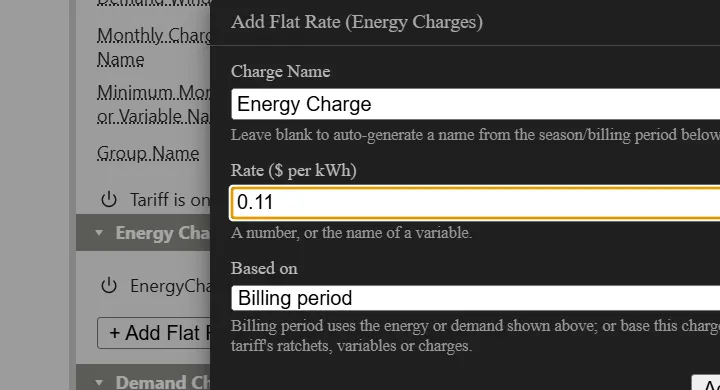
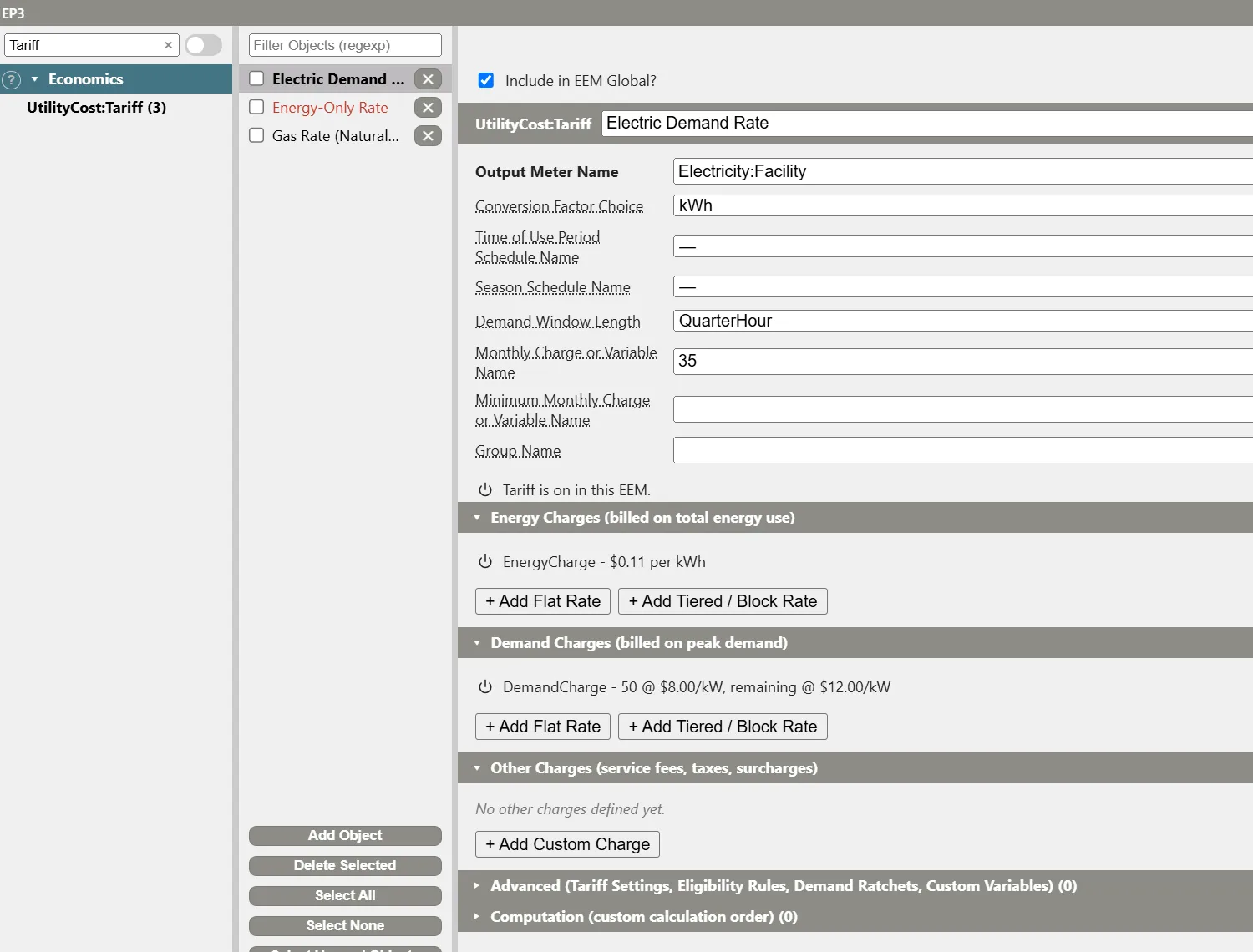
35in Monthly Charge or Variable Name, then click another field so the value is kept. This is a fixed monthly service charge in dollars. - Under Energy Charges (billed on total energy use), click + Add Flat Rate. Type
Energy Chargefor Charge Name,0.11for Rate ($ per kWh) and click Add.
- Under Demand Charges (billed on peak demand), click + Add Tiered / Block Rate. Type
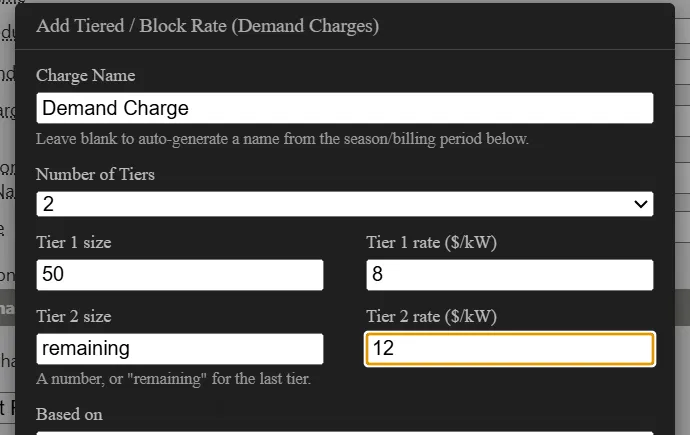
Demand Chargefor Charge Name, set Number of Tiers to 2, enter50for Tier 1 size and8for Tier 1 rate ($/kW), and enter12for Tier 2 rate ($/kW). Tier 2 size staysremaining. Click Add.
The panel now lists EnergyCharge - $0.11 per kWh and DemandCharge - 50 @ $8.00/kW, remaining @ $12.00/kW. Each row has Edit, Remove and a power button that switches the charge on or off per EEM.
Natural gas
- Click Add Object, choose Natural Gas for Meter, type
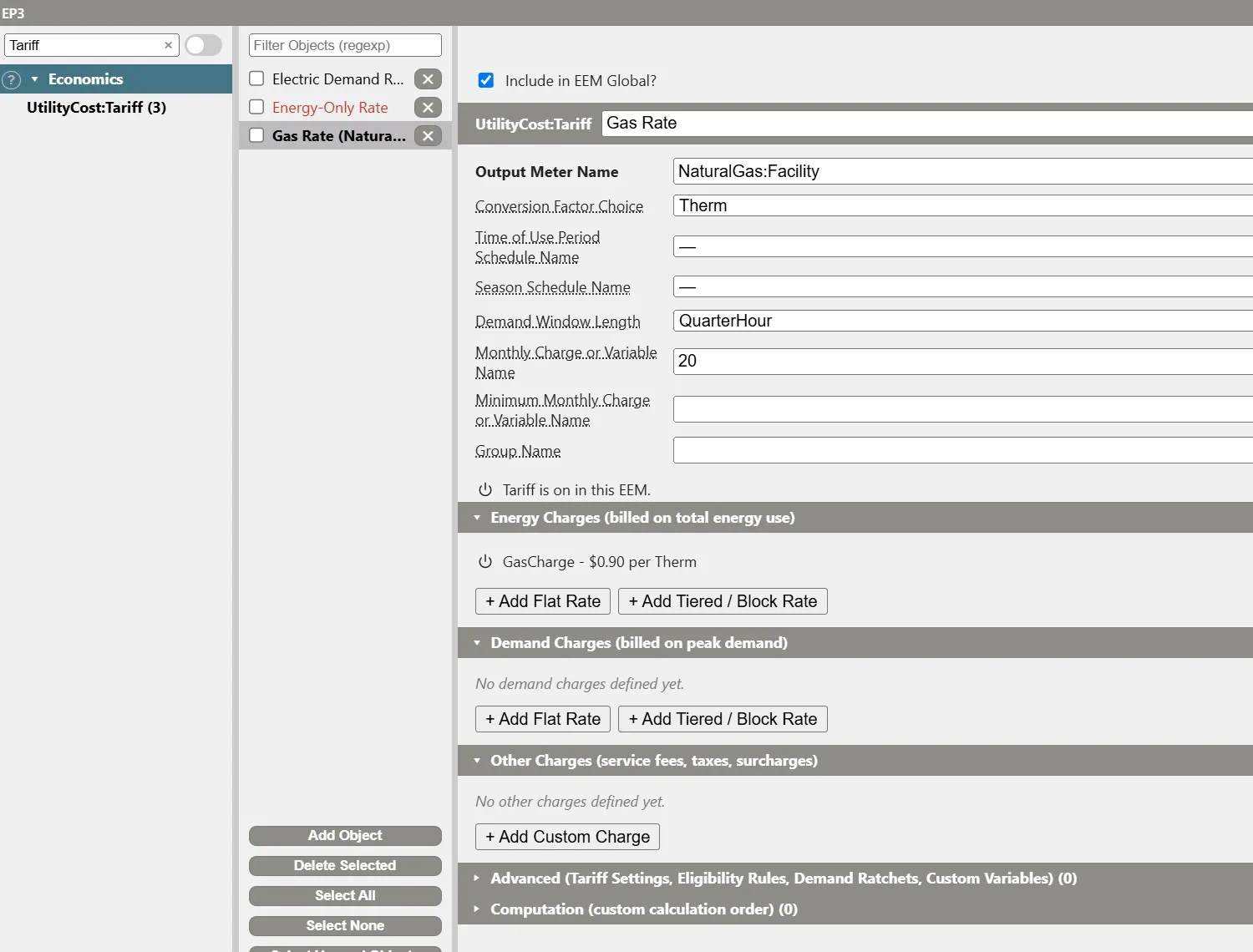
Gas Rateand click Add Tariff. - Set Conversion Factor Choice to Therm so the rate is per therm. In an SI model the default is MJ.
- Type
20in Monthly Charge or Variable Name and click another field. - Under Energy Charges, click + Add Flat Rate. Type
Gas Chargefor Charge Name and0.90for Rate, and click Add.
Note: EnergyPlus applies one tariff per meter: when several tariffs bill the same meter in one run, only the lowest-cost qualifying tariff is billed. Keep one tariff per meter in each EEM, as this tutorial does.
Build the measures as EEMs
The two HVAC systems already exist as EEMs named PSZ-AC and PSZ-HP. PSZ-AC is the baseline. The other measures build on it. An EEM stores only what it changes.
Create the EEMs
- In the main object dialog, type
Model Altin the filter and click Model Alternatives (EEMs). - Click Add Object. Type
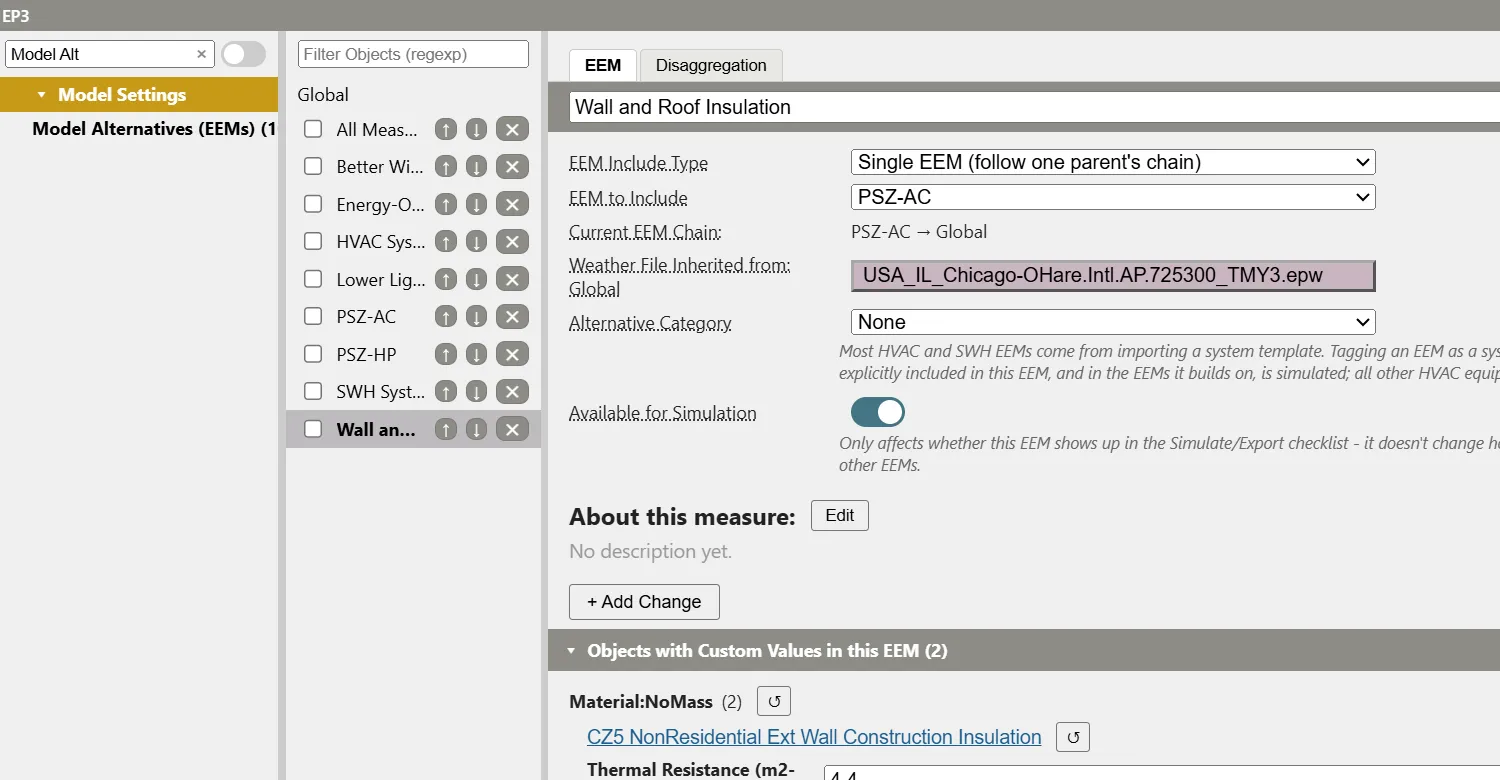
Wall and Roof Insulationin the name box at the top of the page and press Enter. - Set EEM Include Type to Single EEM (follow one parent’s chain) and EEM to Include to PSZ-AC. The Current EEM Chain reads
PSZ-AC → Global. - Repeat for three more EEMs, each built on PSZ-AC:
Better Windows,Lower Lighting PowerandEnergy-Only Electric Rate.
Wall and Roof Insulation
- In the EEM dropdown in the top toolbar, choose Wall and Roof Insulation. Every value you enter now goes into this EEM.
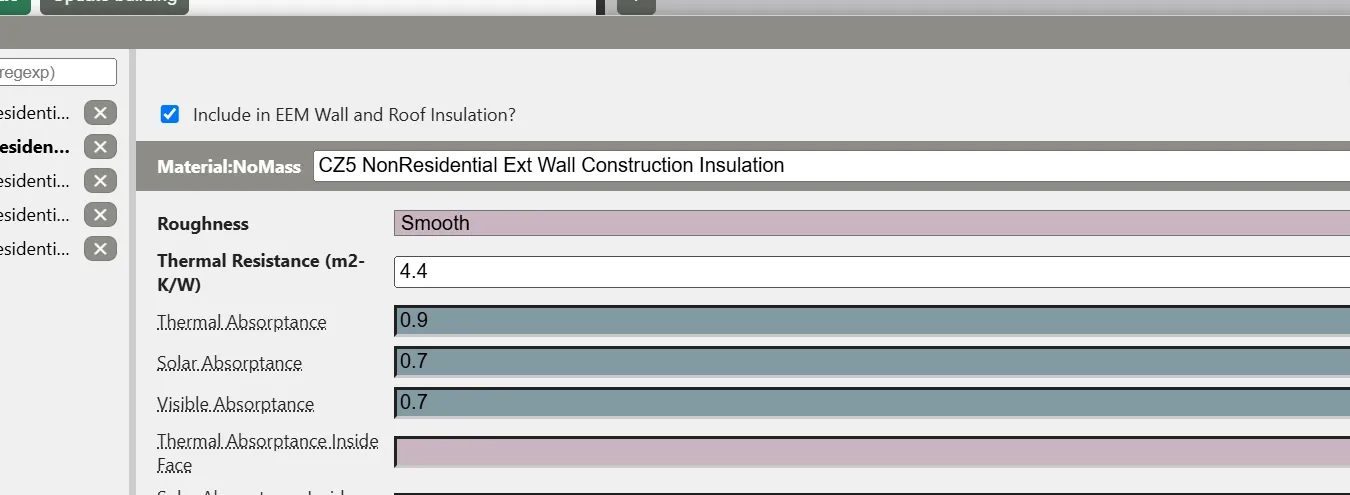
- In the object dialog, find Material:NoMass and open CZ5 NonResidential Ext Wall Construction Insulation. Fields with nothing stored in the active EEM show the inherited value on a rose background. Set Thermal Resistance to
4.4(the original is 3.25 m²·K/W).
- Open CZ5 NonResidential Roof Construction Insulation and set Thermal Resistance to
7.04(the original is 5.19).
Open Model Alternatives (EEMs) and select Wall and Roof Insulation. Its page lists only the two values stored in this EEM, under Objects with Custom Values in this EEM.
Better Windows
- Choose Better Windows in the EEM dropdown.
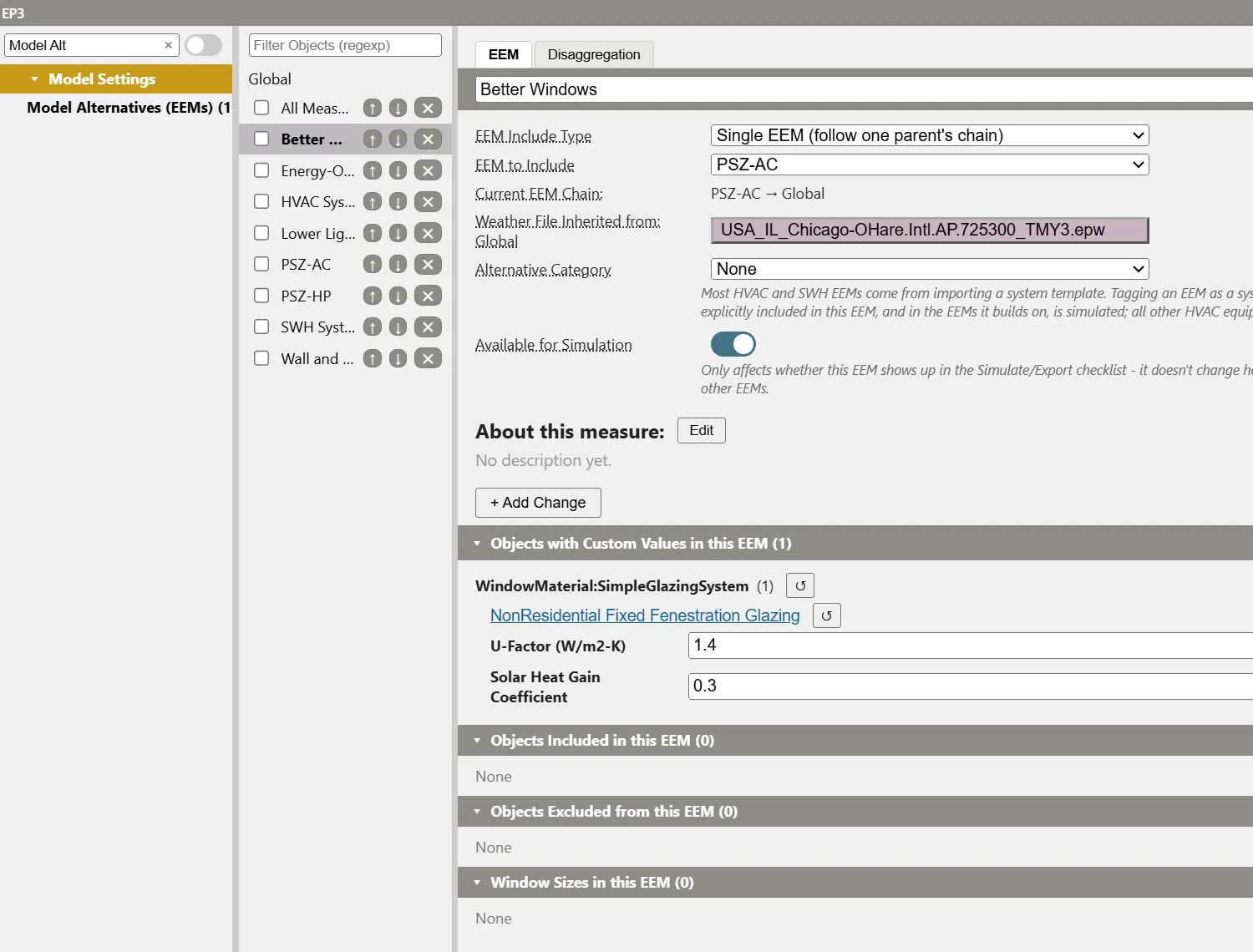
- Open WindowMaterial:SimpleGlazingSystem and select NonResidential Fixed Fenestration Glazing. Set U-Factor to
1.4(the original is 2.04) and Solar Heat Gain Coefficient to0.3(the original is 0.38).
Lower Lighting Power
- Choose Lower Lighting Power in the EEM dropdown.
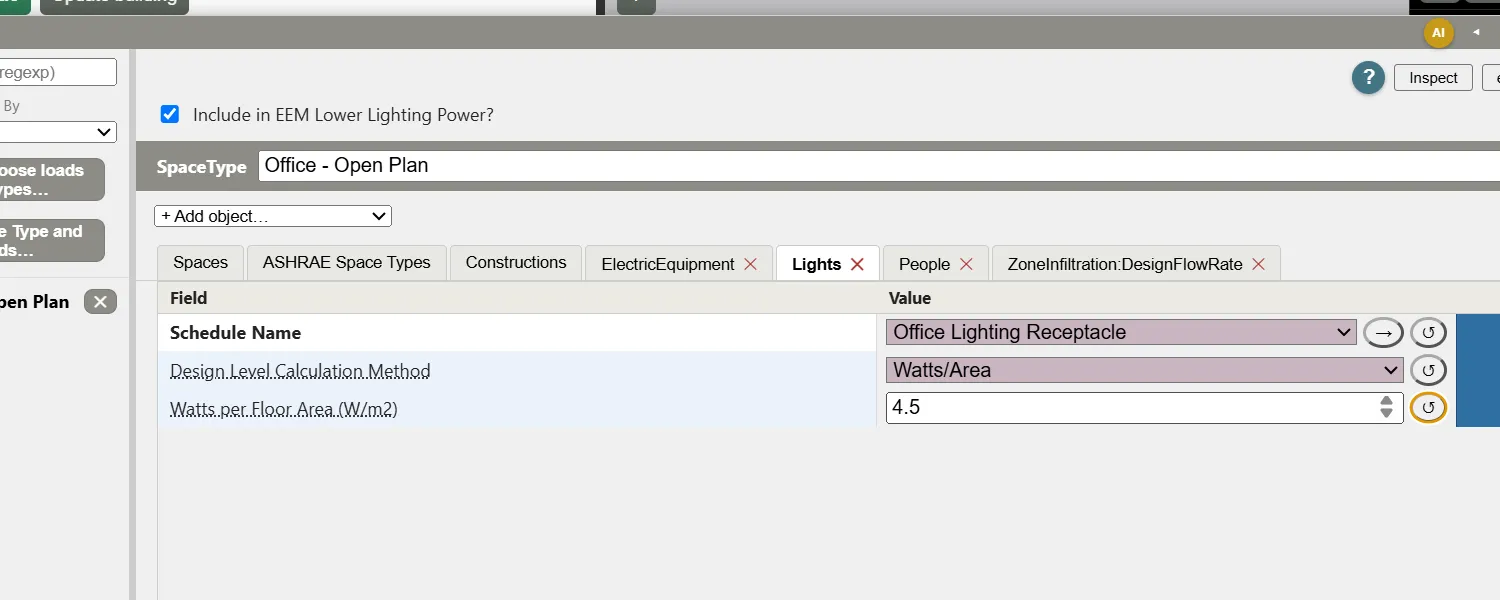
- Open SpaceType, select Office - Open Plan, open its Lights tab and set Watts per Floor Area to
4.5(the original is 6.03 W/m²).
Energy-Only Electric Rate: switch a tariff off in an EEM
This EEM keeps the building as it is and changes only the electricity rate: a plan with no demand charge and a higher energy price.
- Choose Energy-Only Electric Rate in the EEM dropdown.
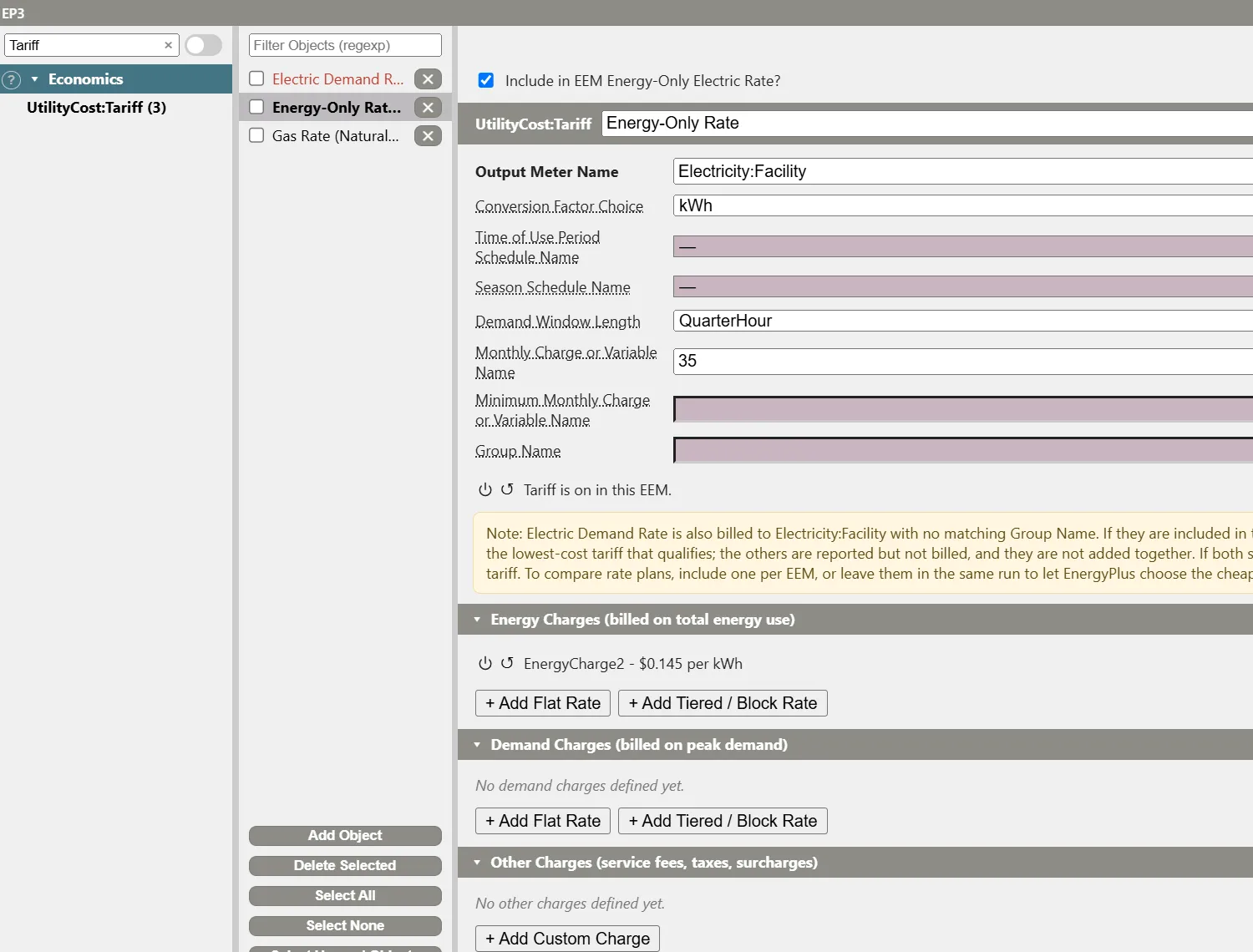
- Open UtilityCost:Tariff and click Add Object. Choose Electricity, type
Energy-Only Rateand click Add Tariff. A tariff created while an EEM is active is on only in that EEM.
Tip: If the tariff is named
Electricity Tariff, rename it in the name box at the top of its panel and press Enter.
- Type
35in Monthly Charge or Variable Name and click another field. - Under Energy Charges, click + Add Flat Rate and add a charge with a Rate of
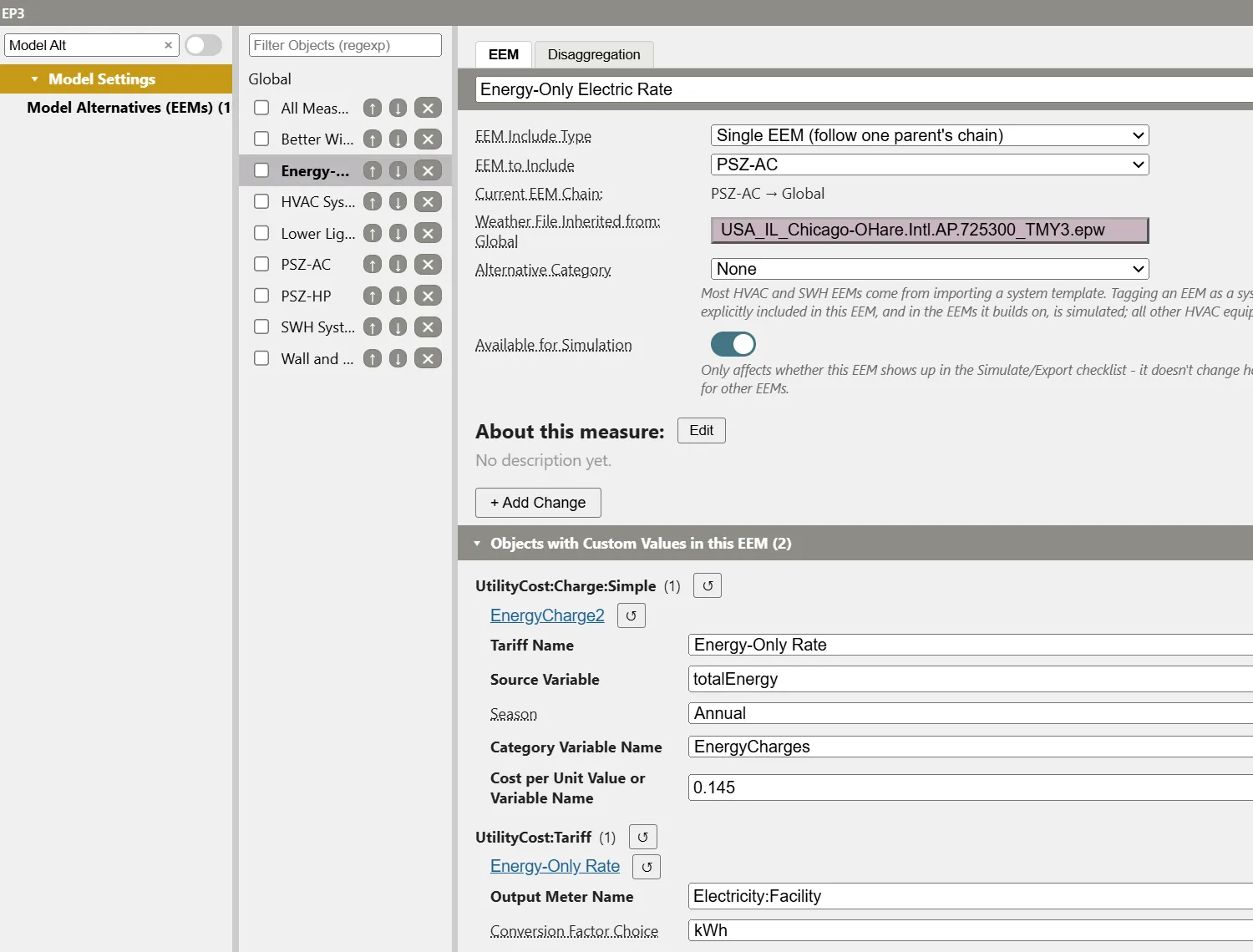
0.145. Charge names must be unique across the model, so this charge is namedEnergyCharge2.
- Select Electric Demand Rate in Column 2.
- Click the power button beside Tariff is on in this EEM. The line now reads Tariff is off in this EEM: it and its charges are left out of the export. The tariff’s name turns red in Column 2 because it is off in the active EEM. Both tariffs stay in the model, and only one bills the electricity meter in each EEM.
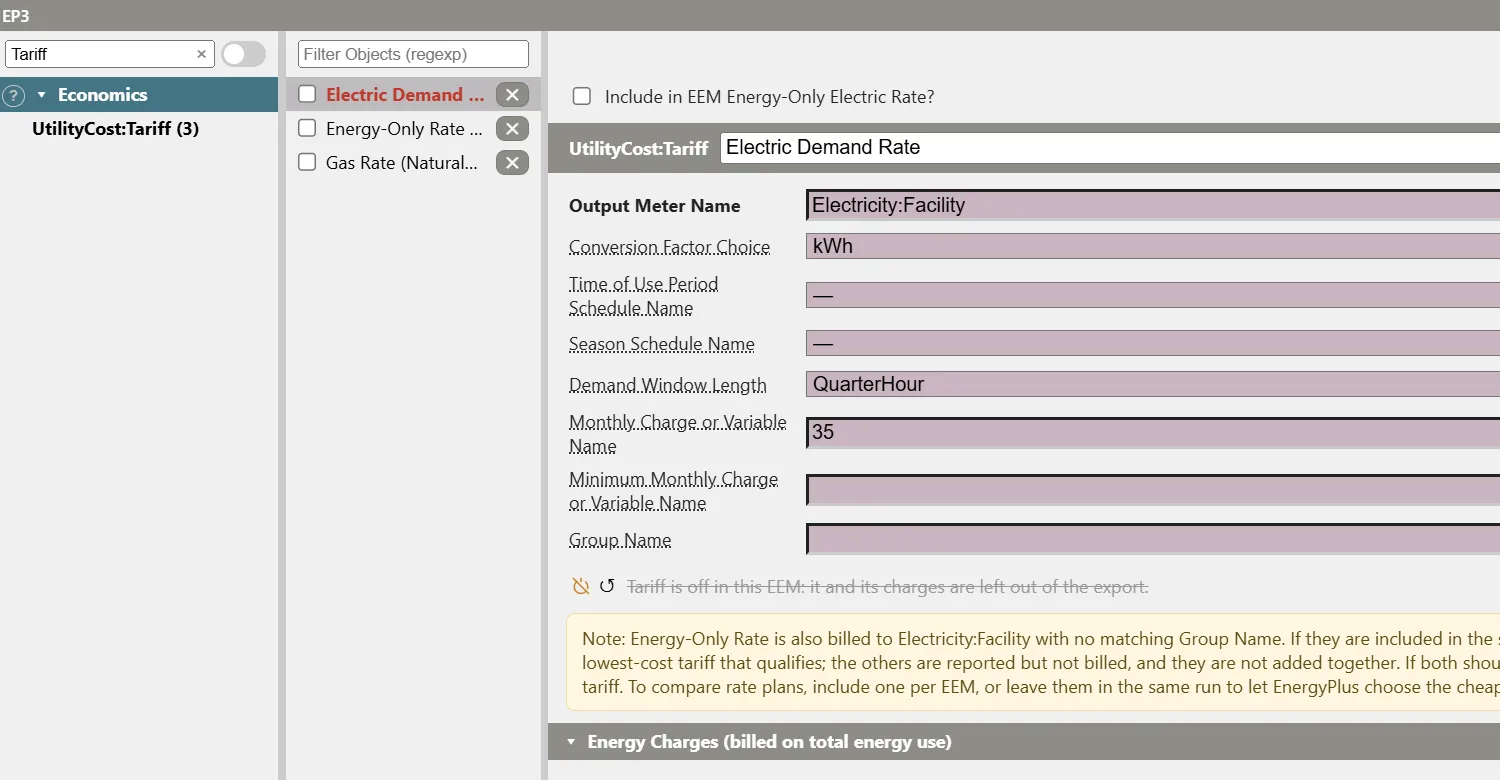
Open Model Alternatives (EEMs) and select Energy-Only Electric Rate to see the new tariff, its charge and its settings listed as the EEM’s custom values.
All Measures
- Choose Global in the EEM dropdown.
- In Model Alternatives (EEMs), click Add Object and name the EEM
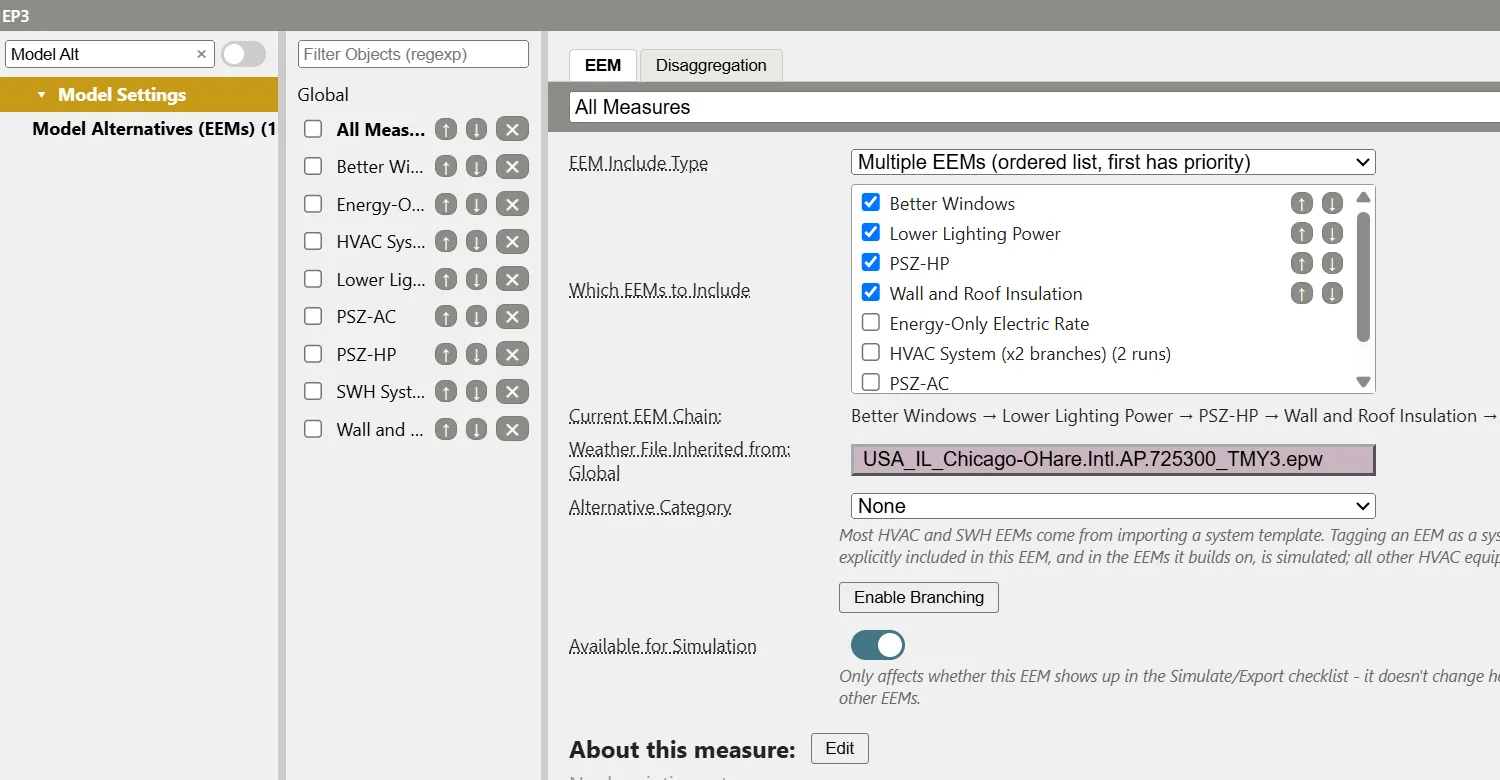
All Measures. - Leave EEM Include Type at Multiple EEMs (ordered list, first has priority) and tick Wall and Roof Insulation, Better Windows, Lower Lighting Power and PSZ-HP. The Current EEM Chain lists them above Global.
A Multiple EEMs entry takes only what each listed EEM stores. PSZ-HP supplies the heat pump system, so PSZ-AC stays unticked. The rate EEM is left out so that the combined result shows only the building and system changes.
Save the model.
Run the EEMs together
- Click Simulate in the top toolbar.
- Untick Global, and tick PSZ-AC, PSZ-HP, Wall and Roof Insulation, Better Windows, Lower Lighting Power, Energy-Only Electric Rate and All Measures. The heading reads “7 runs chosen”.
- Click Simulate and choose a folder for the run files.
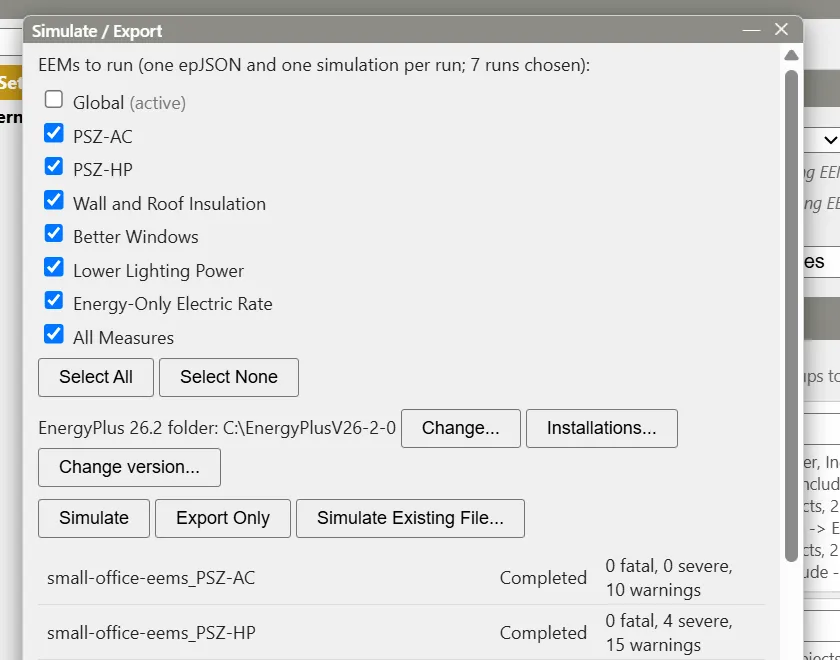
The seven runs finish within about a minute. The two heat pump runs report four or more severe warnings from EnergyPlus about the cooling coil’s outlet air temperature in low-load hours. These warnings do not stop the runs.
Note: Click Validate on the top toolbar before a run to catch problems with the model itself. The Wizard’s model passes with no issues.
Compare energy and cost in the results viewer
Click View Results. The viewer loads every run in the folder and opens on EnergyPlus Files.
Annual cost
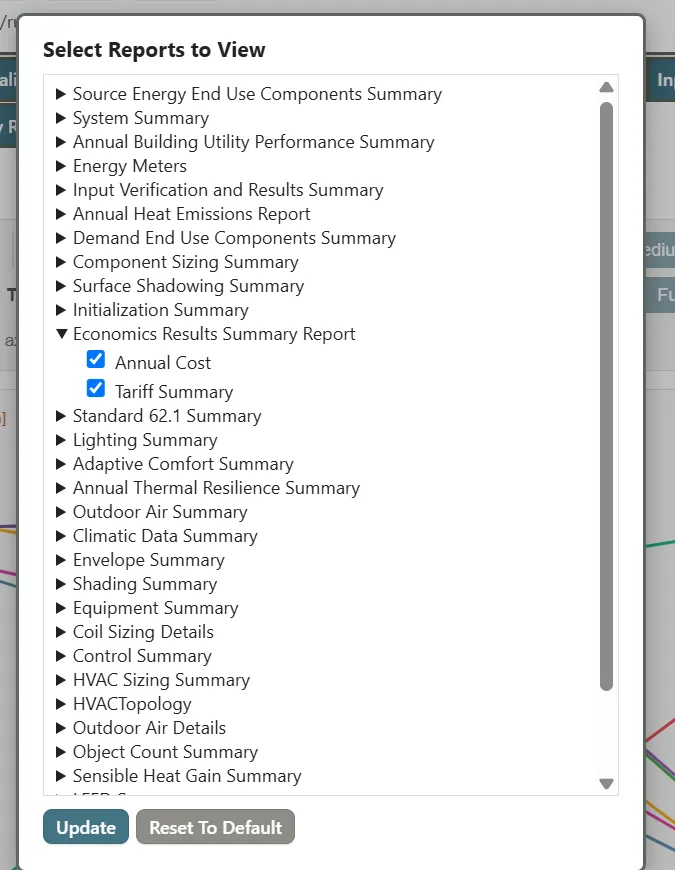
- Click Select Reports. Expand Economics Results Summary Report, tick Annual Cost and Tariff Summary, and click Update.
- Open the Economics Results Summary Report tab. The Annual Cost table has a column group per run, with each fuel and the total. The table is wide: scroll sideways, or tick Bar or Stacked Bar under the table title to chart a column. The Tariff Summary below it shows which tariff was Selected for each run.
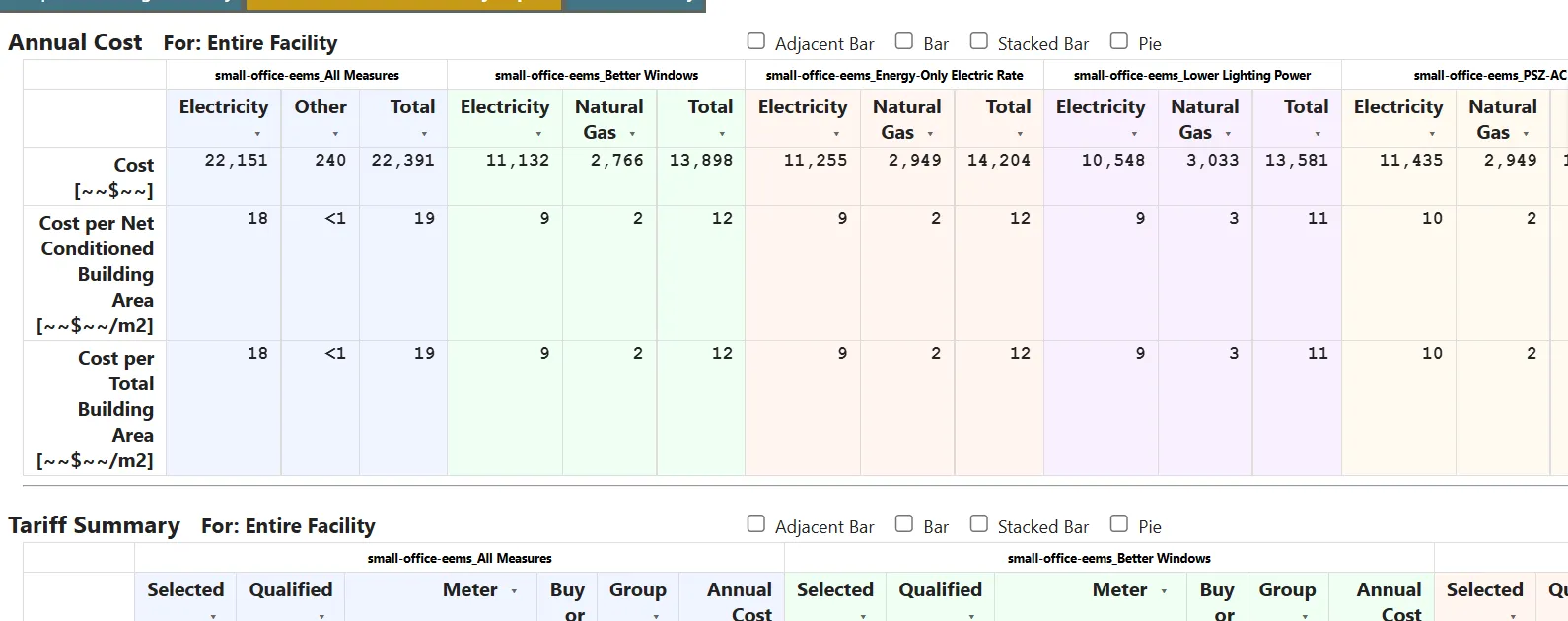
With these illustrative tariffs and weather, the runs report:
| EEM | Site energy (kWh/yr) | Annual cost ($) |
|---|---|---|
| PSZ-AC (baseline) | 162,939 | 14,384 |
| Wall and Roof Insulation | 157,024 | 14,132 |
| Better Windows | 155,055 | 13,898 |
| Lower Lighting Power | 159,458 | 13,581 |
| Energy-Only Electric Rate | 162,939 | 14,204 |
| PSZ-HP | 159,727 | 24,712 |
| All Measures | 144,722 | 22,391 |
Your totals can differ slightly with another weather file or EnergyPlus version.
Three results stand out.
- Energy-Only Electric Rate uses exactly the baseline’s energy and costs $180 less. The building is unchanged; dropping the demand charge saves more than the higher energy price adds.
- The envelope and lighting measures each lower both energy and cost.
- PSZ-HP uses about 2 percent less site energy than the baseline and costs about $10,300 more. The heat pump replaces gas at $0.90 per therm with electricity at $0.11 per kWh plus a demand charge, and the winter morning peak in Chicago is billed at $12 per kW.
Parallel coordinates
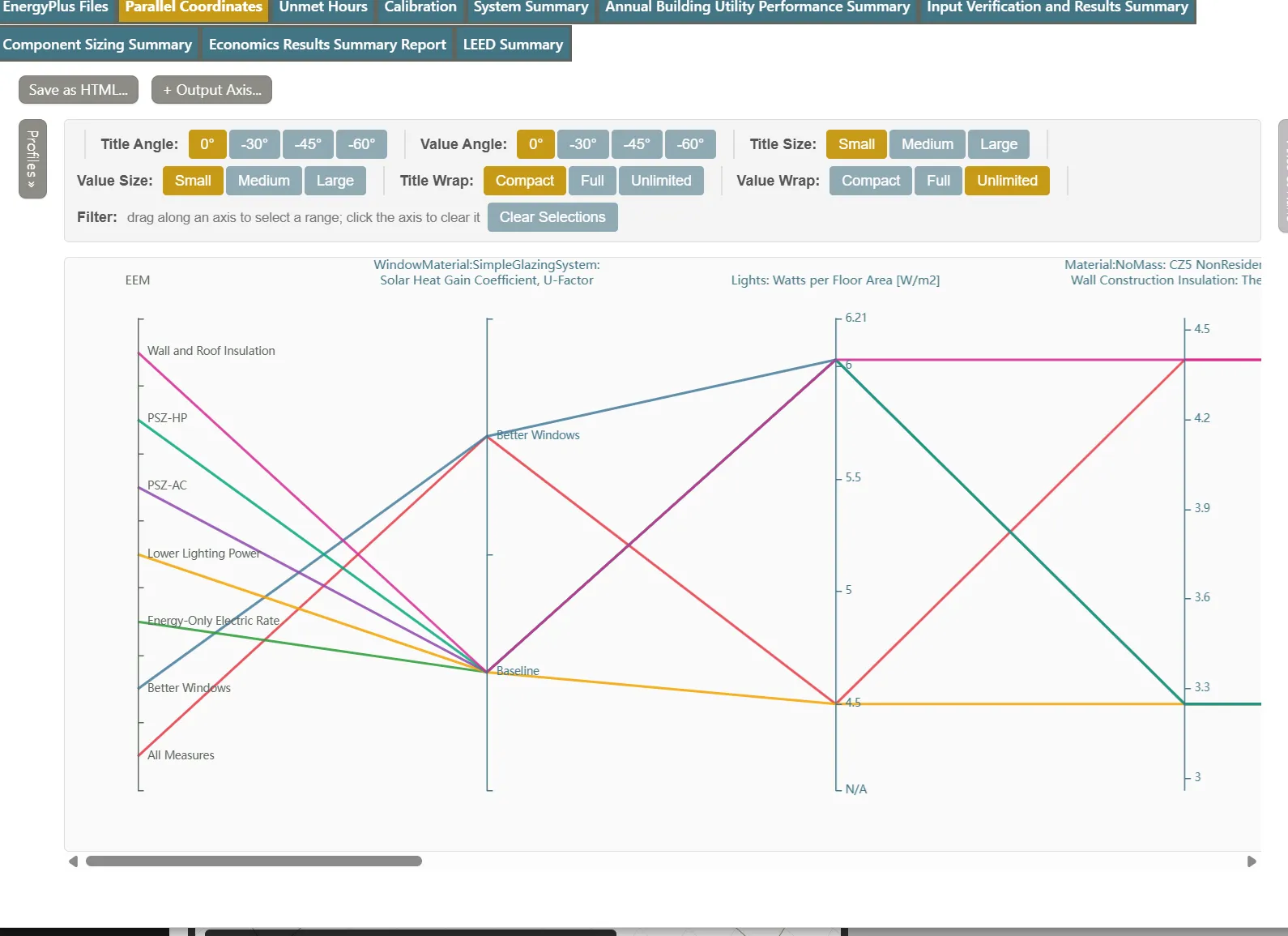
The Parallel Coordinates tab draws one line per run across axes for the inputs that differ between the EEMs, then the results.
- Click « Axes & Runs. Click an axis in the list to show or hide it. Hide the axes you do not need, then click Hide Unchecked. This tutorial keeps the EEM, window, lighting, wall and roof insulation, HVAC System and tariff axes, plus Total Electricity, Total Natural Gas, Site EUI (site energy use intensity) and Total Energy Cost.
- Set Title Size to Small and Title Wrap to Compact so the titles fit.
- Scroll the chart to the right to reach the result axes. The heat pump run’s line climbs to the top of Total Energy Cost while its Site EUI line goes down.
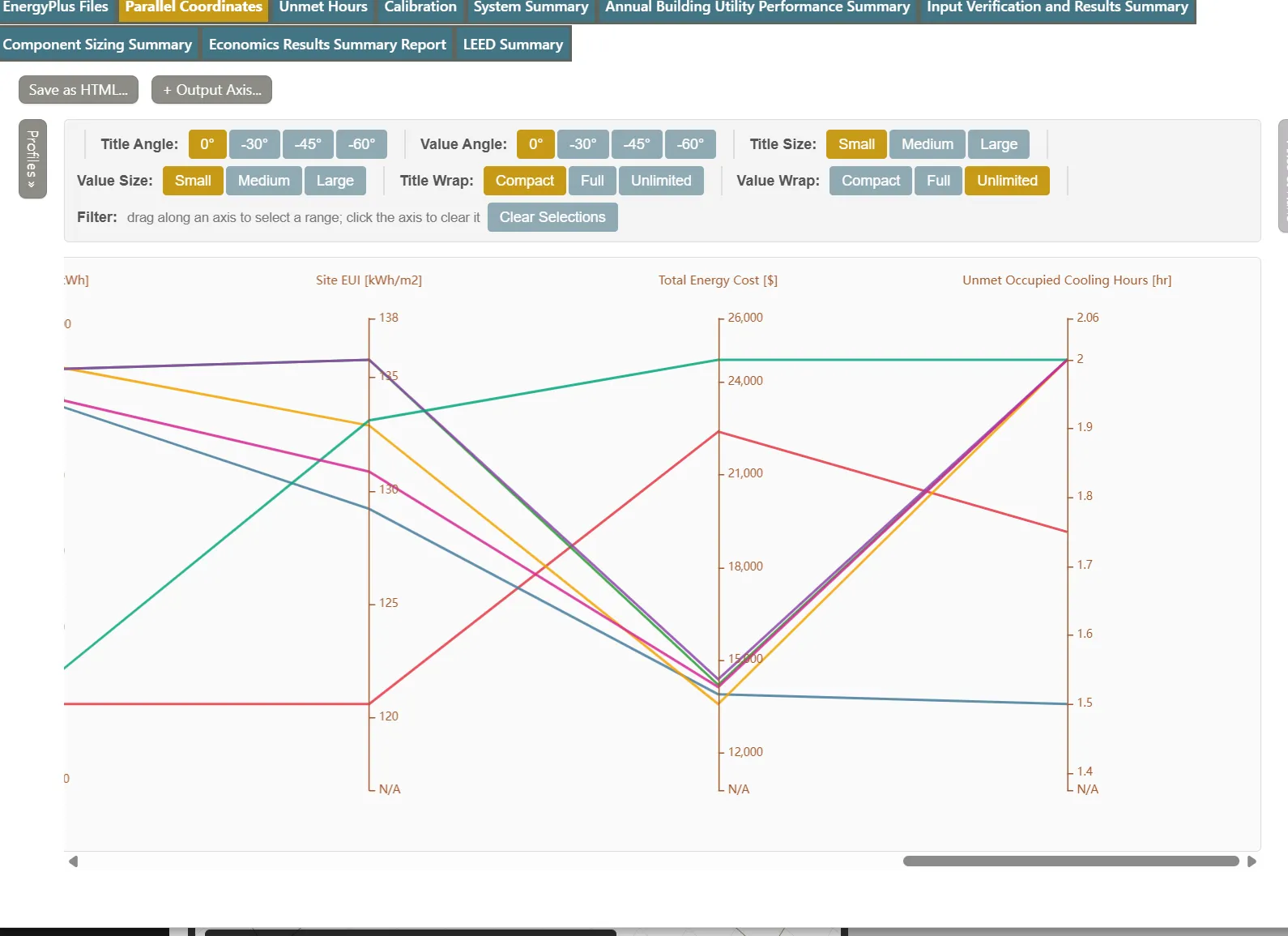
Hover over a line to see the run’s name and its value on every axis. Drag along an axis to select a range: runs outside it fade. Clear Selections removes the selection.
Split the combined result with Disaggregation
All Measures combines four changes, and the table above does not show what each contributes. Disaggregation runs combinations of the changes and reports each one’s share of the difference, interactions included.
- Open Model Alternatives (EEMs), select All Measures and click the Disaggregation tab.
- Set Starting EEM to PSZ-AC. EP3 lists five change groups: the HVAC system, the wall insulation, the roof insulation, the windows, and the lighting power.
- Tick the wall and roof insulation groups and click Combine selected (2). This leaves four groups.
- Rename the groups, with Rename or by typing in each group’s name:
Heat pump system,Wall and roof insulation,Better windowsandLower lighting power.
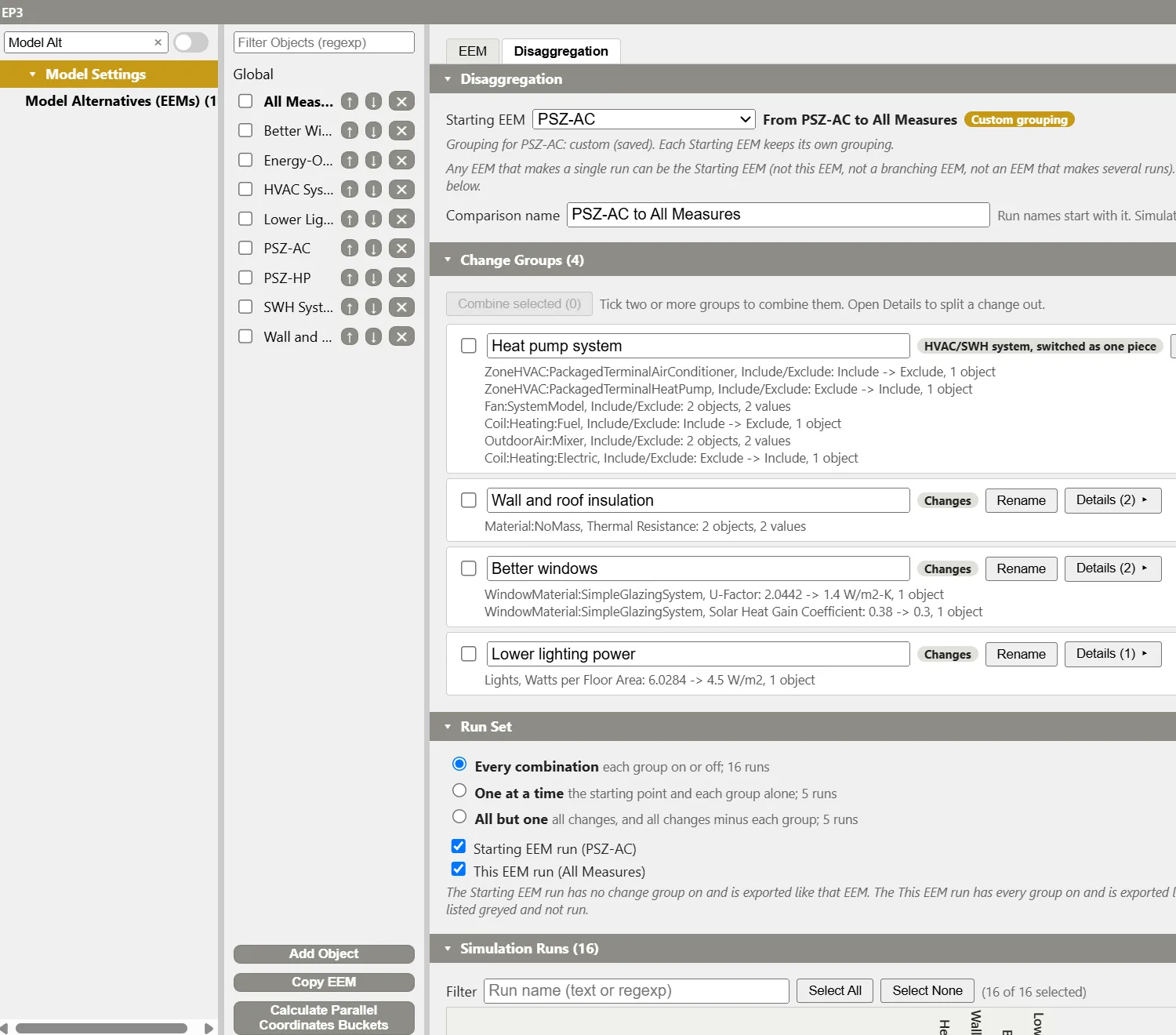
- Leave Run Set at Every combination (16 runs), scroll to Simulation Runs and click Simulate (16 selected). EP3 asks for confirmation before running more than eight, so click Simulate again, then choose a folder. The runs go in a subfolder named
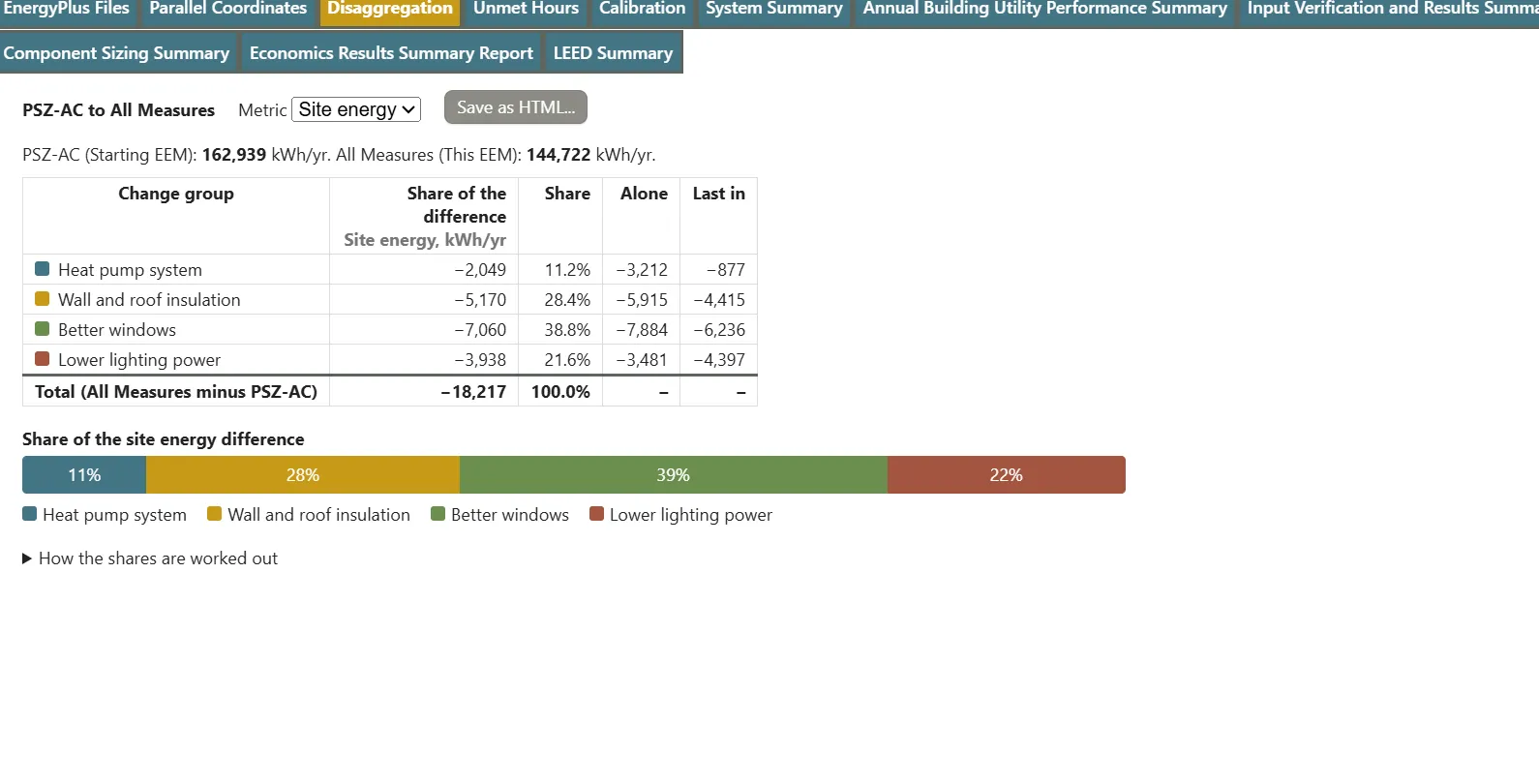
PSZ-AC to All Measures. - When they finish, click View Results. The Disaggregation tab shows the table and a stacked bar. With Metric set to Site energy, the four measures account for the 18,217 kWh/yr difference like this:
- Change Metric to Utility cost. The total difference is now +$8,007 a year, and the heat pump group accounts for +$9,944 of it. The other three groups lower the bill by $493, $740 and $704.
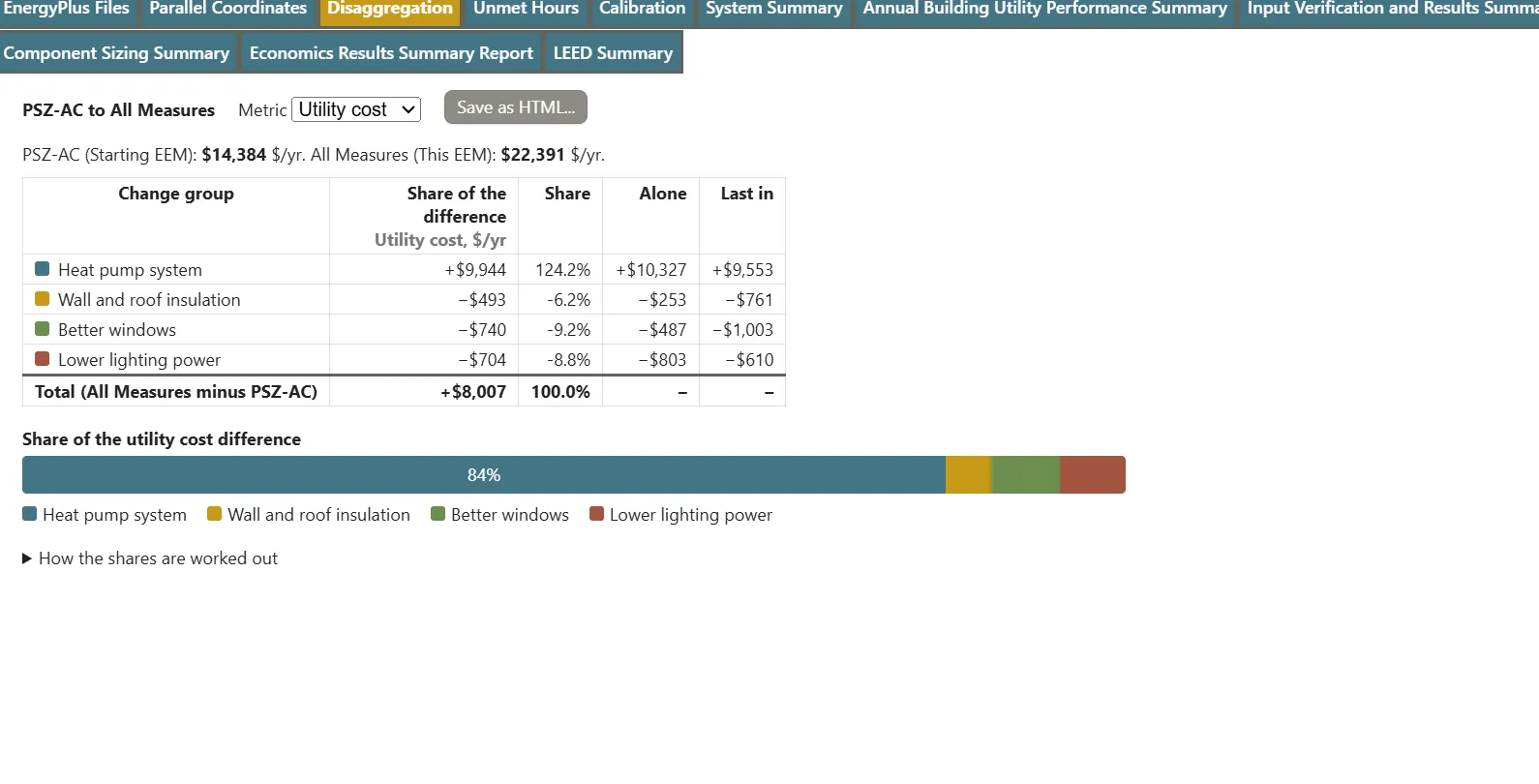
The Alone column is a group’s effect without the others, and Last in is its effect when added to a model that already has the other three. The two differ because the changes interact, and the share combines them: the heat pump system saves 3,212 kWh alone but only 877 kWh after the envelope and lighting measures have cut the loads.
Important: Run Every combination to get the Share column. One at a time and All but one give only Alone and Last in.
Next steps
- Read Energy Efficiency Measures (EEMs) for branching EEMs, which run several values of one change, and for HVAC System EEMs.
- Read Utility Costs for time-of-use and seasonal rates, demand ratchets and eligibility rules, and for how EnergyPlus picks one tariff per meter.
- Read Viewing and Interpreting Results for the other report tabs and the time-series viewer.
- Read Running Simulations for run folders, run names and parallel runs.
- Read The EP3 AI Assistant: Atlas can add tariffs, charges and tiers, and switch a tariff or any of its charges on or off in an EEM.