Atlas is the AI assistant built into EP3. It answers EP3 and EnergyPlus questions from the handbook, reads your model and its results to explain them, proposes model changes for you to review, runs EnergyPlus, and reads files you attach. This tutorial starts from a small simulated office and uses each part of Atlas in turn, from a handbook question to an energy efficiency measure (EEM) that Atlas proposes, runs and compares.
What you need
- EP3 3.0 with EnergyPlus 26.2 installed.
- An account with an AI provider and a key for it, or a local model. This tutorial used an Anthropic key with Claude Sonnet 5.5. During the trial period, Atlas can also use the trial allowance that comes with your EP3 account.
- The starting model, atlas-demo.ep3. It is the single-floor office the Model Wizard builds (see below), saved before any simulation.
- The spreadsheet lighting-controls-submittal.xlsx, used in the file attachment step.
- The Chicago O’Hare weather file. Go to https://energyplus.net/weather, choose North and Central America > USA > IL, and download USA_IL_Chicago-OHare.Intl.AP.725300_TMY3. Unzip it next to the model, for example in
C:\Projects\AtlasDemo. Keep the.epw,.ddyand.statfiles together. - About 40 minutes. Atlas answers cost a few cents each on a cloud model; the whole session used about $0.35.
Note: Atlas answers can differ from the ones shown here. The steps are the same.
Build the starting model (or download it)
To build the model yourself, choose File > New and set up the Model Wizard:
- On Model Settings, choose SI (m, °C) and select the Chicago O’Hare
.epwfile. - On Internal Loads, tick Office Building - General under Whole Building Occupancy Types.
- On Constructions, tick NonResidential under ASHRAE 90.1-2022 > CZ5.
- On HVAC Systems, tick PSZ-AC (packaged single-zone air conditioner).
- On Building Geometry, keep Let EP3 draw a rectangular building for me and enter a width of 30 m, a depth of 20 m, 1 floor, a floor to floor height of 3.5 m, a perimeter space depth of 4.5 m, and
Office Building - Generalfor both Perimeter Space Type and Core Space Type. - Click Execute Wizard, then save the model as
atlas-demo.ep3.
The building has five spaces and 600 m² of floor area. If you downloaded atlas-demo.ep3, open it and select the weather file again if your folder differs.
- Click Simulate in the top toolbar, leave Global ticked, click Simulate and choose your project folder. The run finishes in about 15 seconds with 0 fatal and 0 severe errors.
Atlas needs this first run so it has results to explain.
Open Atlas and check the access switch
- Click the AI button in the top toolbar. The Atlas panel opens on the right.
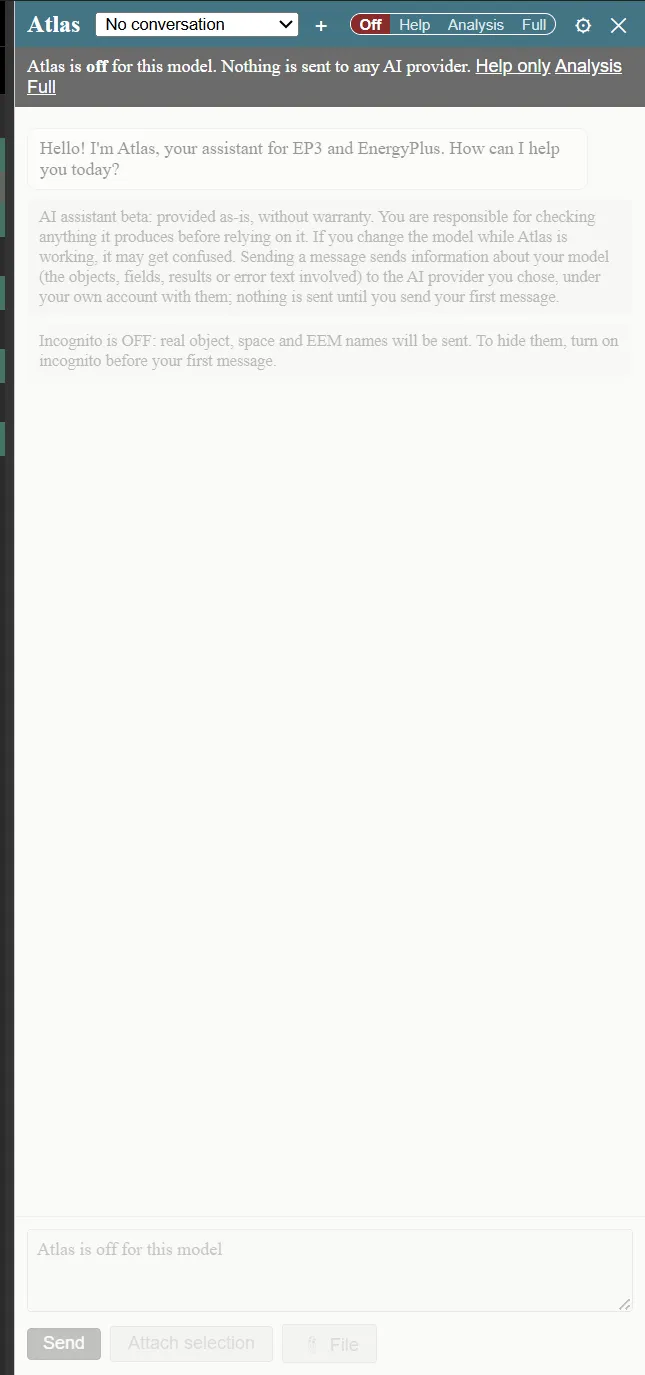
A new model starts at Off: the chat is greyed out and nothing is sent anywhere. The switch in the panel header sets what Atlas may do with this model, and it is saved in the model file:
- Off: nothing.
- Help: answers EP3 and EnergyPlus questions from the handbook and reads files you attach. It sees nothing of your model or results.
- Analysis: reads your model, simulations and results, and explains them. It proposes no changes and runs nothing.
- Full: everything at Analysis, plus proposing changes for you to review and asking to run simulations.
- Click the gear icon in the panel header to open AI Assistant Settings. Add a key for your provider, choose a model, or set up a local model. A saved key shows as “key saved”.
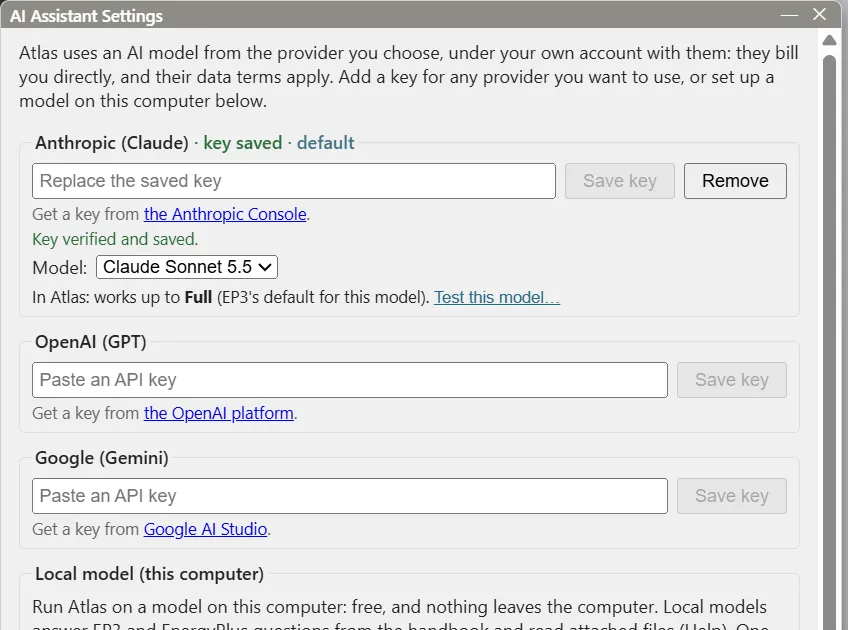
The line under the model says the highest level this model can work at. Current cloud models reach Full; local models start at Help.
Ask a Help question
- Click Help in the switch. A banner under the header says what Help can do.
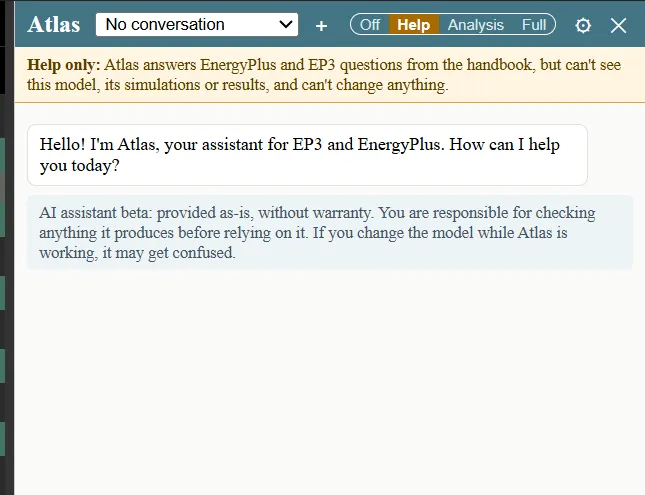
- Click the message box and type
How do I make an EEM that changes the lighting power density?. Press Enter.
Atlas lists the handbook pages it searched and read, then answers with the steps and the handbook section for each one.
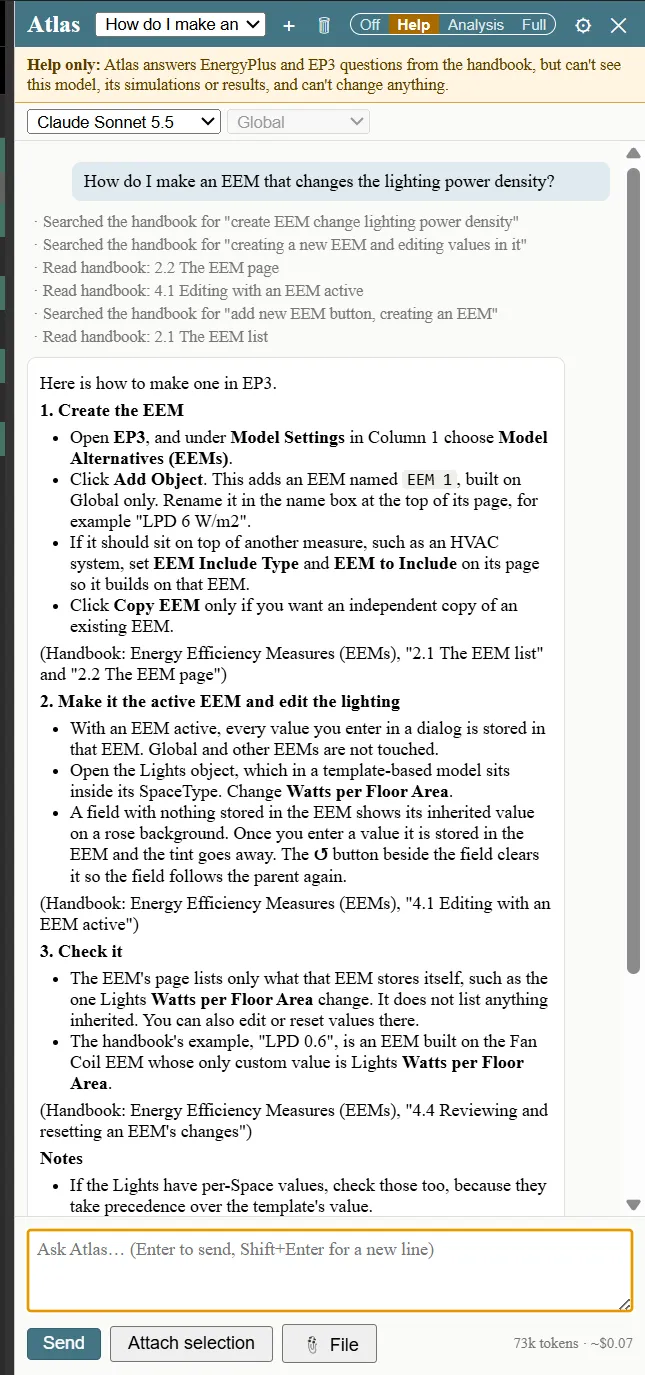
Tip: Help never sends anything about your model, so it suits questions about how EP3 works.
Have Atlas explain the results (Analysis)
- Click Analysis in the switch, then click + in the panel header to start a new conversation.
The opening messages say that nothing is sent until you send your first message, and whether incognito is on. Incognito hides your object, space and EEM names from the provider.
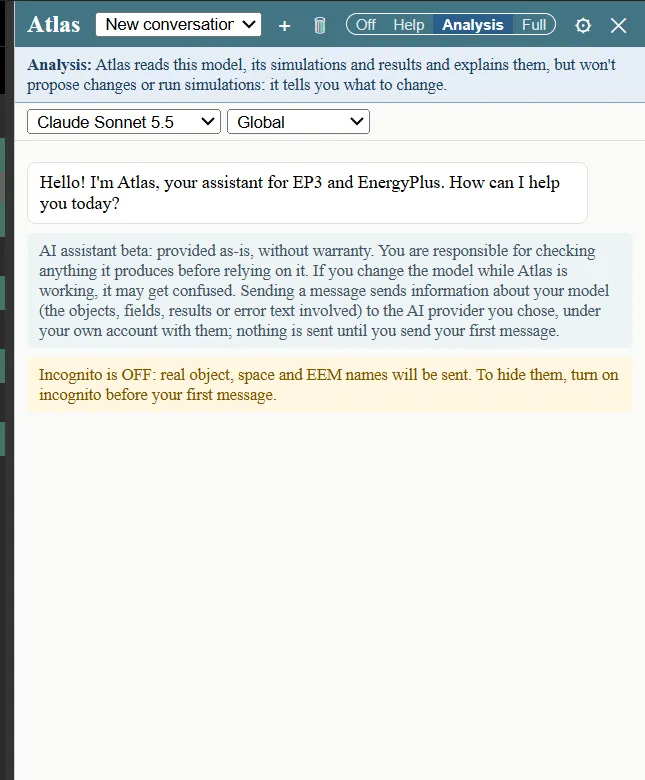
- Ask
Explain the results of the latest run in a few short paragraphs: where the energy goes, and why there are unmet hours, if any.
Atlas reads the run’s tables, errors and unmet hours analysis, and its reply covers both. For this model it reported about 101,500 kWh in total, with natural gas heating the largest use at 67,070 kWh and 34,440 kWh of electricity split between lighting, equipment, cooling and fans.
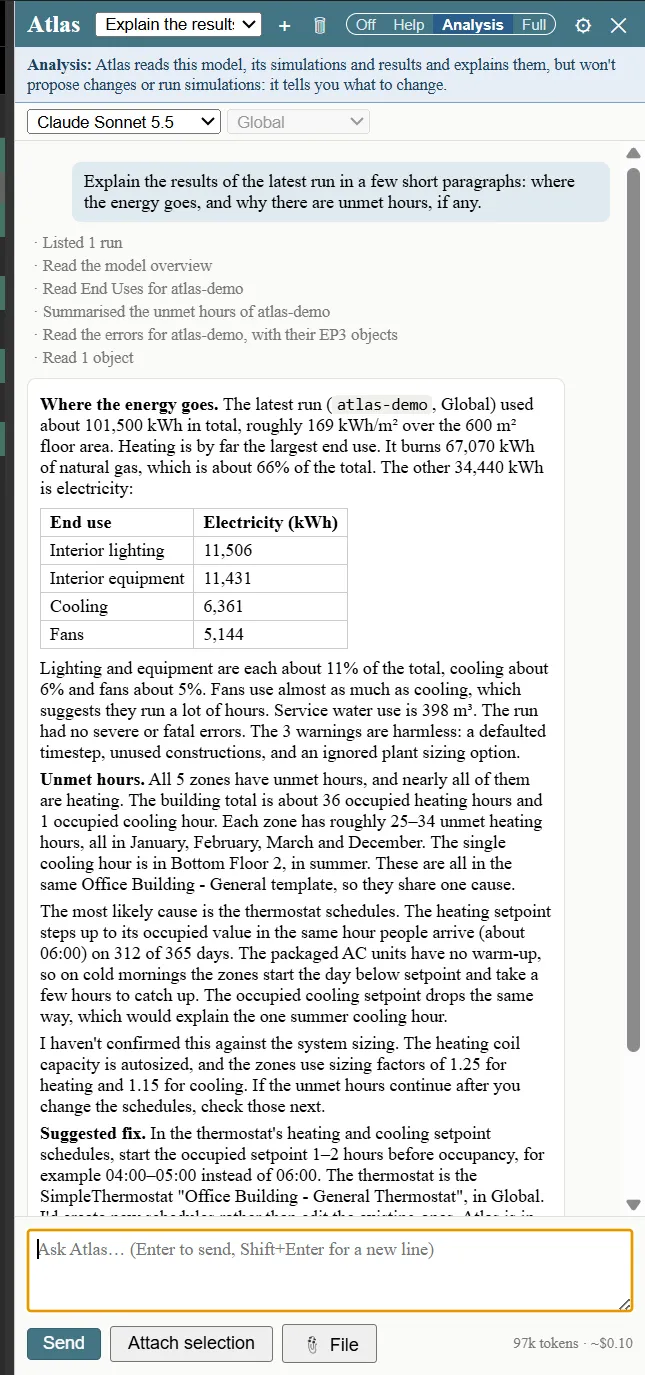
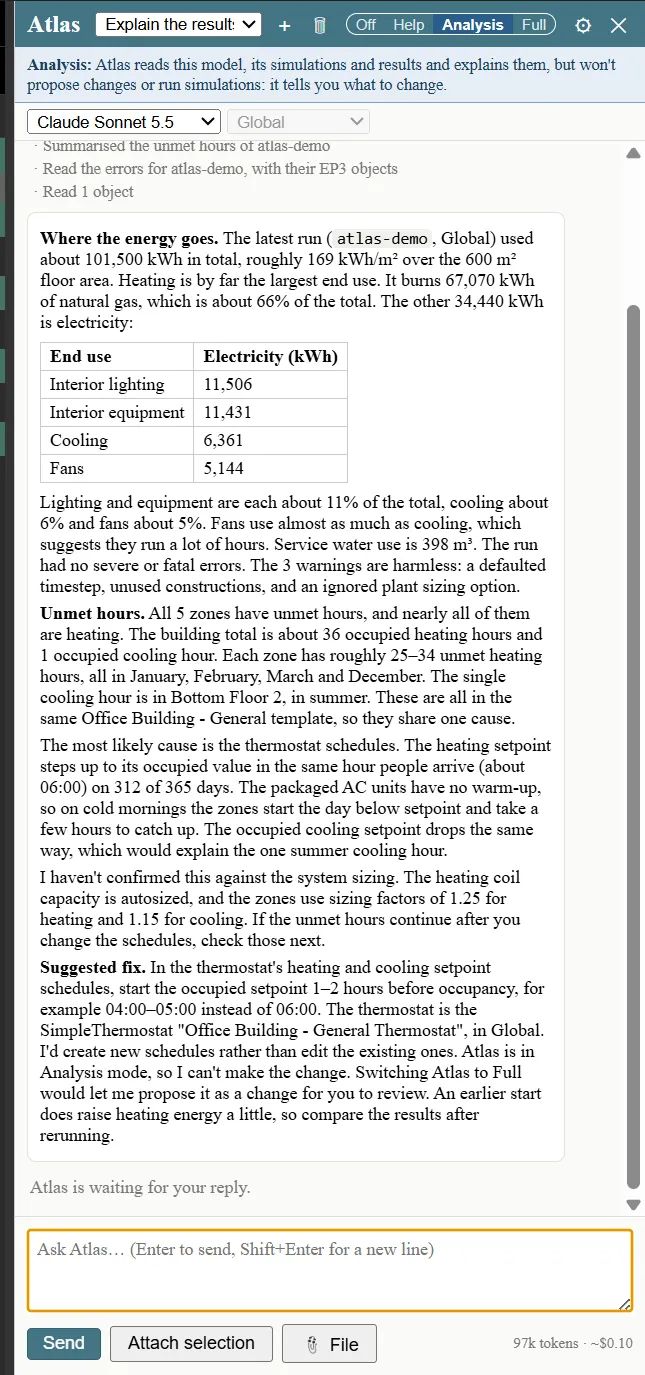
It then explains the unmet hours: about 36 occupied heating hours and 1 occupied cooling hour, concentrated on cold winter mornings. It points to the thermostat schedules as the likely cause and suggests starting the occupied setpoint an hour or two earlier. At Analysis, Atlas tells you what to change and does not change it.
Let Atlas propose an EEM and run it (Full)
- Click Full in the switch.
- Ask
Make an EEM called LPD 8 W/m2 that lowers the lighting power density of the office to 8 W/m2, then run it.
Atlas checks each request against the model before it proposes a change. The office’s lighting power density (LPD) is already 6.58 W/m², so 8 W/m² would raise it. Atlas stops and asks which you want instead of making the change.
- Reply
Use 5 W/m2 and call the EEM LPD 5 W/m2. Please propose it and run it.
Atlas shows a proposal card. It names the target (“a new EEM”, built on Global), the object and field it changes, the value now and the proposed value.
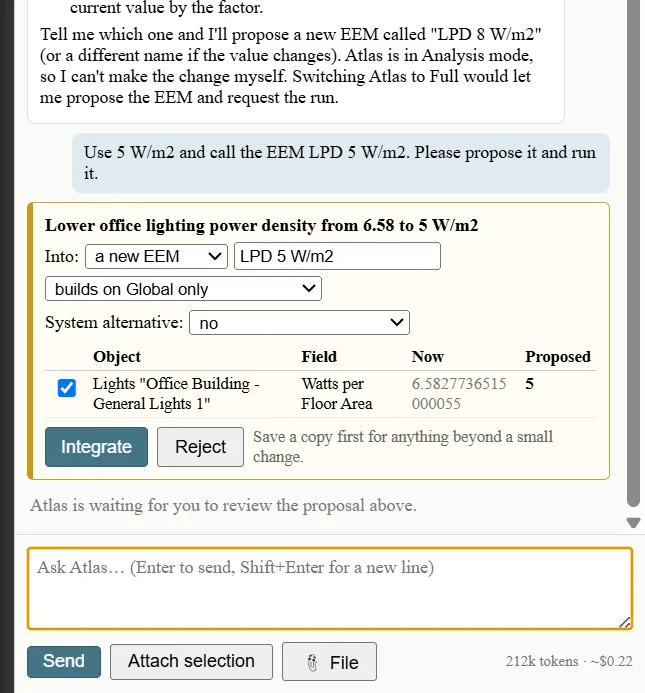
Nothing changes until you decide. You can untick a row, change the EEM name or choose another target before integrating.
- Click Integrate. The card changes to “Integrated. Undo reverts all of it in one step.” Ctrl+Z undoes the whole proposal.
Atlas then asks to simulate the new EEM. EP3 always asks before it runs EnergyPlus for Atlas.
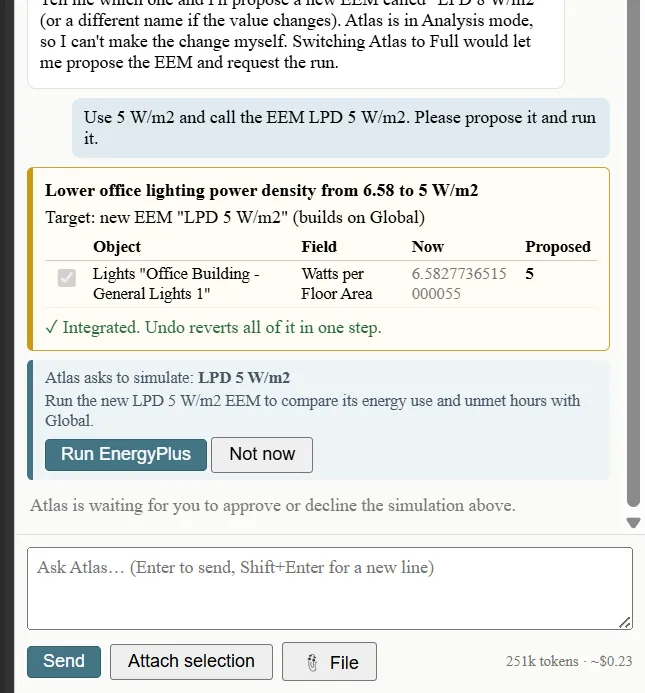
- Click Run EnergyPlus and choose your project folder when EP3 asks for the run folder.
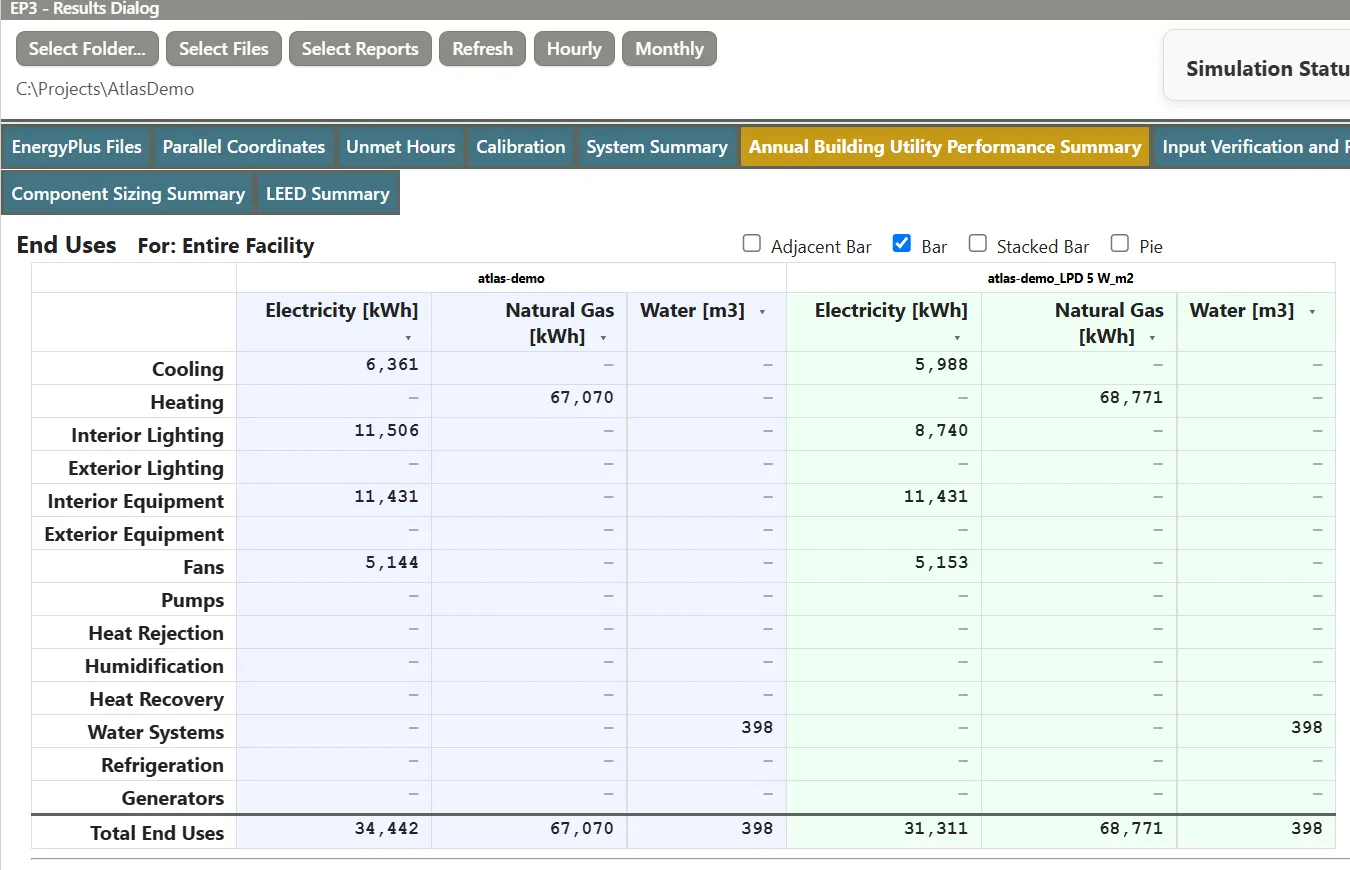
When the run finishes, the card reports it completed with 0 fatal and 0 severe errors. Atlas compares the two runs, summarises the new run’s unmet hours and opens the Results dialog on the End Uses table with both runs side by side.
Compare the results
The End Uses table shows atlas-demo (Global) next to atlas-demo_LPD 5 W_m2:
- Interior lighting electricity falls from 11,506 kWh to 8,740 kWh.
- Total electricity falls from 34,442 kWh to 31,311 kWh.
- Natural gas for heating rises from 67,070 kWh to 68,771 kWh, because the lights give off less heat in winter.
- Close the Results dialog.
Attach a file
You can give Atlas files to read: PDFs, spreadsheets, CSV files, IDF and epJSON files, EnergyPlus outputs, weather files and images. The spreadsheet for this step is a lighting controls submittal with weekday, Saturday and Sunday lighting fractions for each hour.
- Click 📎 File, below the message box, and choose
lighting-controls-submittal.xlsx. You can also drag the file onto the chat.
The file appears as a chip above the message box and stays attached for the rest of the conversation. Click its × to remove it.
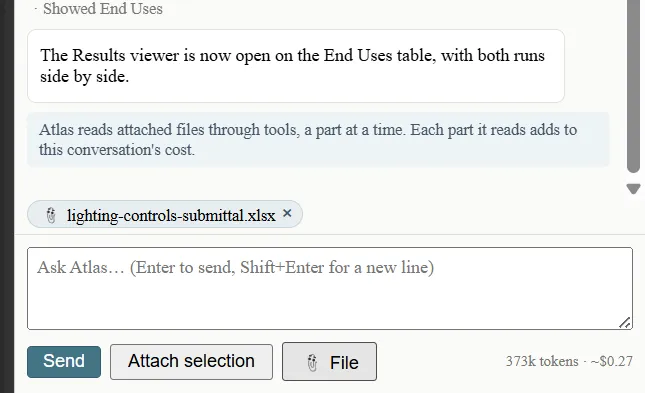
- Ask
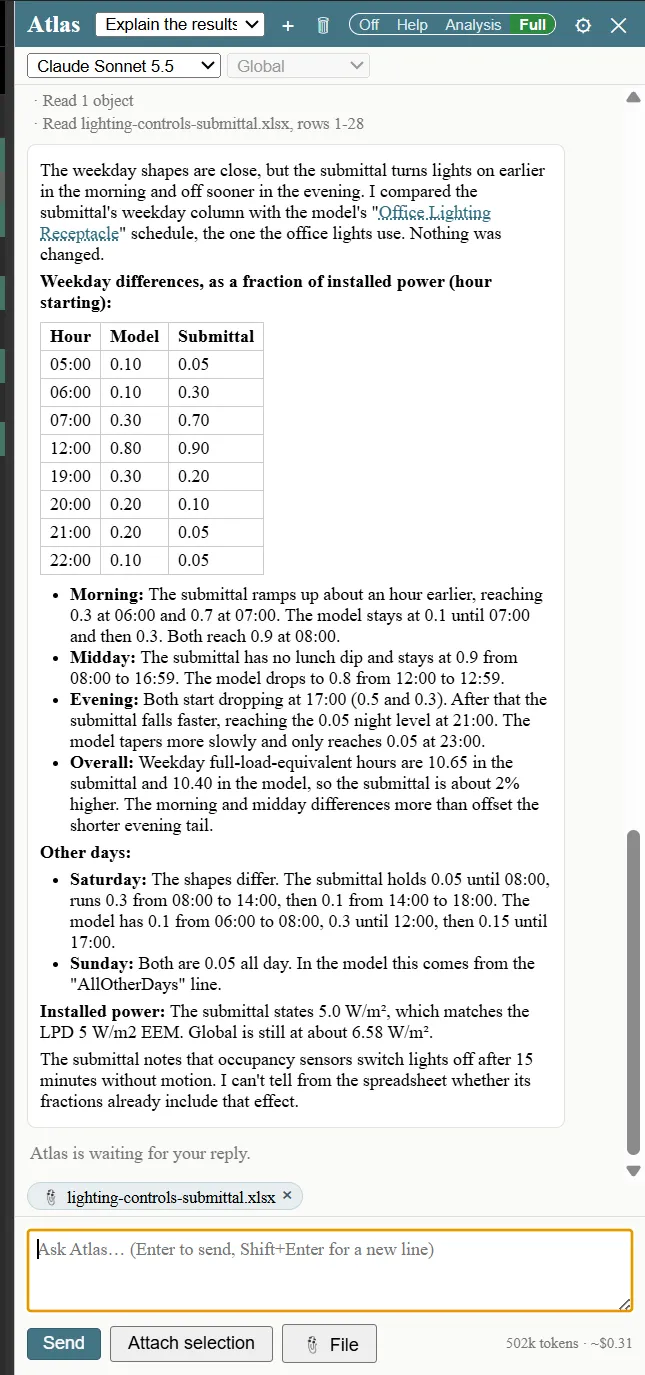
Read the attached spreadsheet and compare its weekday lighting fractions with the lighting schedule in the model. Just tell me the main differences; don't change anything.
Atlas reads the sheet’s rows, finds the model’s lighting schedule and answers with a table of the hours that differ. The submittal ramps up an hour earlier, has no lunch dip and drops faster in the evening. Atlas also notes that the submittal’s 5.0 W/m² installed power matches the EEM you made earlier.
Important: On a cloud model, the provider sees an attached file’s name and contents, even when incognito is on. Attaching a file counts as permission to send it. A local model keeps the file on your computer.
Atlas reads only the rows or pages it needs, so you pay only for the parts of a long file it reads. EP3 remembers which files you attached but does not store the files. If you move or edit one, Atlas asks you to attach it again.
Start a conversation from an object
The AI button in a dialog’s title bar opens Atlas with a conversation about that dialog’s object.
- In the HVAC Outliner on the right, double-click PSZ-AC under ZoneHVAC to open its Selected Object dialog.
- Click the small AI button in the dialog’s title bar.
Because a conversation is already under way, Atlas asks whether to add the object to it or start a new one.
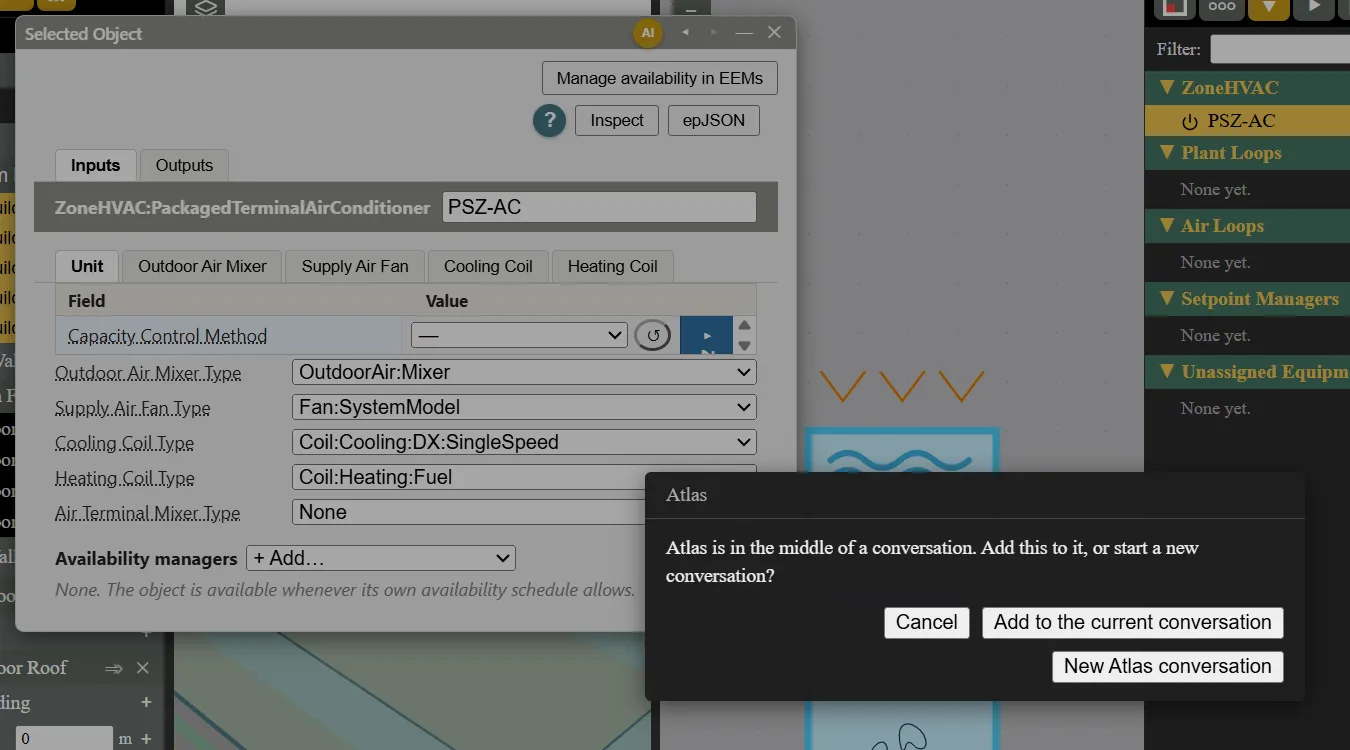
- Click New Atlas conversation.
The new conversation lists the object above the message box: ZoneHVAC:PackagedTerminalAirConditioner: PSZ-AC. It is sent in full with your next message, and nothing is sent before then.
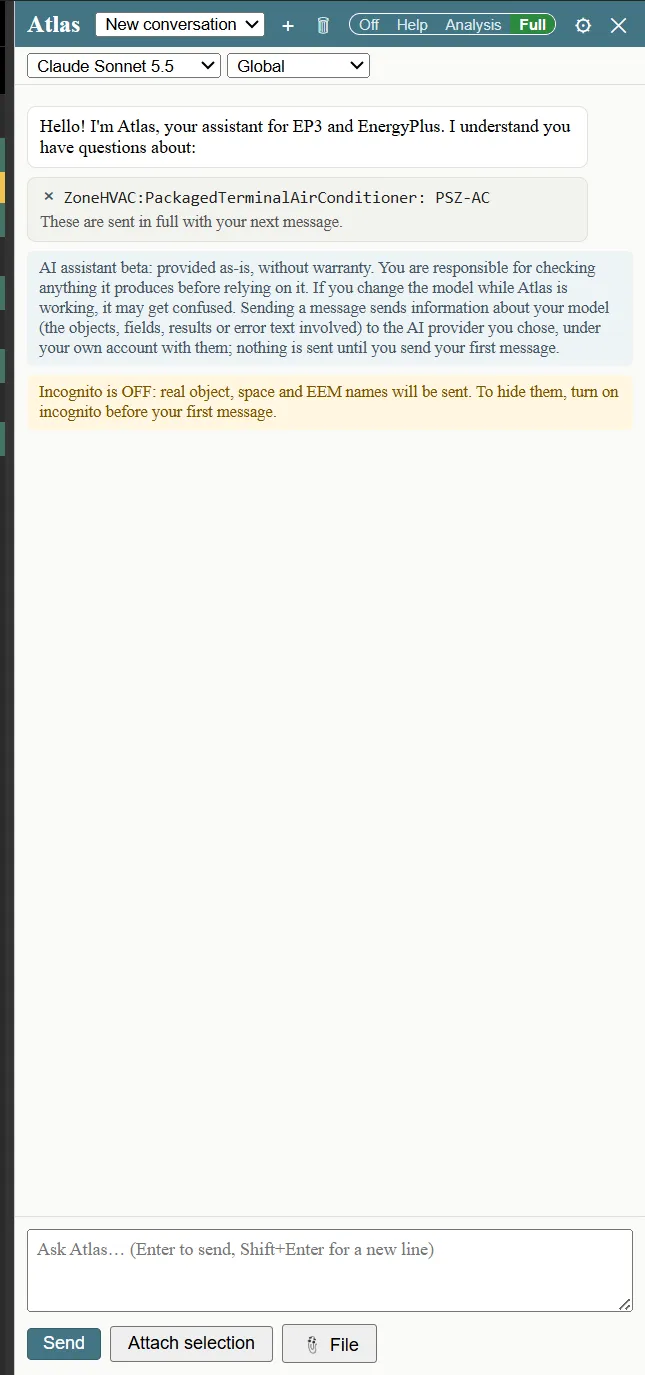
Continue with a question such as What do the fan and coils in this unit do?. Attach selection, below the message box, adds whatever is selected in EP3 to your next message.
Tip: Conversations are saved beside the model in a file named like the model with the extension
.ep3chat. Pick an earlier conversation from the list in the panel header. The line at the bottom of the chat shows the tokens used and an estimate of the cost.
Next steps
- The EP3 AI Assistant chapter covers access levels, local models, incognito, troubleshooting simulation errors and unmet hours with Atlas, and the usage log.
- Energy Efficiency Measures (EEMs) explains the EEM you created here, how to review what it changes and how to build on it.
- Viewing and Interpreting Results explains the End Uses table and the Unmet Hours tab.